(For general information about Prompts, see How Prompts work)
Where to Find Prompts
Students find Prompts in Prompts section near the top of the Home or Group feed.
In the Home Feed, all open Prompts are shown from all Groups the learner is in.
In a Group feed, only open Prompts shared with the group are shown.
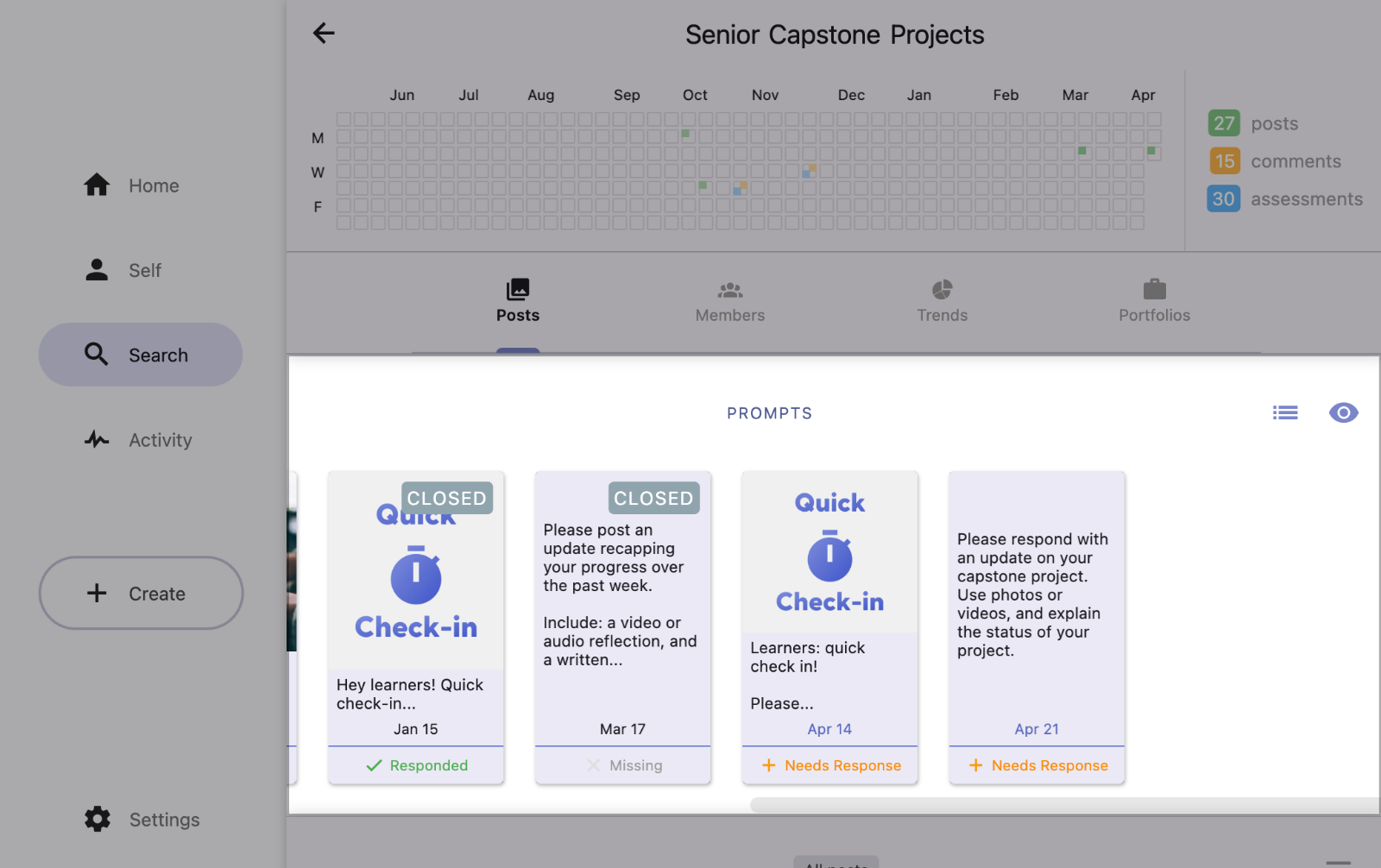
For each Prompt, the due date (if any) and an indication of whether the student has responded to the Prompt are shown. Open Prompts will show ‘+ Needs Response’.
How to Respond to Prompts
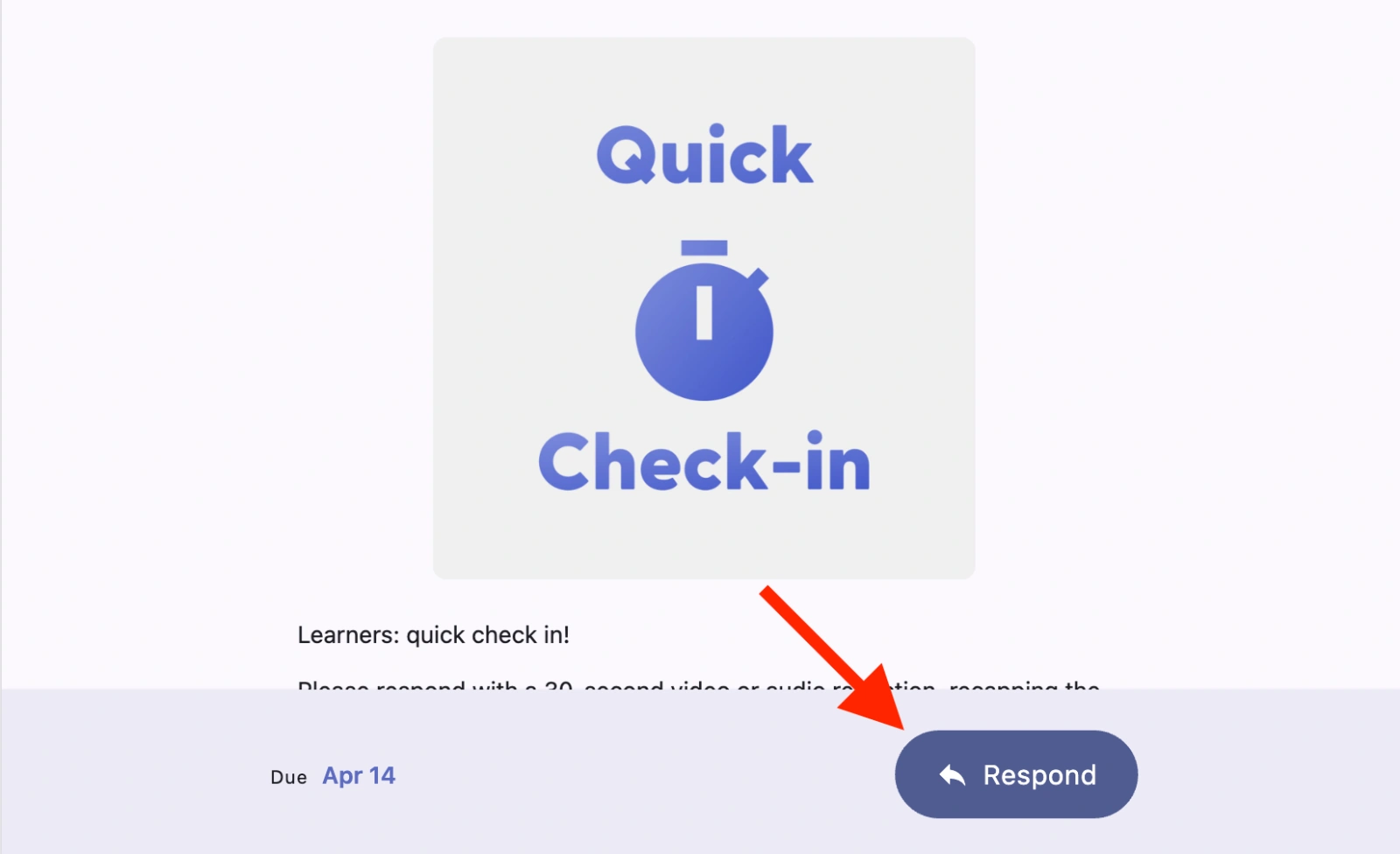
1. Students tap the Prompt they'd like to respond to and the tap the ‘Respond’ button.
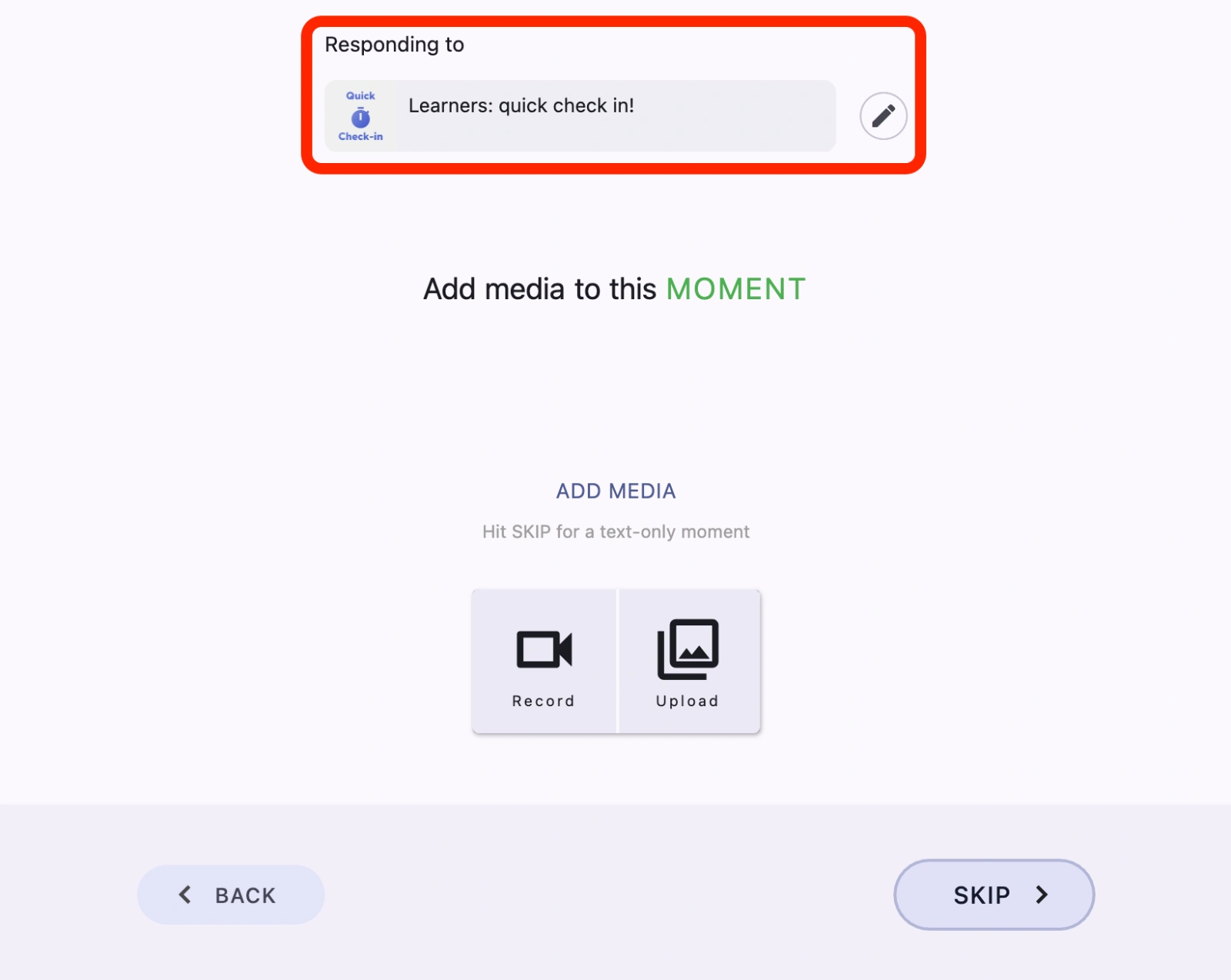
2. Students create their response using the normal post creation process (see How to Create a Post in the Unrulr App). Responses can be either Moments or Journeys.
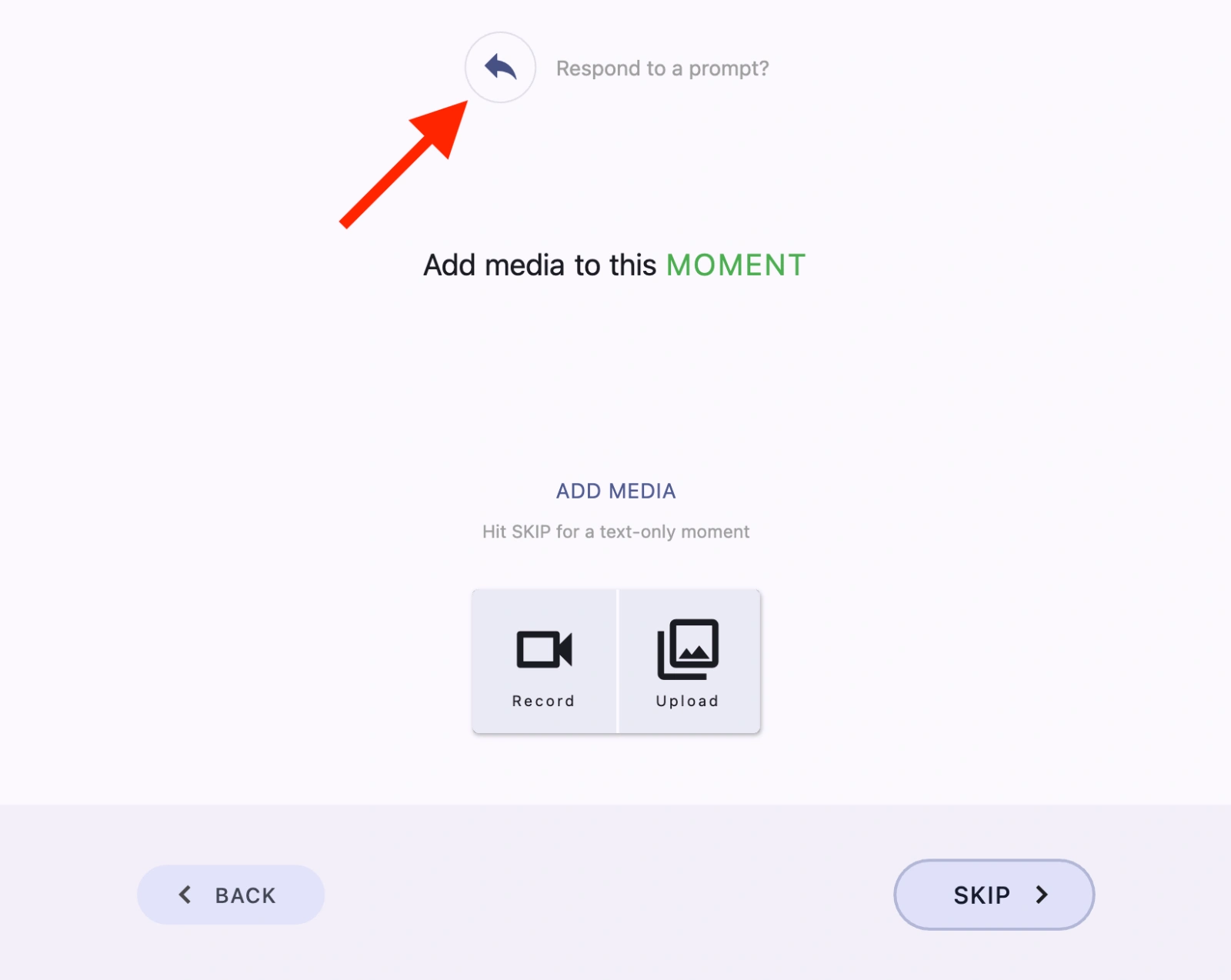
Students can also choose an open Prompt to respond in the post creator by tapping ‘Respond to a prompt?’.