If you already have your class roster set up in Google Classroom, you can easily import it into Unrulr. In addition, updates to your Google Classroom roster will automatically be synced with your Unrulr class going forward.
If this is your first time setting up Unrulr at your school as part of the Unrulr sign-up process:
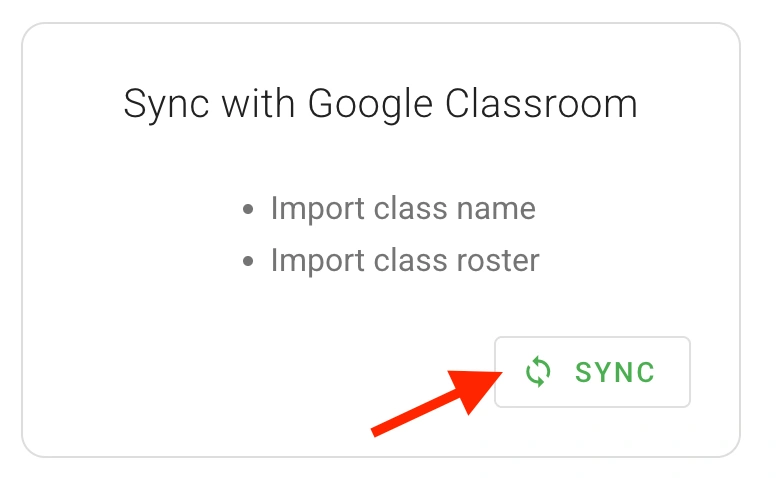
Click the green Sync button when you reach that step in the process.
If prompted, choose the Google Account you use in Google Classroom and give Unrulr to access to your Google Classroom classes.
Choose the Google Classroom class you want to import.
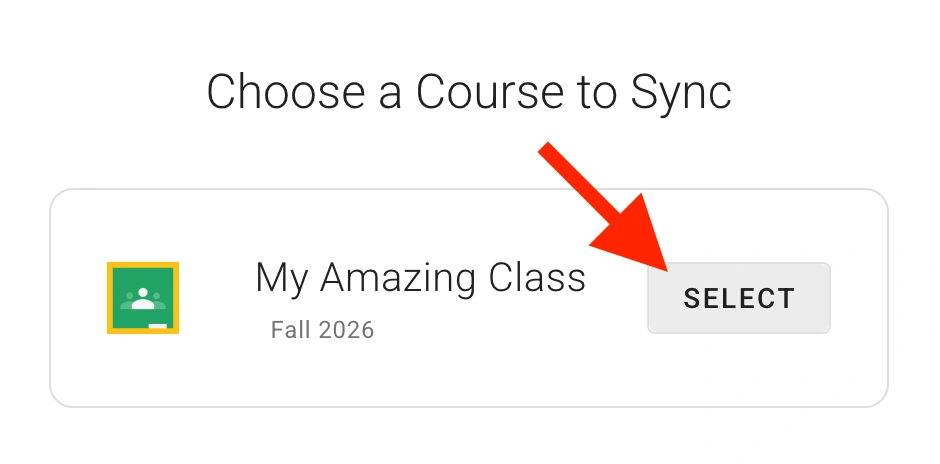
Continue the setup process, and you will see your class roster displayed for review in the last step. Finish the setup process to finalize the import.
If you or someone else has at your school has already been using Unrulr and you are setting up a new class:
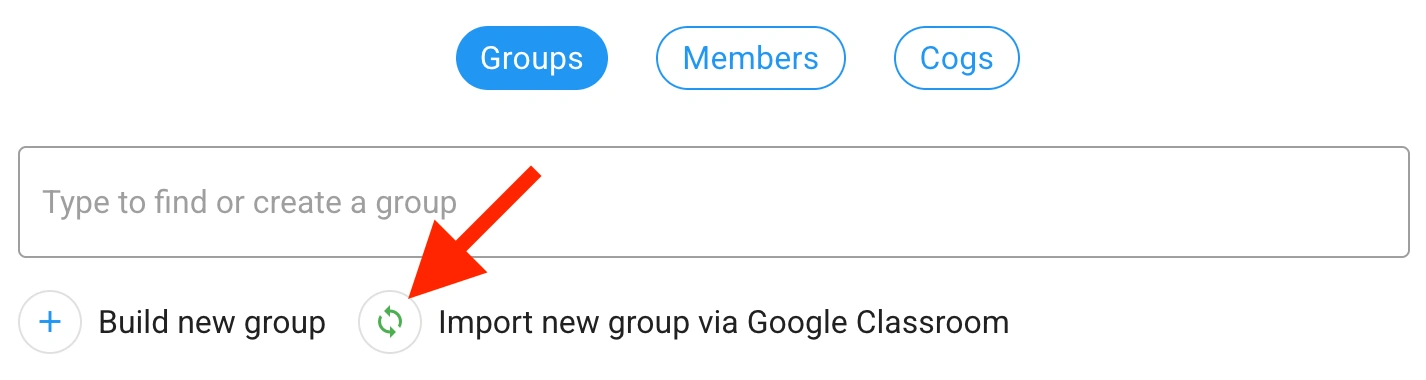
Click the green button next to "Import new group via Google Classroom" to start the process.
If prompted, choose the Google Account you use in Google Classroom and give Unrulr to access your Google Classroom classes.
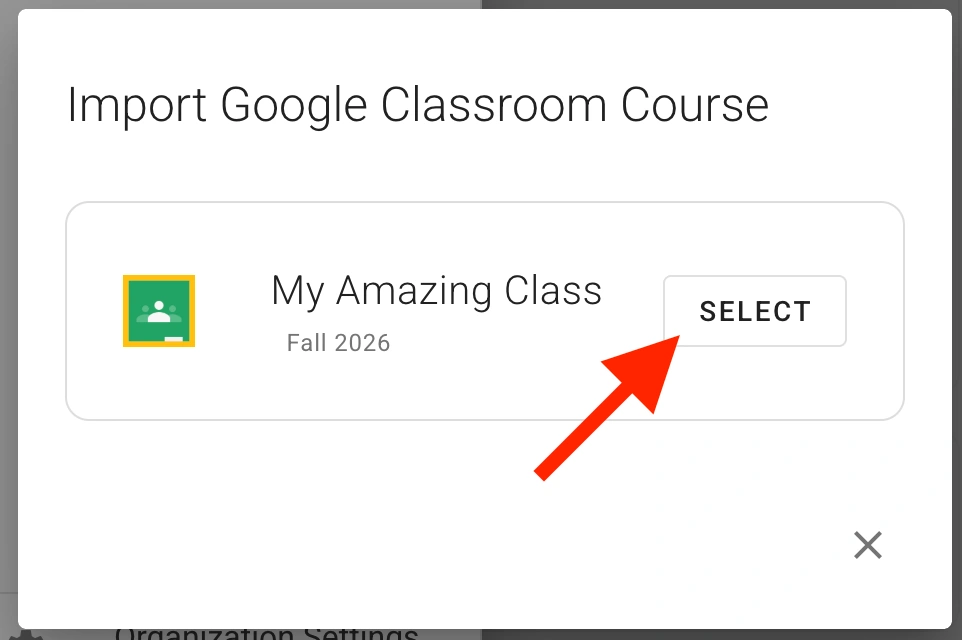
Choose the Google Classroom class you want to import.
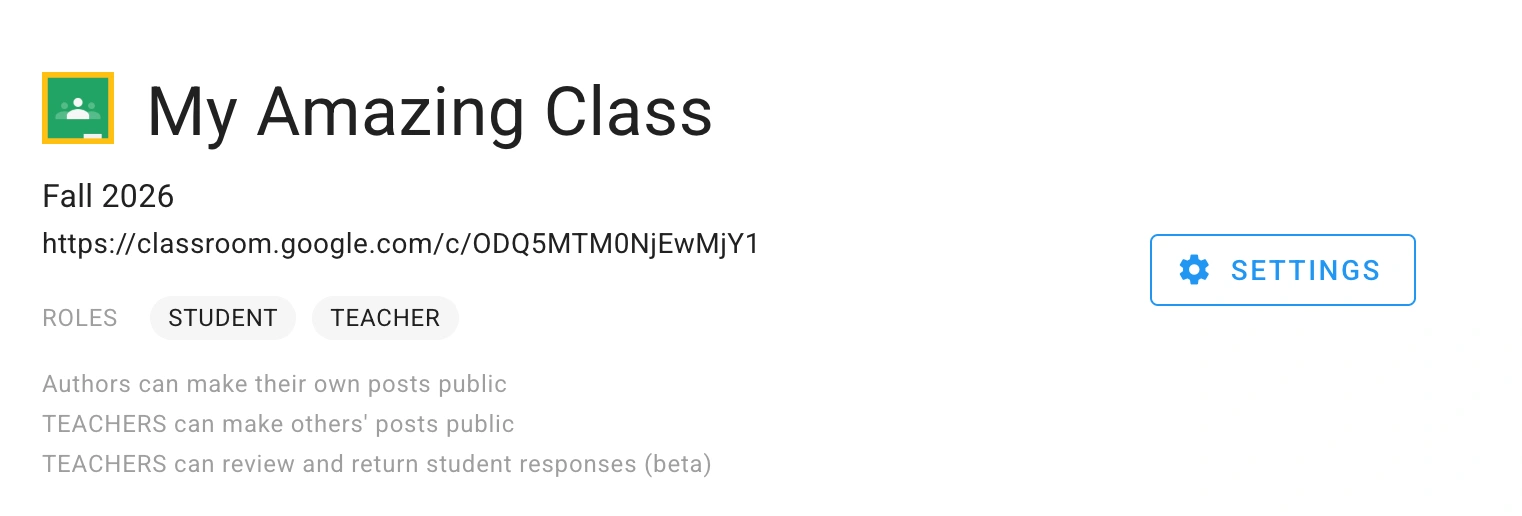
Your Google Classroom will now show up as an Unrulr group in your organization!
Important notes:
Unrulr groups that are synced with Google Classroom can be updated by editing the roster in Google Classroom. You can't make edits to the roster directly in Unrulr.
When you sync a Google Classroom class, you have the option to sync Prompts and responses to Google Classroom from Unrulr. To turn this on, follow the steps in: How to Sync Prompts and Responses with Google Classroom.
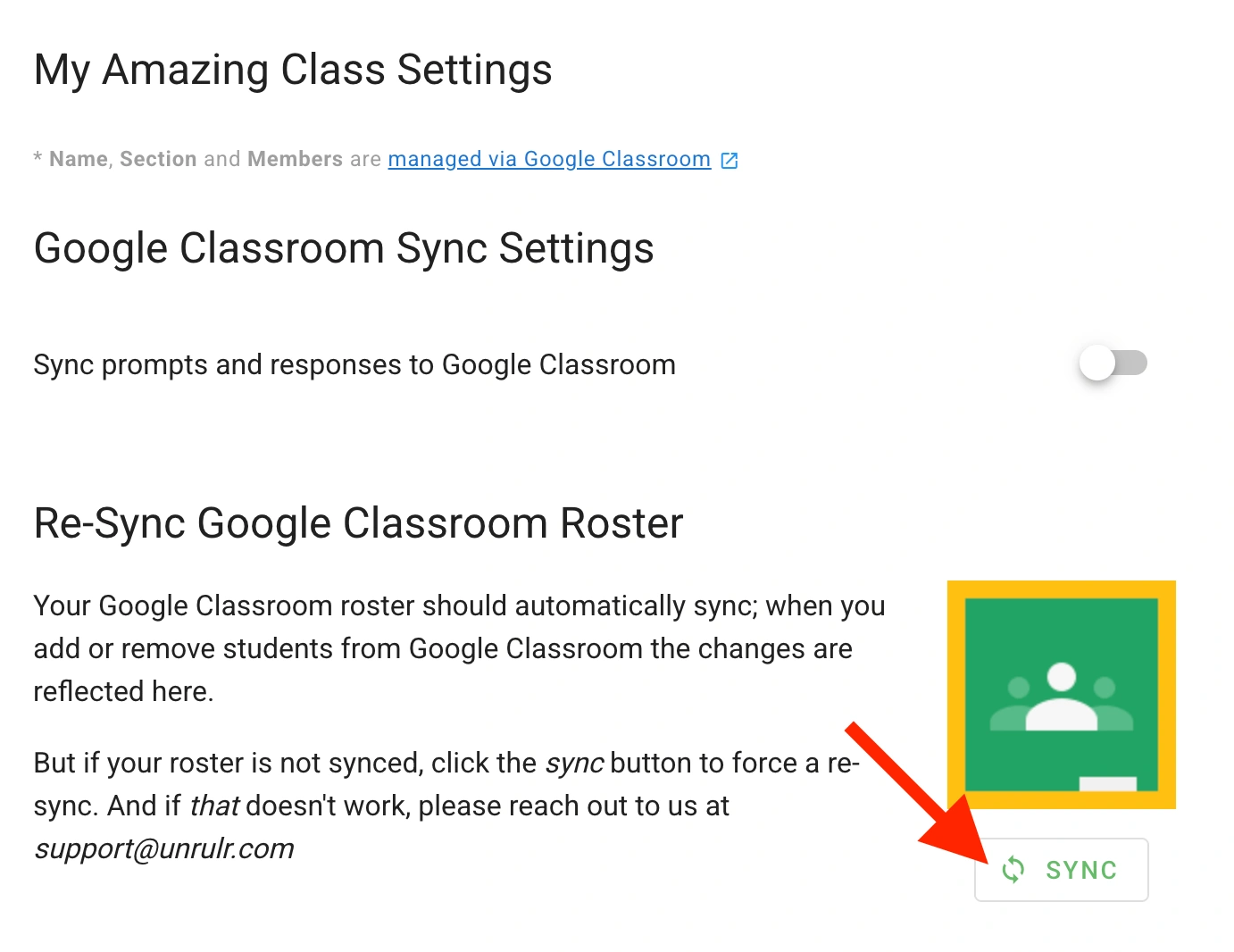
Periodically, you may find your Unrulr class failing to sync roster updates from Google Classroom. In that case, follow these steps:
Go to the Group in admin.unrulr.com.
Click the ‘Settings’ button in the upper right
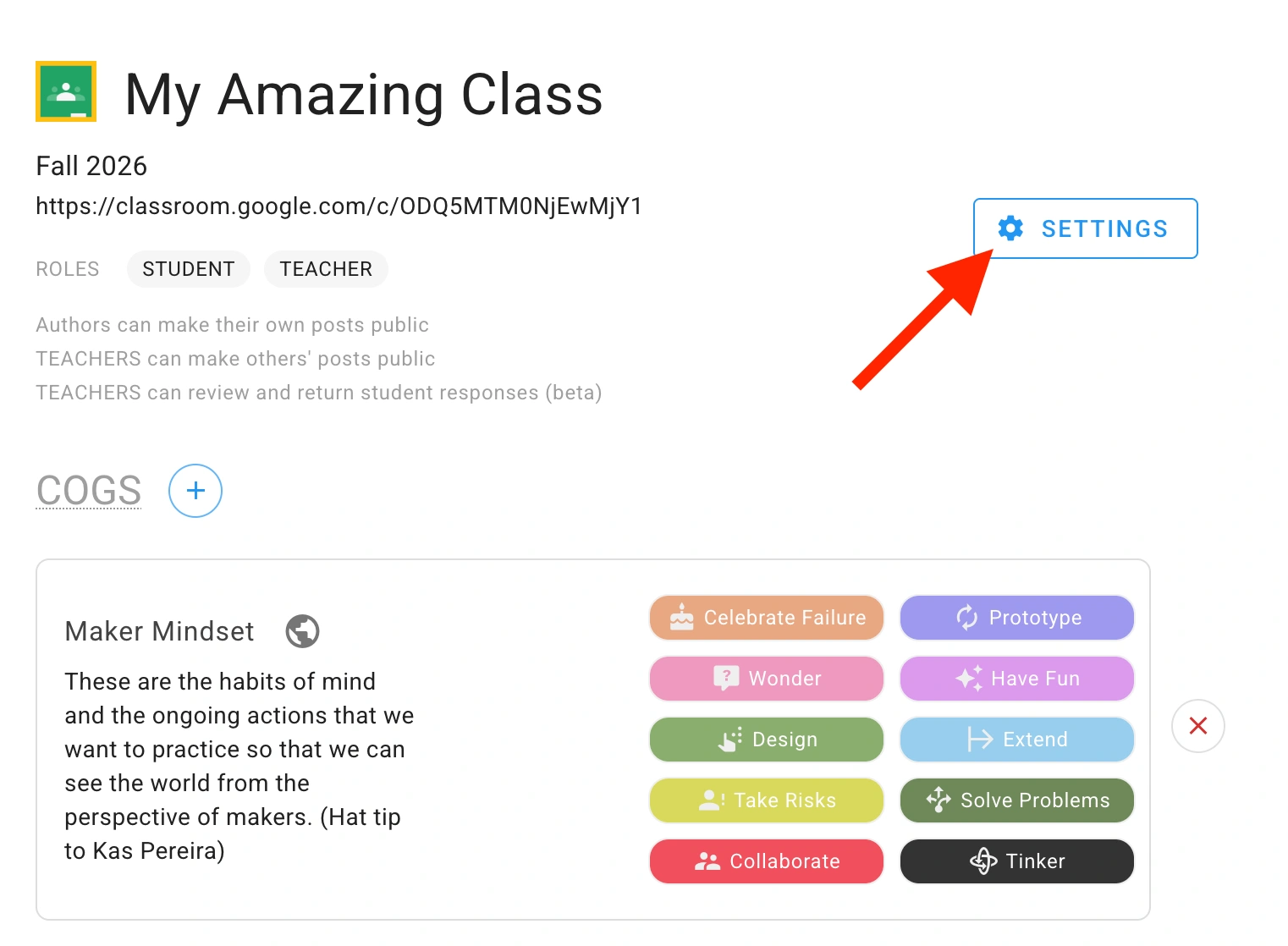
Click the green SYNC button to the right of the "Re-Sync Classroom Roster" explanation.