When you create a new group via Google Classroom, you can set up automatic syncing for the Prompts you share with the group so that they show up as assignments in Google Classroom.
Changes you make to the prompt will also be synced to the corresponding assignment in Google Classroom.
Step-by-step:
Create a new Unrulr group using the "Import new group via Google Classroom" function if you haven't already. (Or, if you are setting up Unrulr for the first time at your school, use the "Sync with Google Classroom" button to create your first class.)
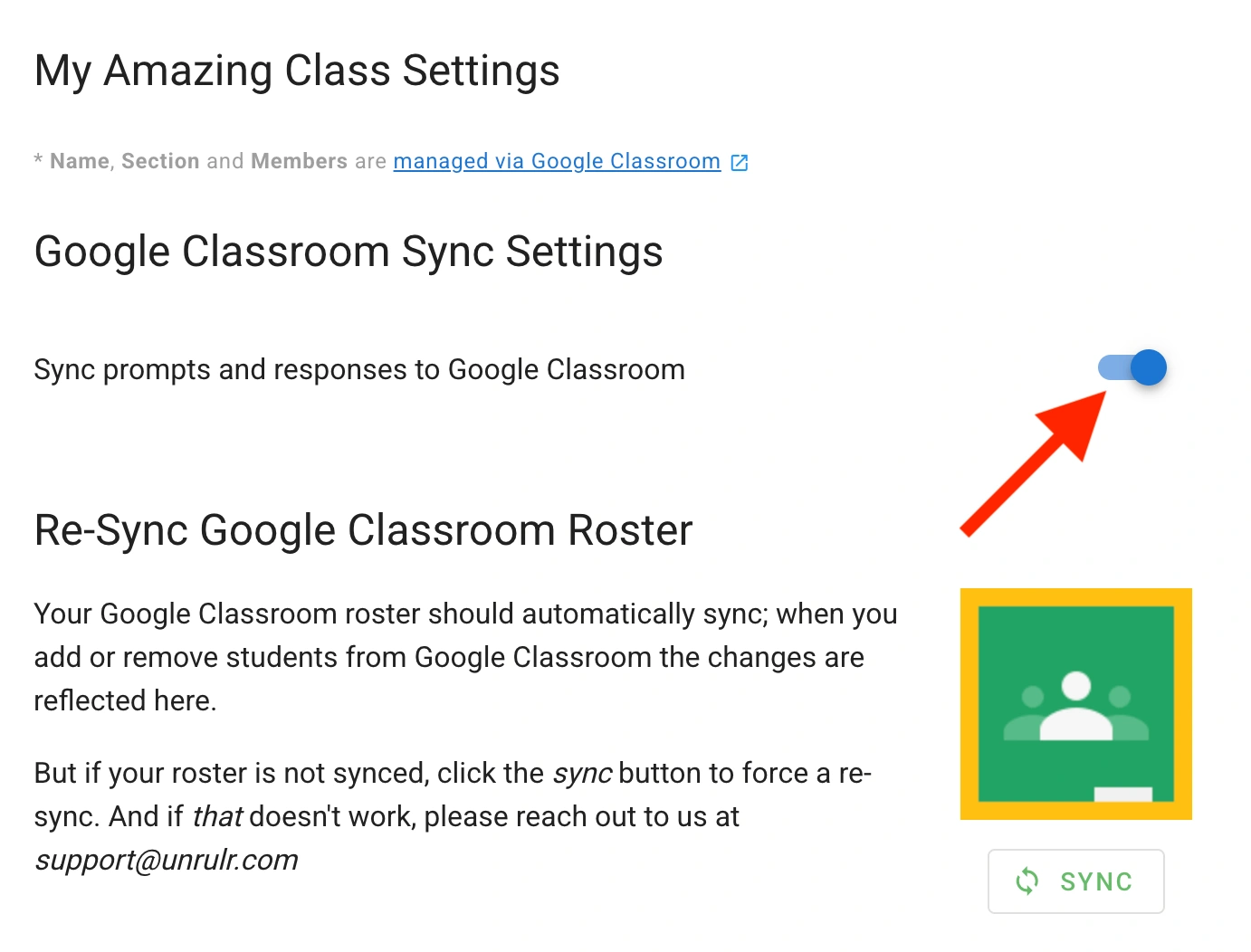
Turn on automatic syncing in the Group Settings in the admin dashboard by turning on the toggle next to "Sync prompts and responses to Google Classroom”. Click ‘SAVE’.
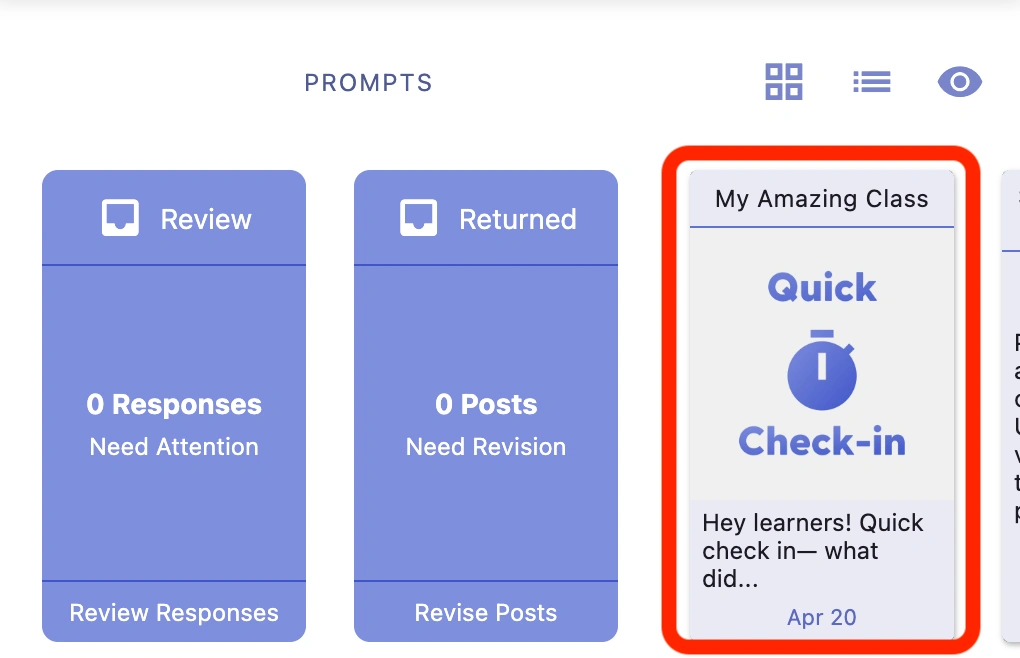
Create a Prompt in Unrulr and share it with the group. After you create the Prompt, you'll see it in the Prompts section in Unrulr.
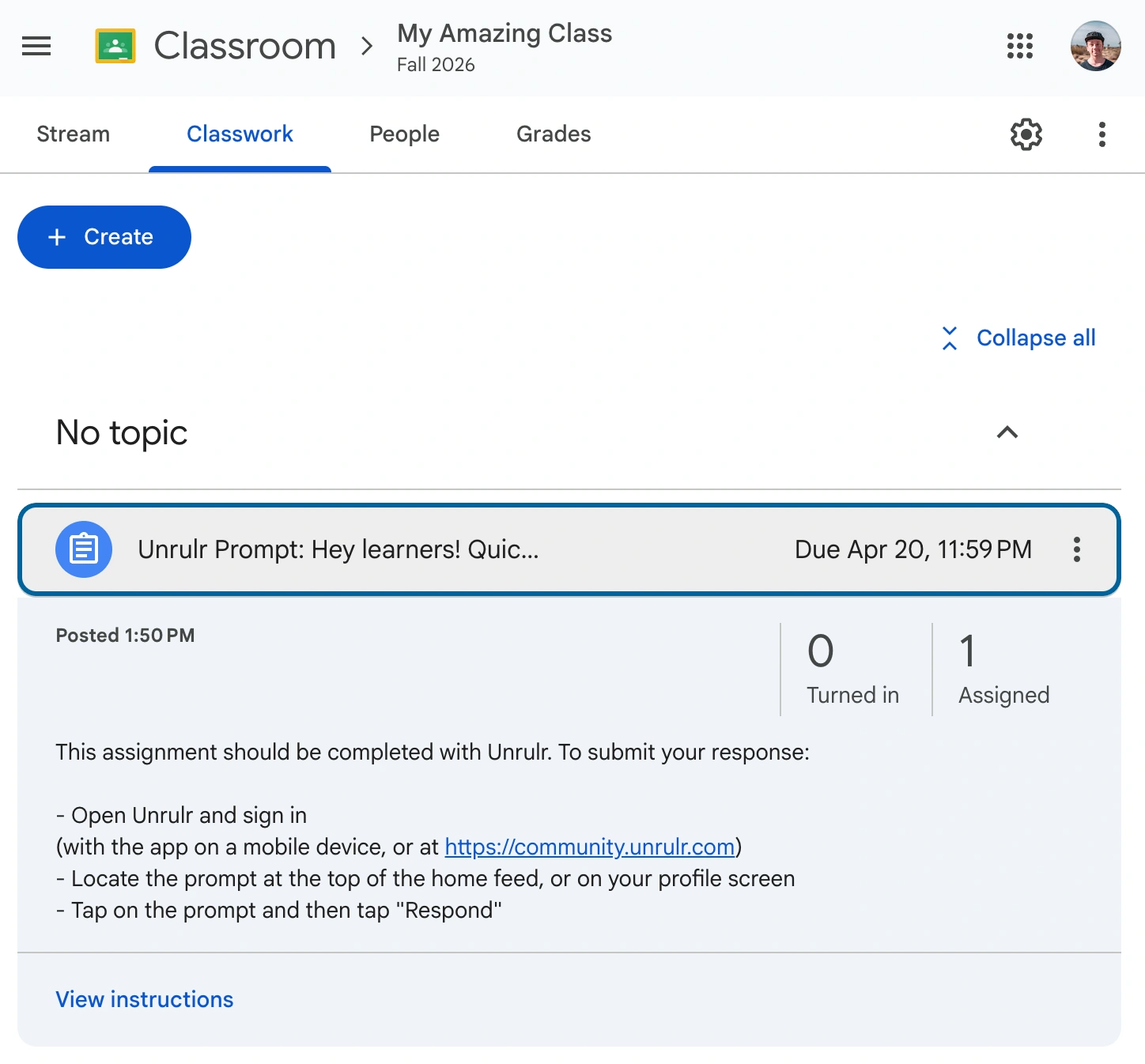
Go to Google Classroom and see that a corresponding assignment has been automatically created!
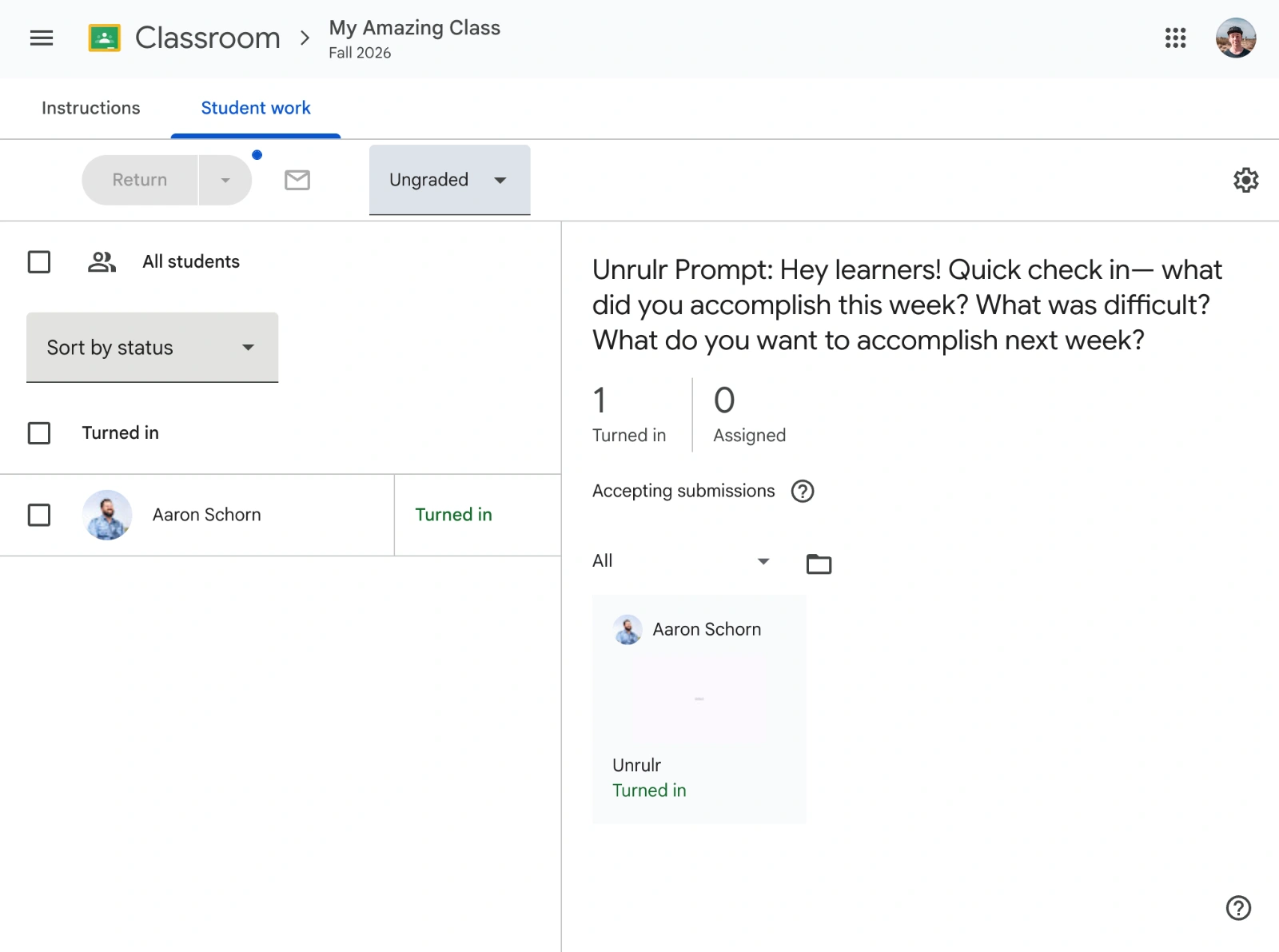
Responses sync, too!
When a student responds to a synced Prompt in Unrulr, their response is automatically submitted to the corresponding assignment in Google Classroom.
Step-by-step:
A student responds to a Prompt in Unrulr. (The first time, make sure the student accepts the Google permission request.)
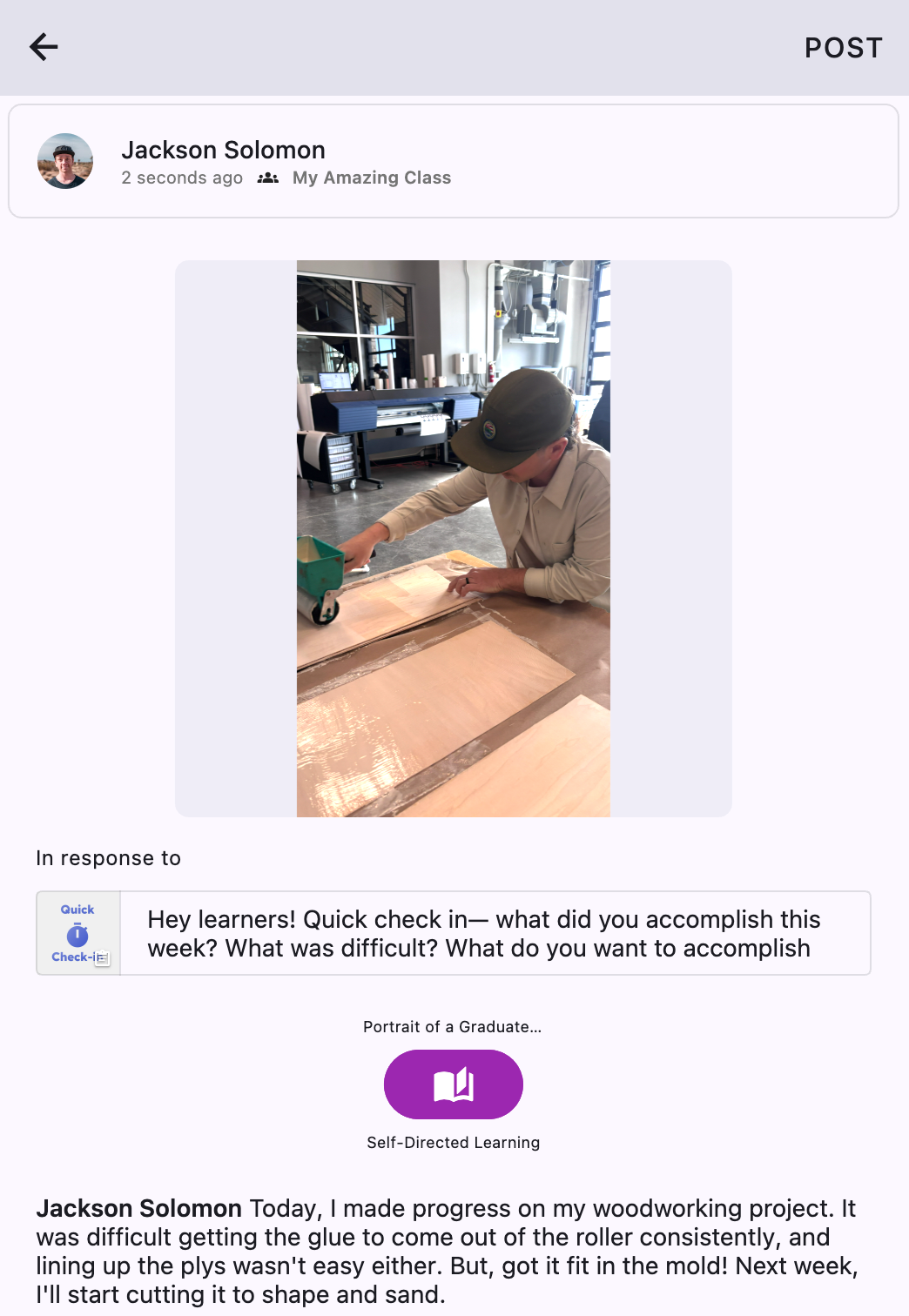
The response is automatically submitted in Google Classroom to the corresponding assignment.