
(For general information about Prompts, see How do Prompts work)
There are several ways to see and track student responses to Prompts:
View all responses to a single Prompt.
View a particular student's responses to all Prompts.
View a grid of all students and which Prompts they have responded to.
View All Responses to a Single Prompt
Find the Prompts section near the top of the Home or a Group feed.
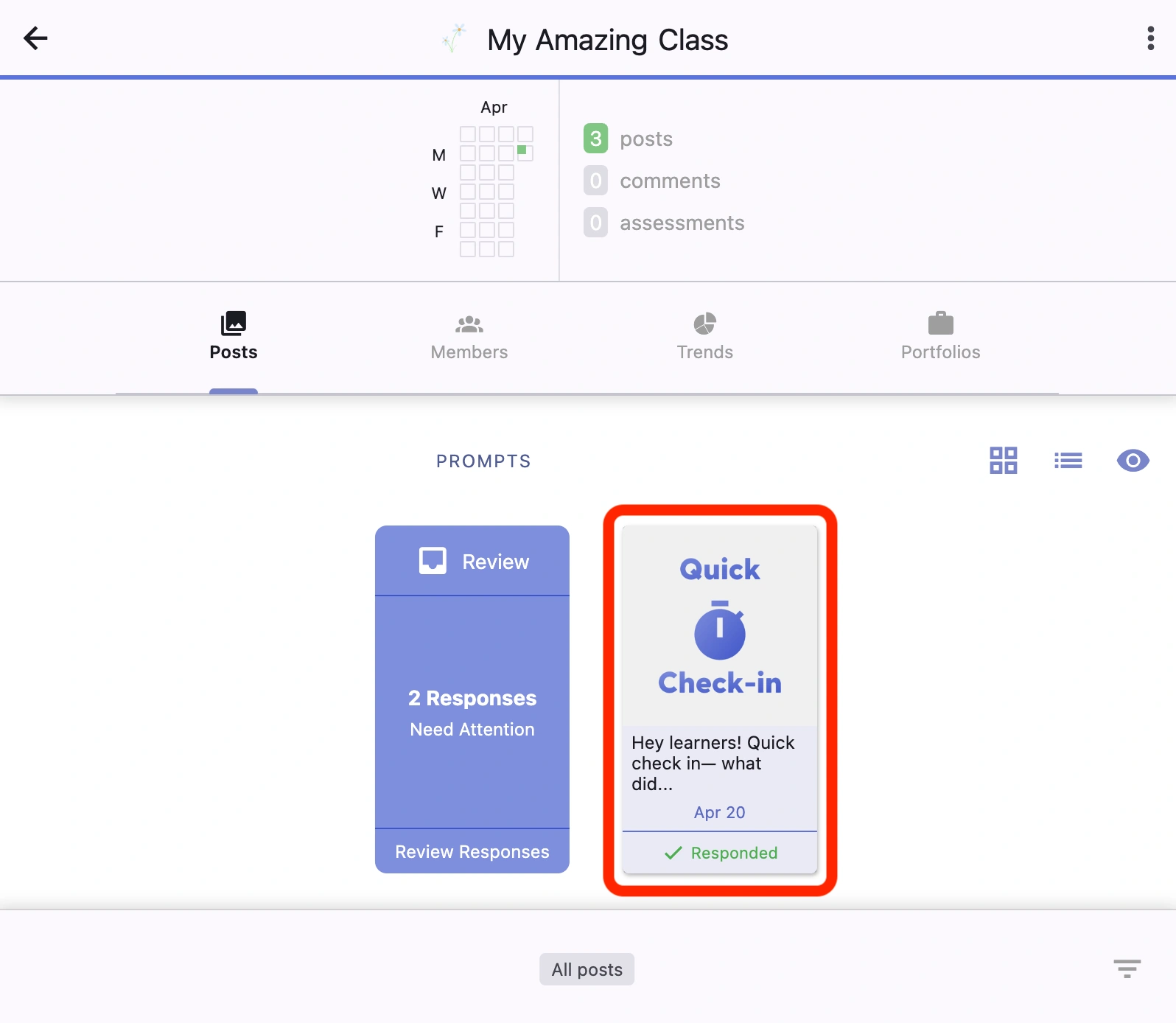
Tap or click on the Prompt you'd like to see responses for.
Scroll down to see the list of all responses and all comments on responses.
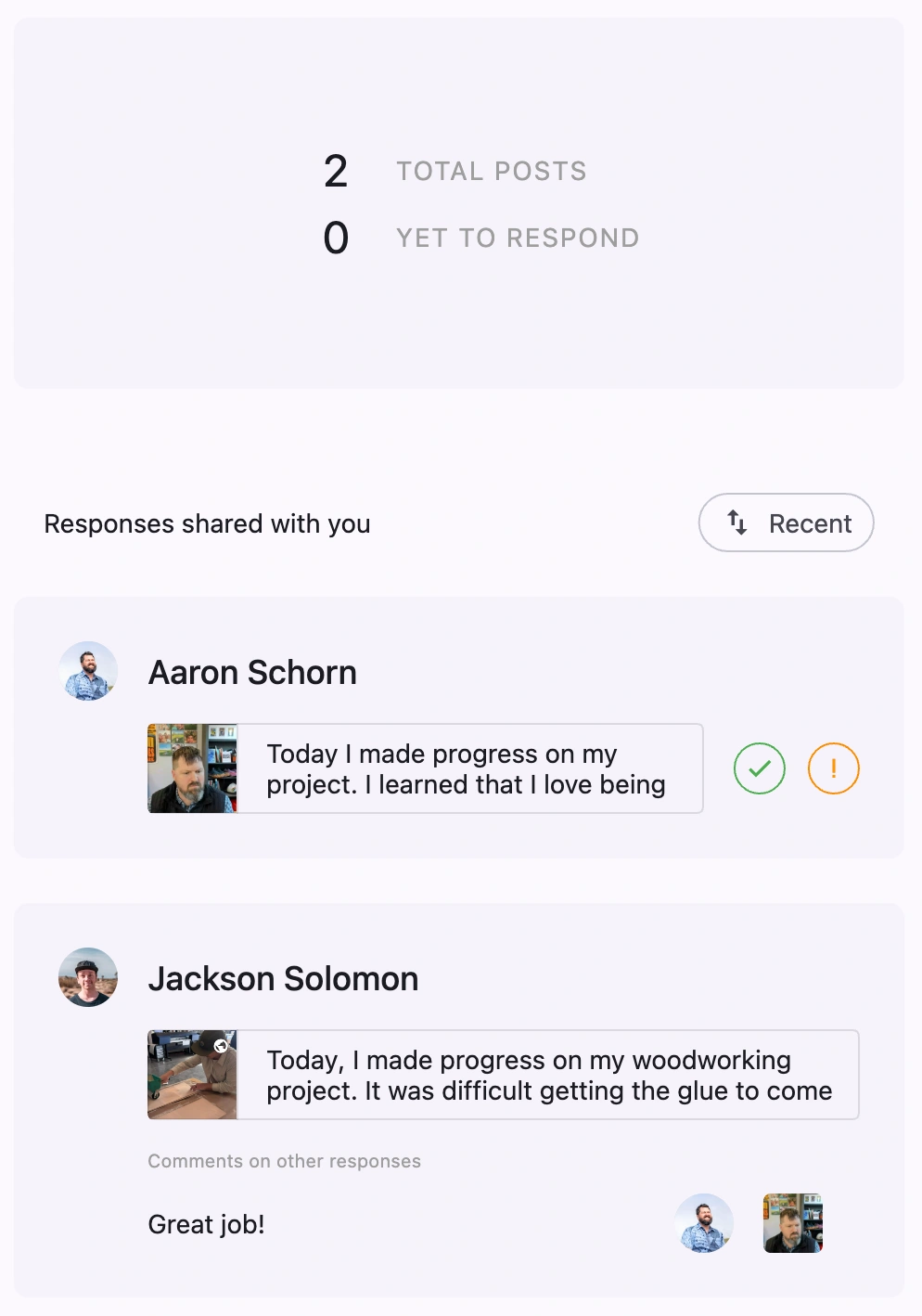
View a Particular Student's Responses to All Prompts
Navigate the student's profile page. (See How to See Information Related to a Particular Student)
Prompts assigned to the student are displayed in the Prompts section.
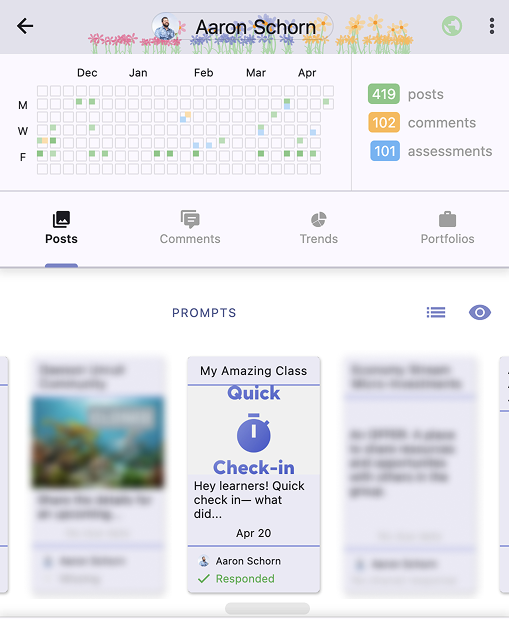
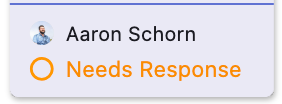
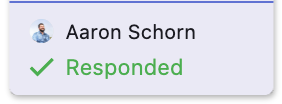
For each Prompt, the student's response status is displayed (‘Needs Response’ or ‘Responded’).
or
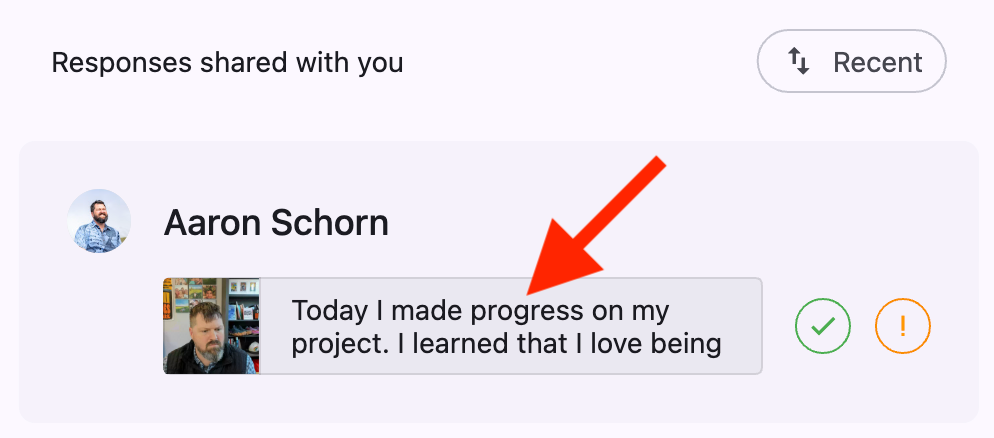
To see the student's responses to a Prompt, tap/click the Prompt and tap/click the student’s response.
View a Grid of All Students and Which Prompts They Have Responded to
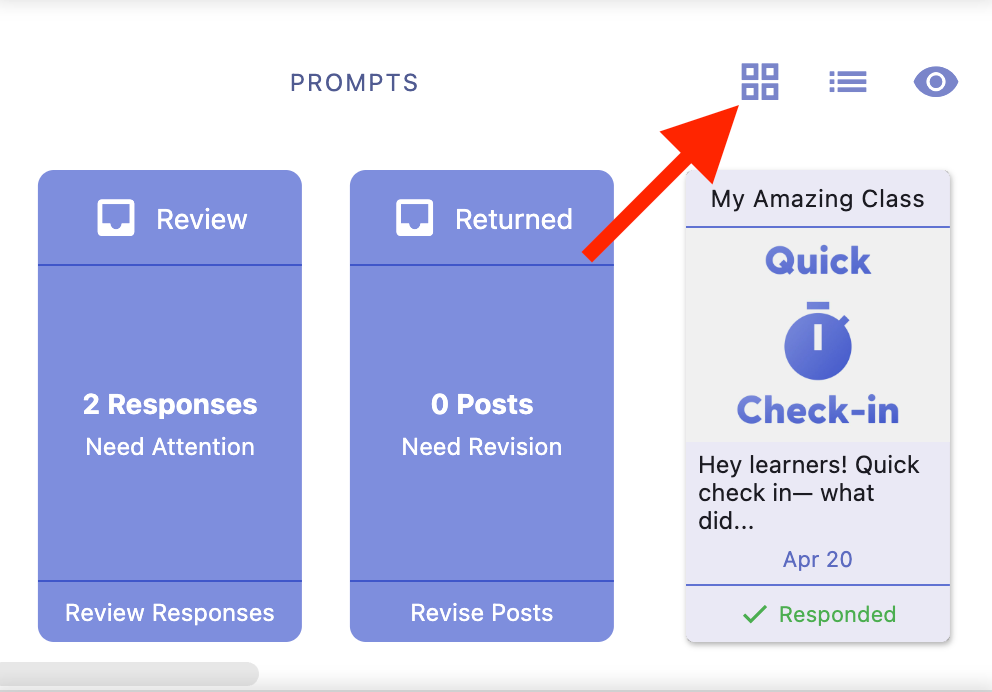
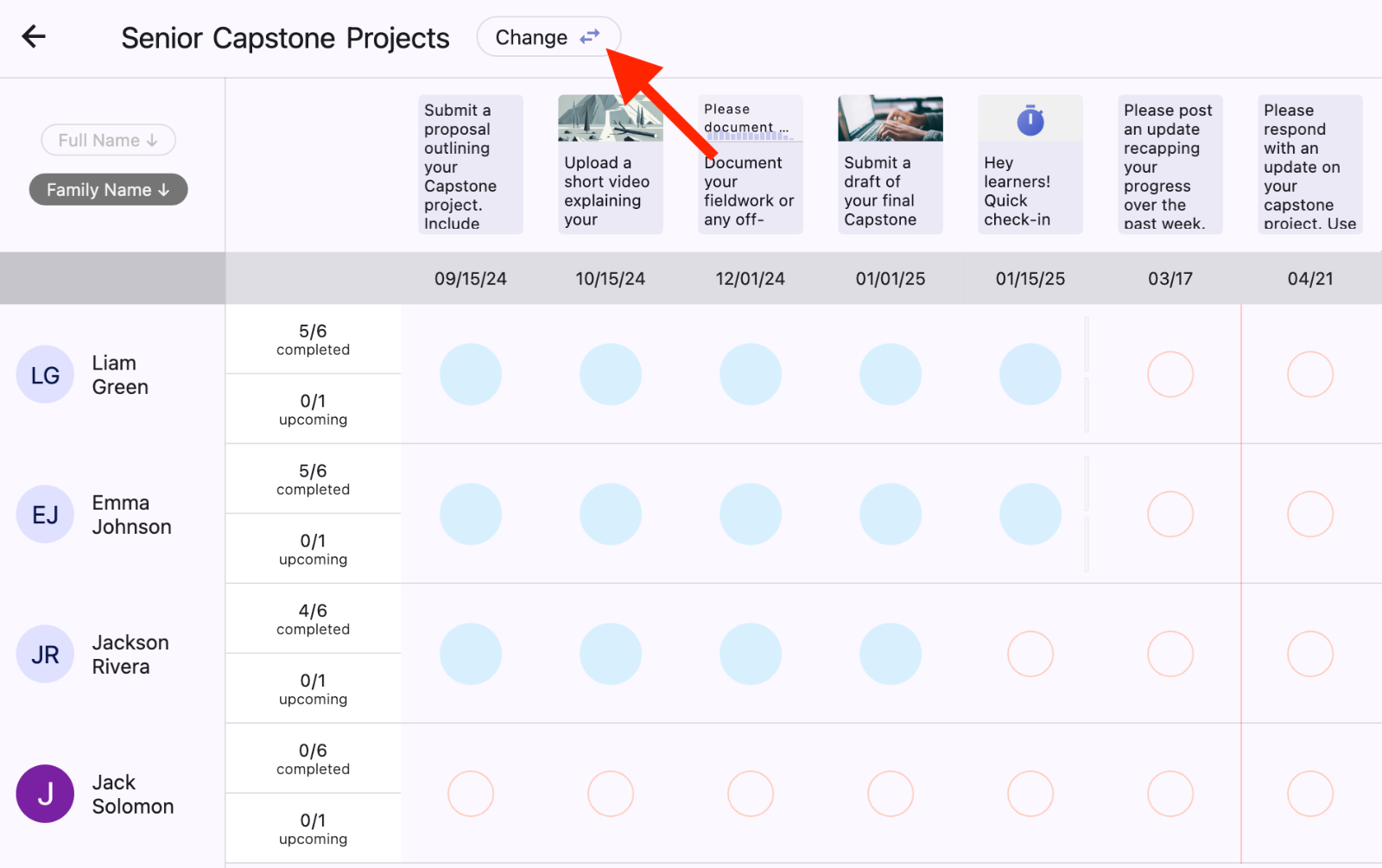
Tap the Grid button in the Prompts section near the top of the Home or a Group feed.
View the grid of all students in the Class/Group and which Prompts they have responded to.
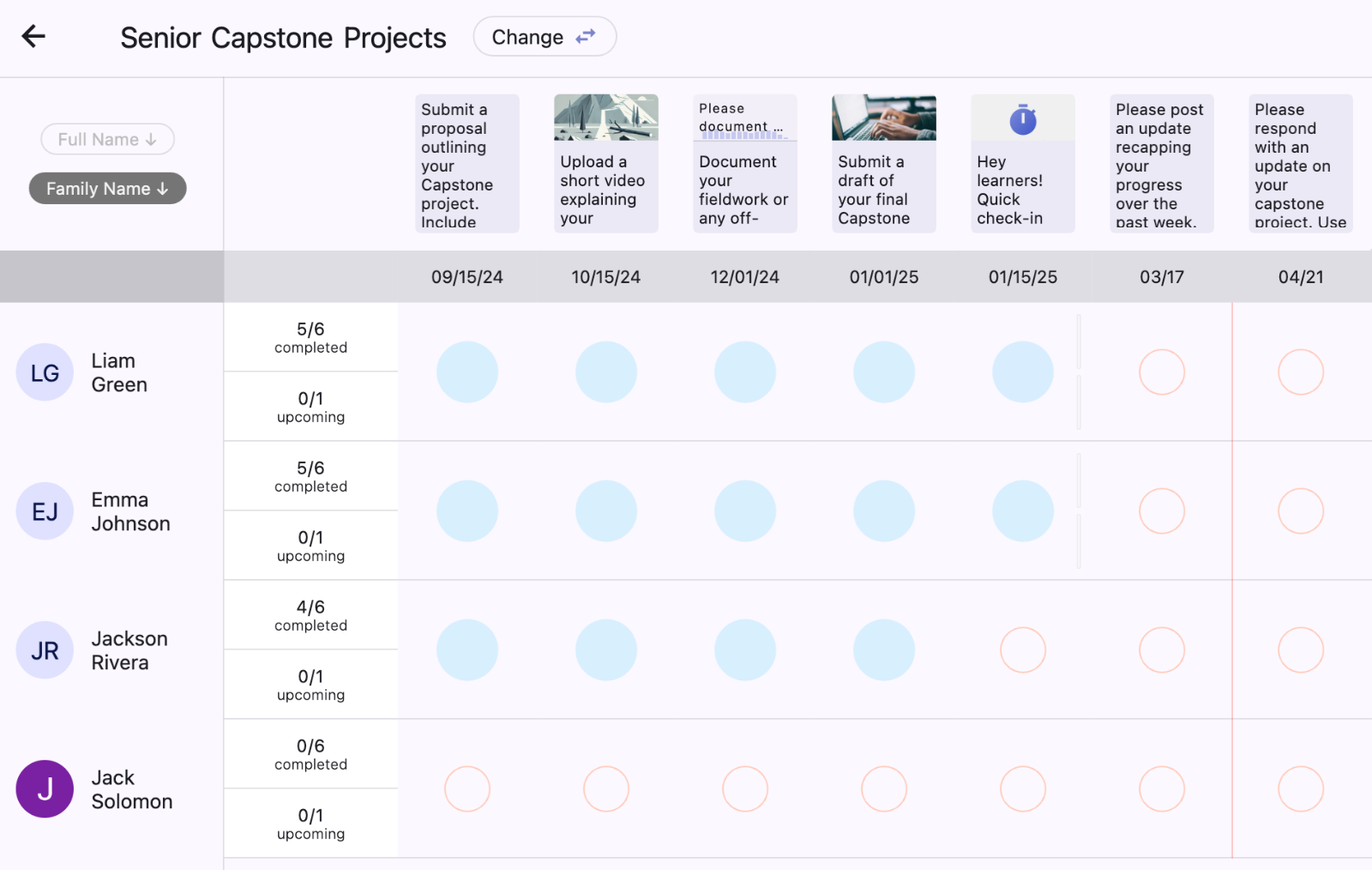
To display the grid for another Group, tap the Change button.
View an Inbox of Student Responses to Your Prompts
Turn on the ‘Response → Review → Resubmit’ feature in the Group Settings in the admin dashboard.
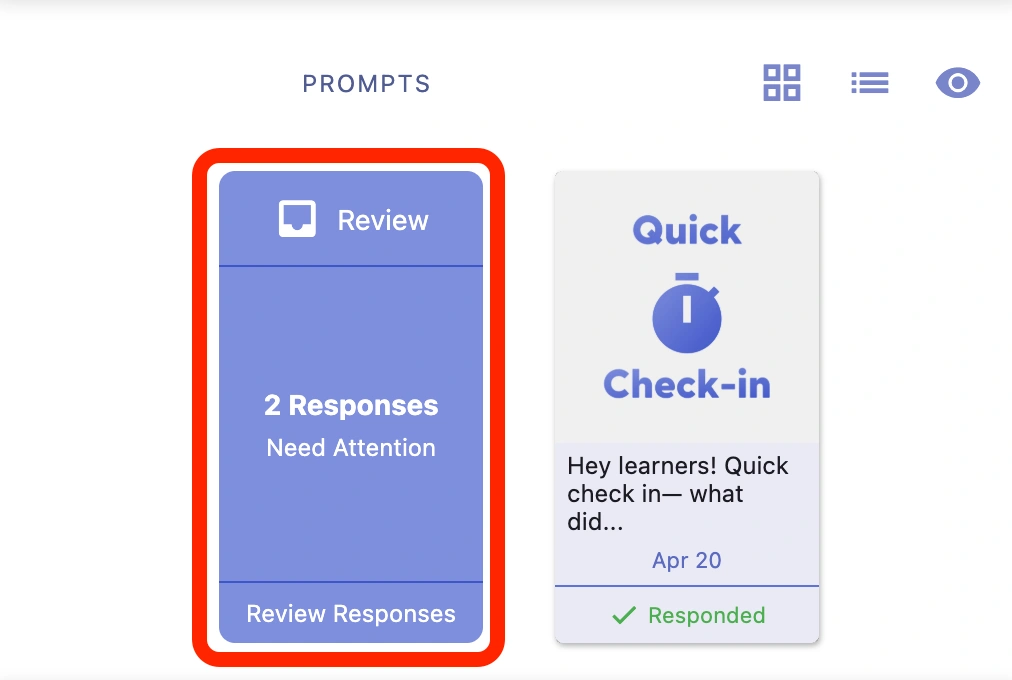
Click the ‘Review’ card at the front of the Prompts section in a Group or the Home feed.
If you have Prompt responses to review, the number will be indicated by the “X Responses Need Attention” label.
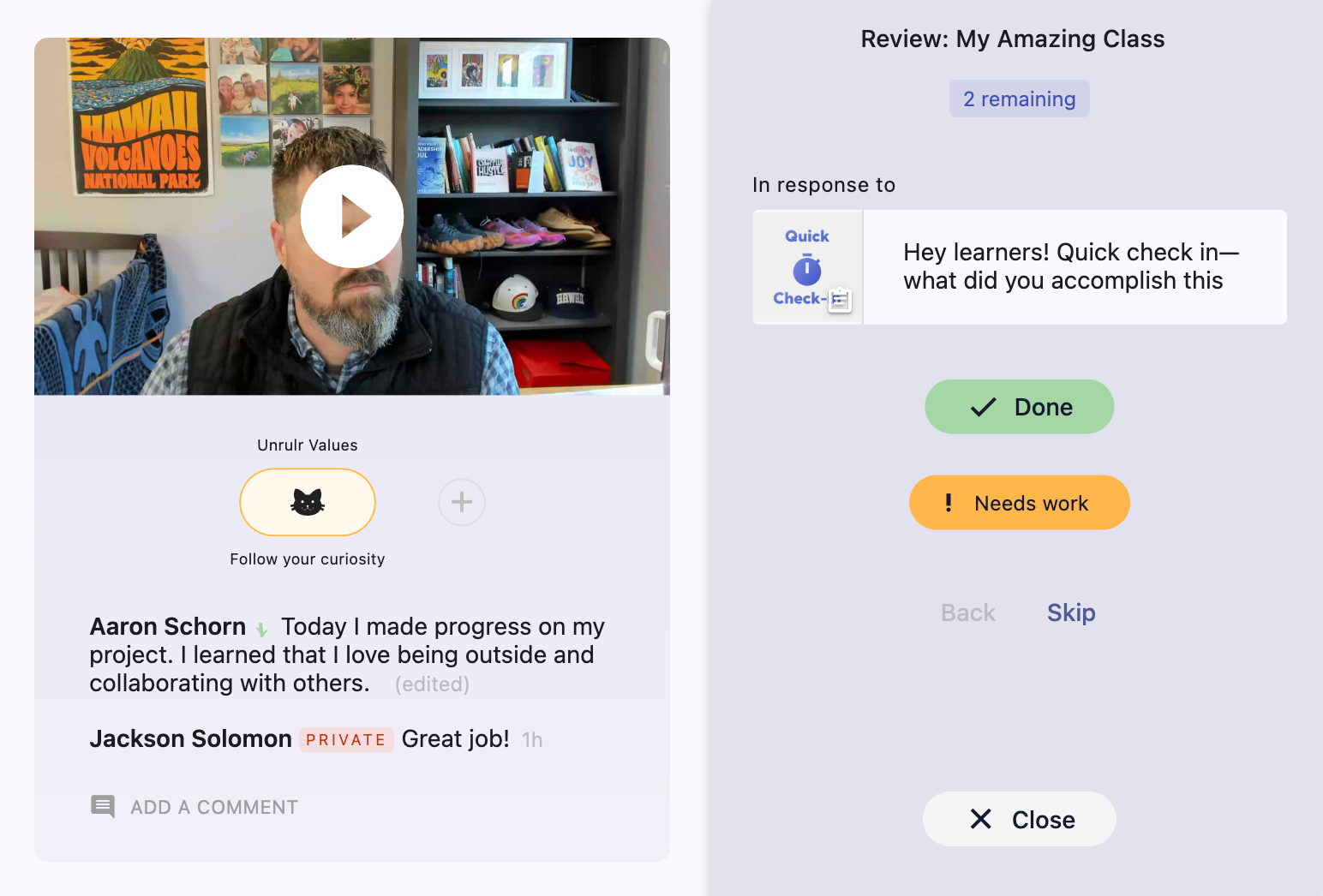
Review student responses in order of their submission (oldest to newest). Use the ‘Done’ and ‘Needs Work’ buttons to evaluate student responses, or ‘Skip’ to view the next submission without evaluating.
Once you’ve evaluated all student responses to your Prompts, the Review Box will be empty.
Visit How to Evaluate Prompt Responses to learn more about evaluating Prompt responses.