To add members to your class/group:
Sign into the Admin Dashboard.
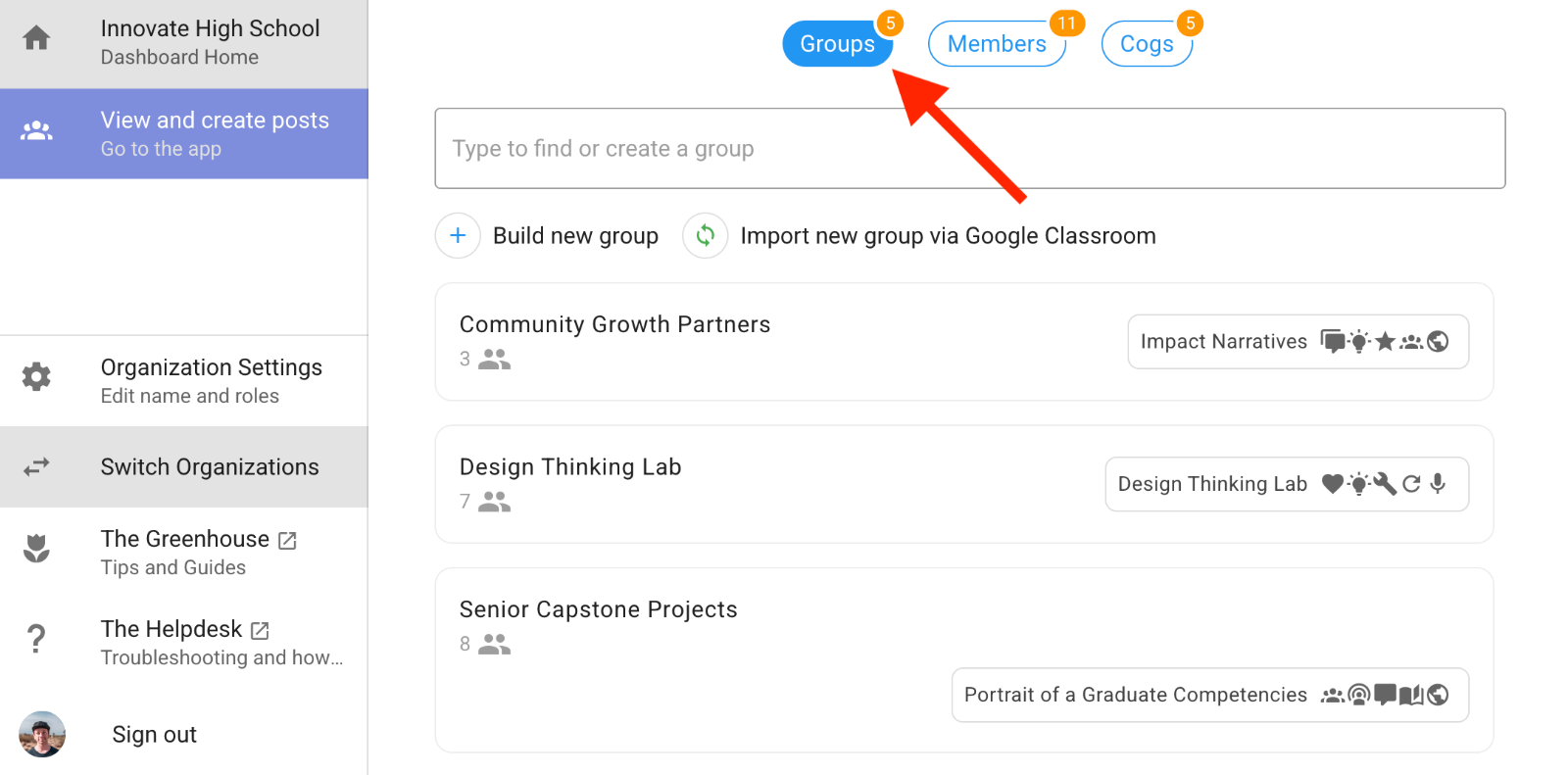
Navigate to the target group in the admin panel by clicking the Groups button at the top of the page. If your organization has many groups, use the Search Bar to find a specific group.
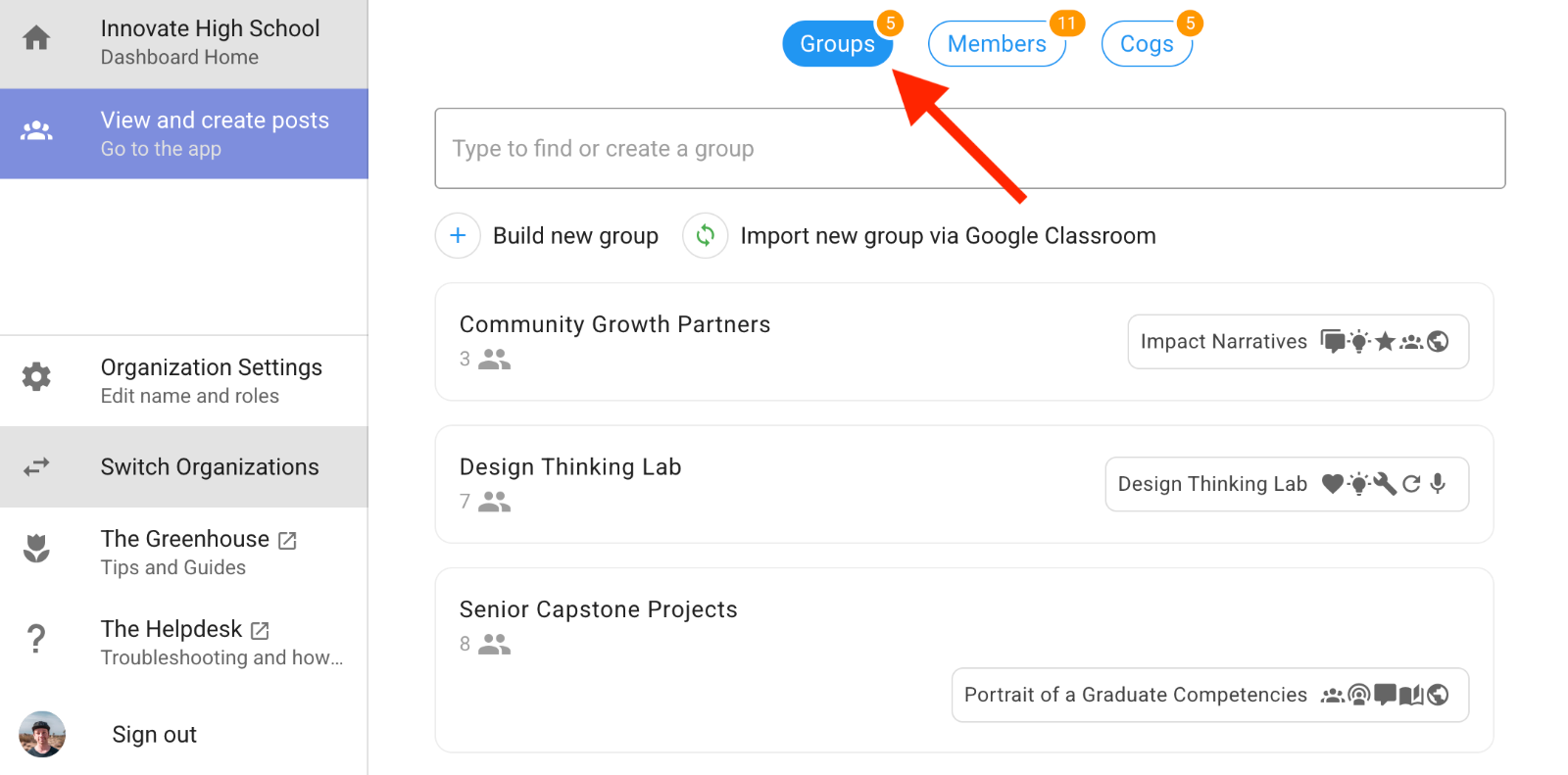
Click the target group in the list.
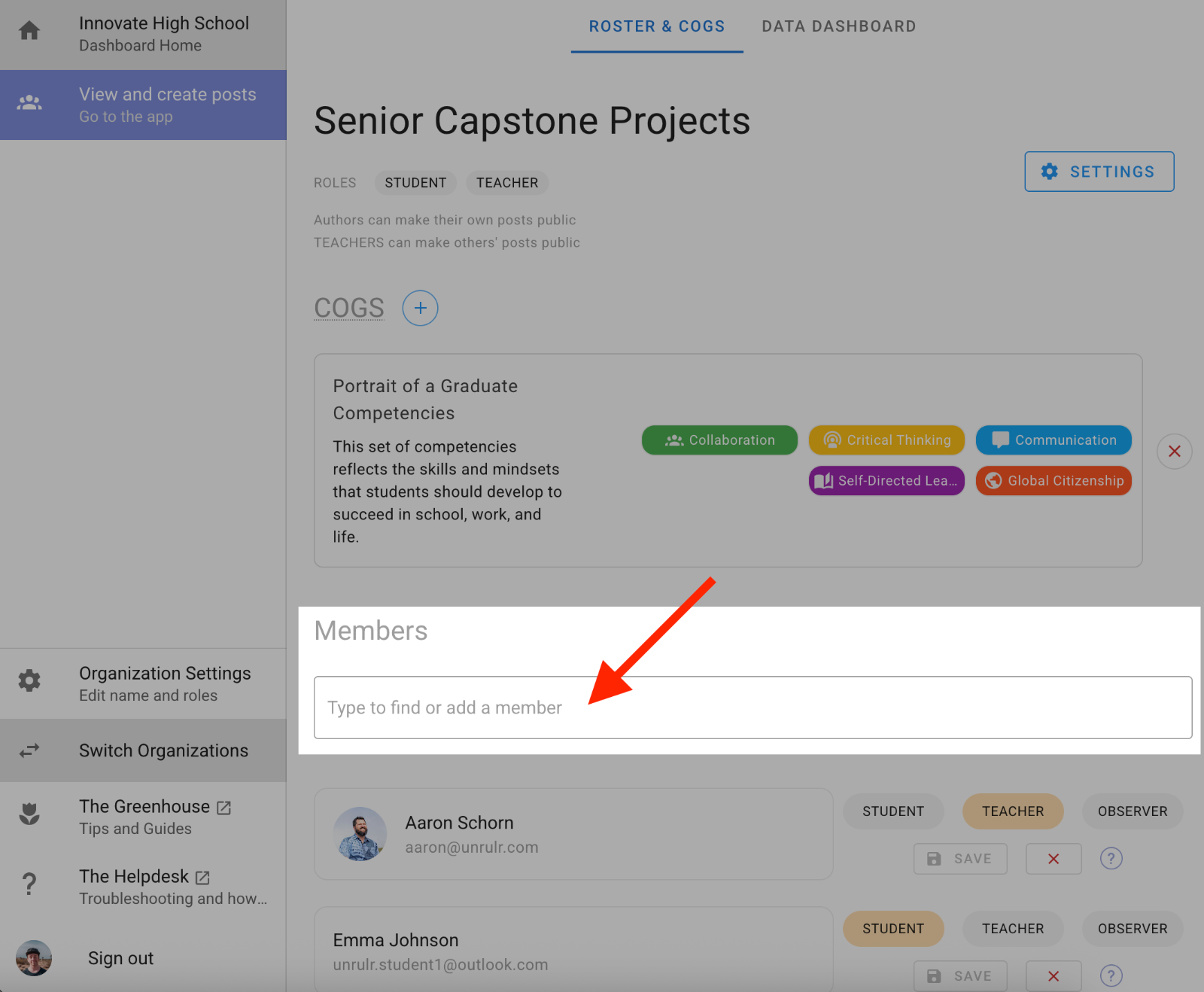
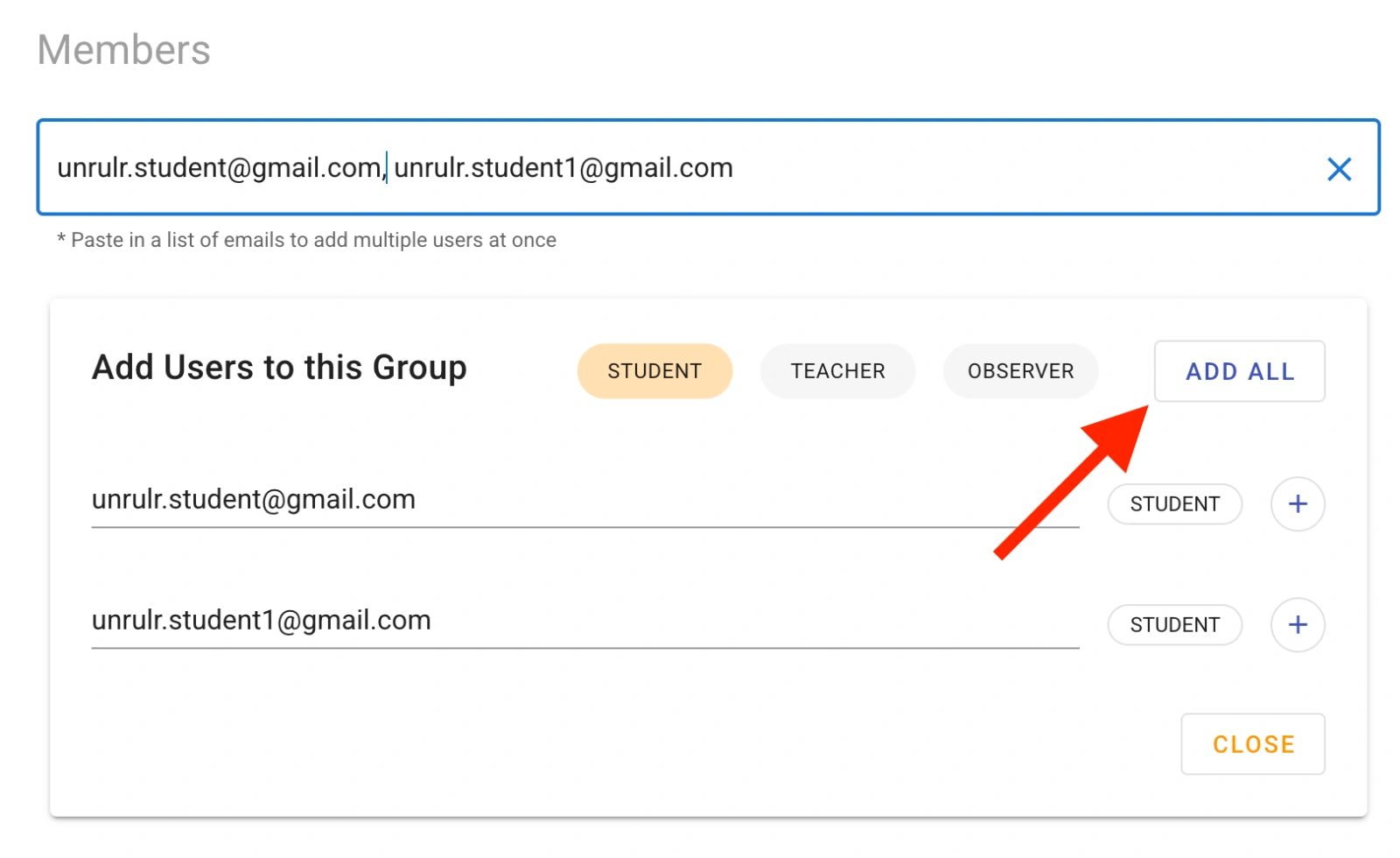
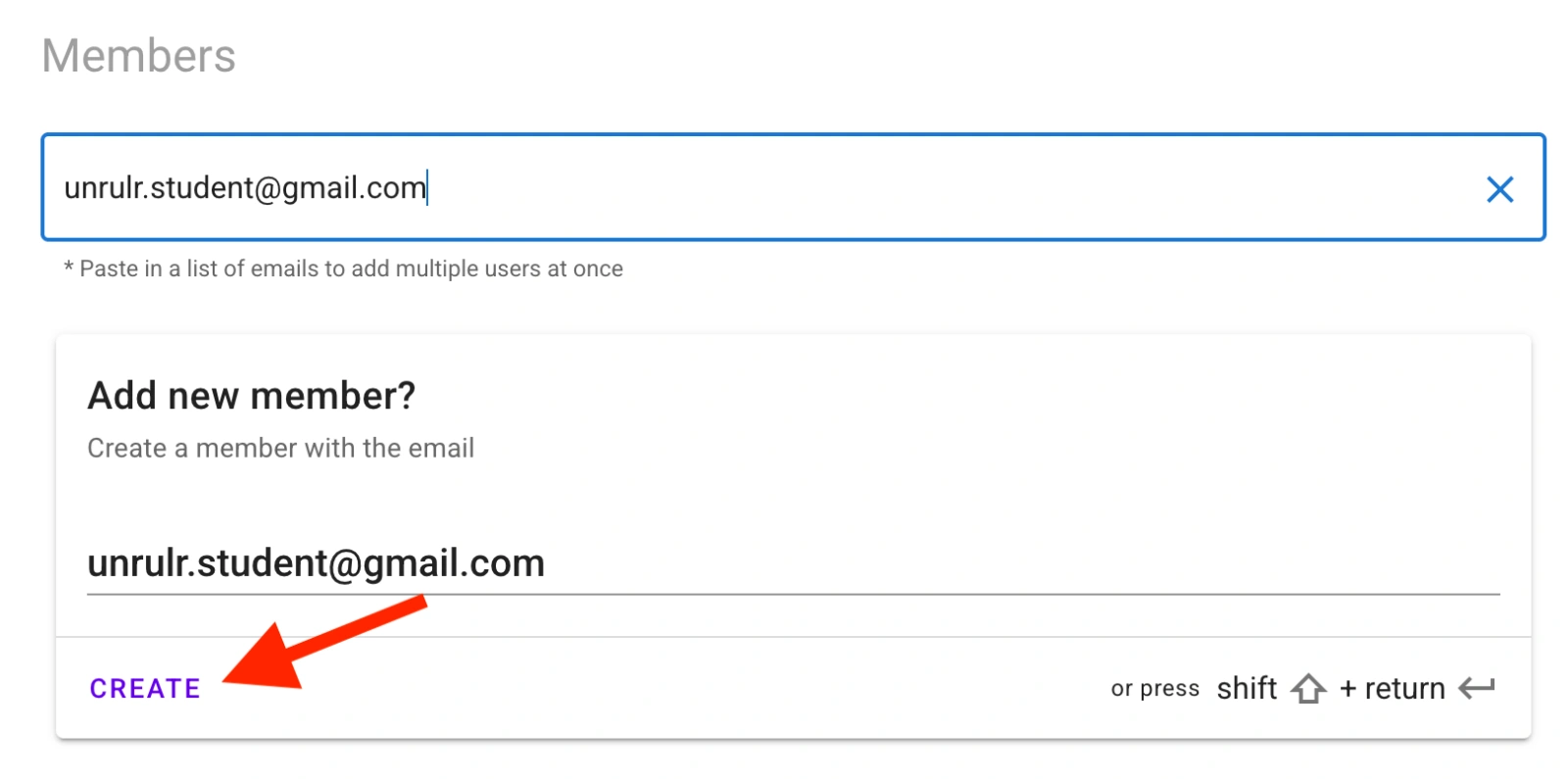
Type or paste the email addresses associated with the accounts (Students, Teachers, Observers) you want to add into the box below "Members", hit Create:
Choose the role for the new members-- Student, Teacher, or Observer-- by clicking on the appropriate button.
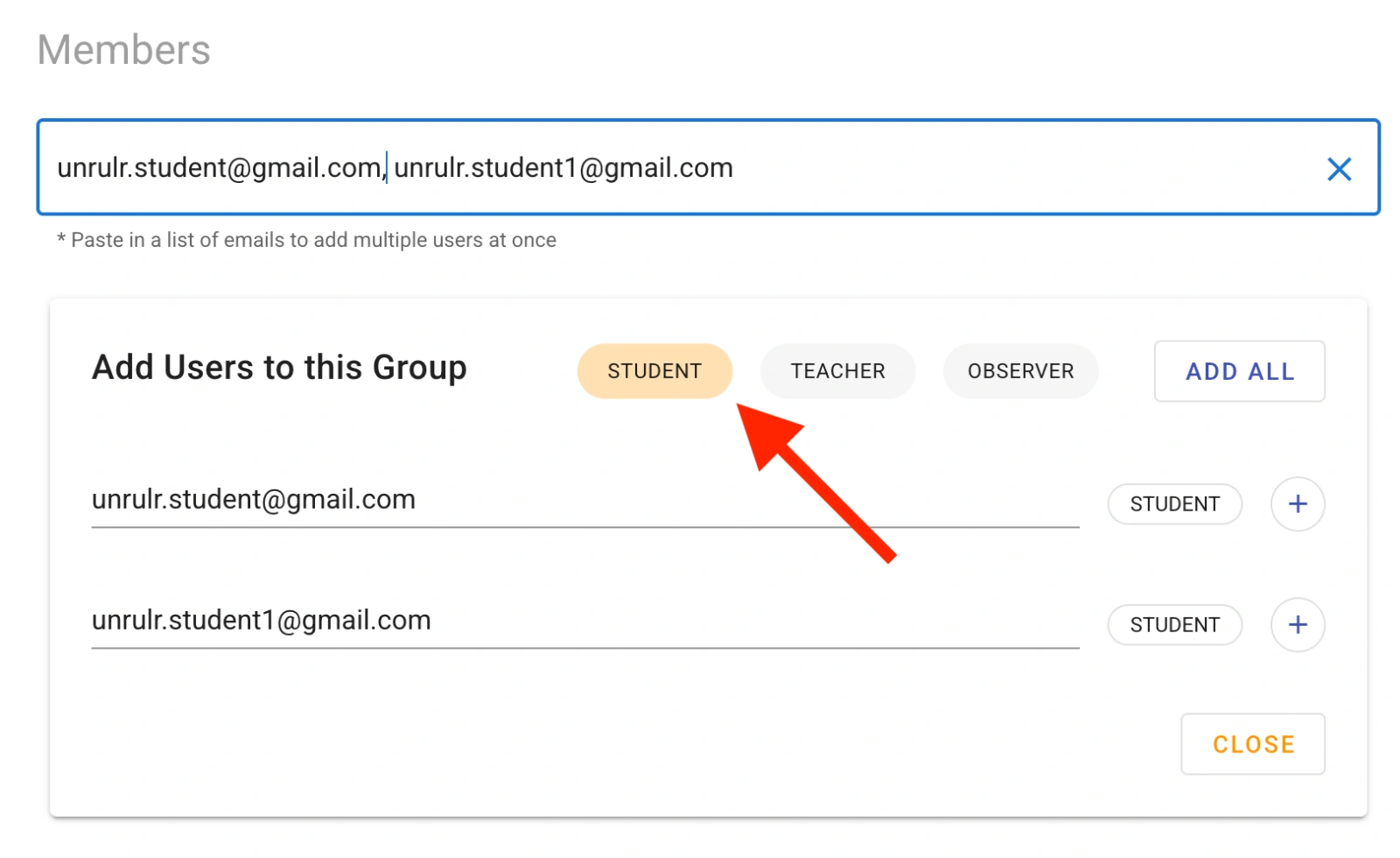
When adding multiple members, Click the ADD ALL button.
If you are only adding one user, click CREATE.
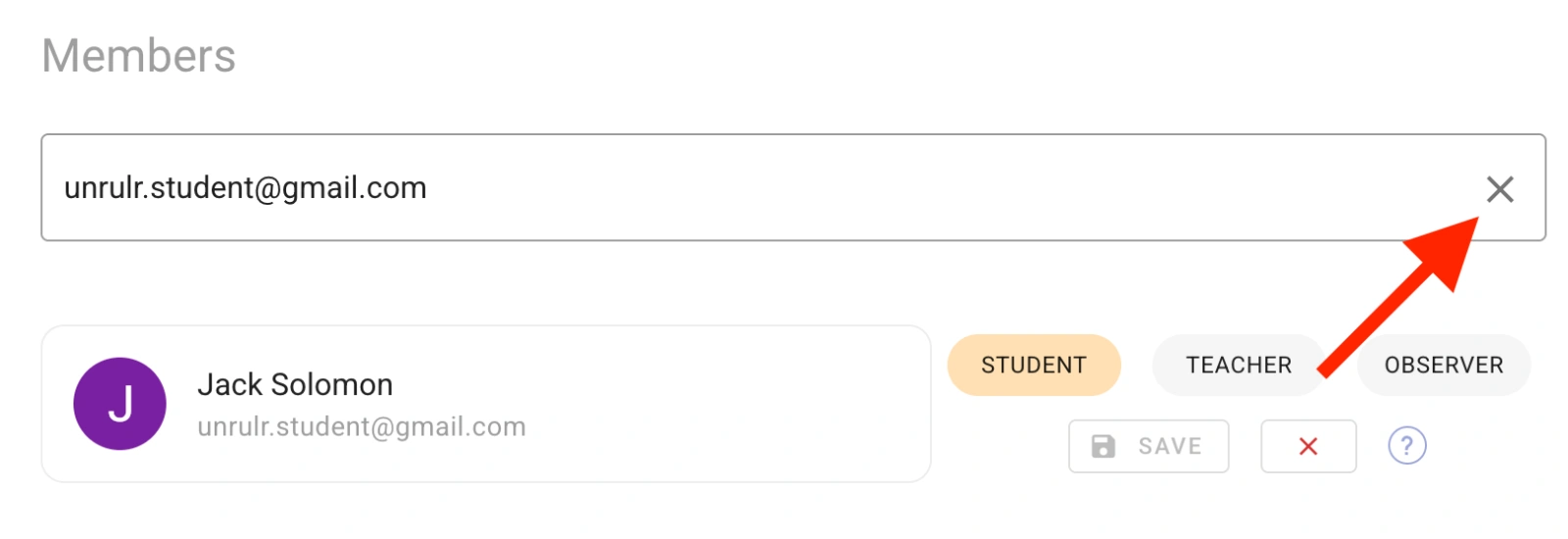
Hit the “X” button in the box to clear the form and see all members in the group.
To remove members from your group/class:
Sign into the admin dashboard.
Navigate to the target group in the admin panel by clicking the Groups button at the top of the page. If your organization has many groups, use the Search Bar to find a specific group.
Click the target group in the list.
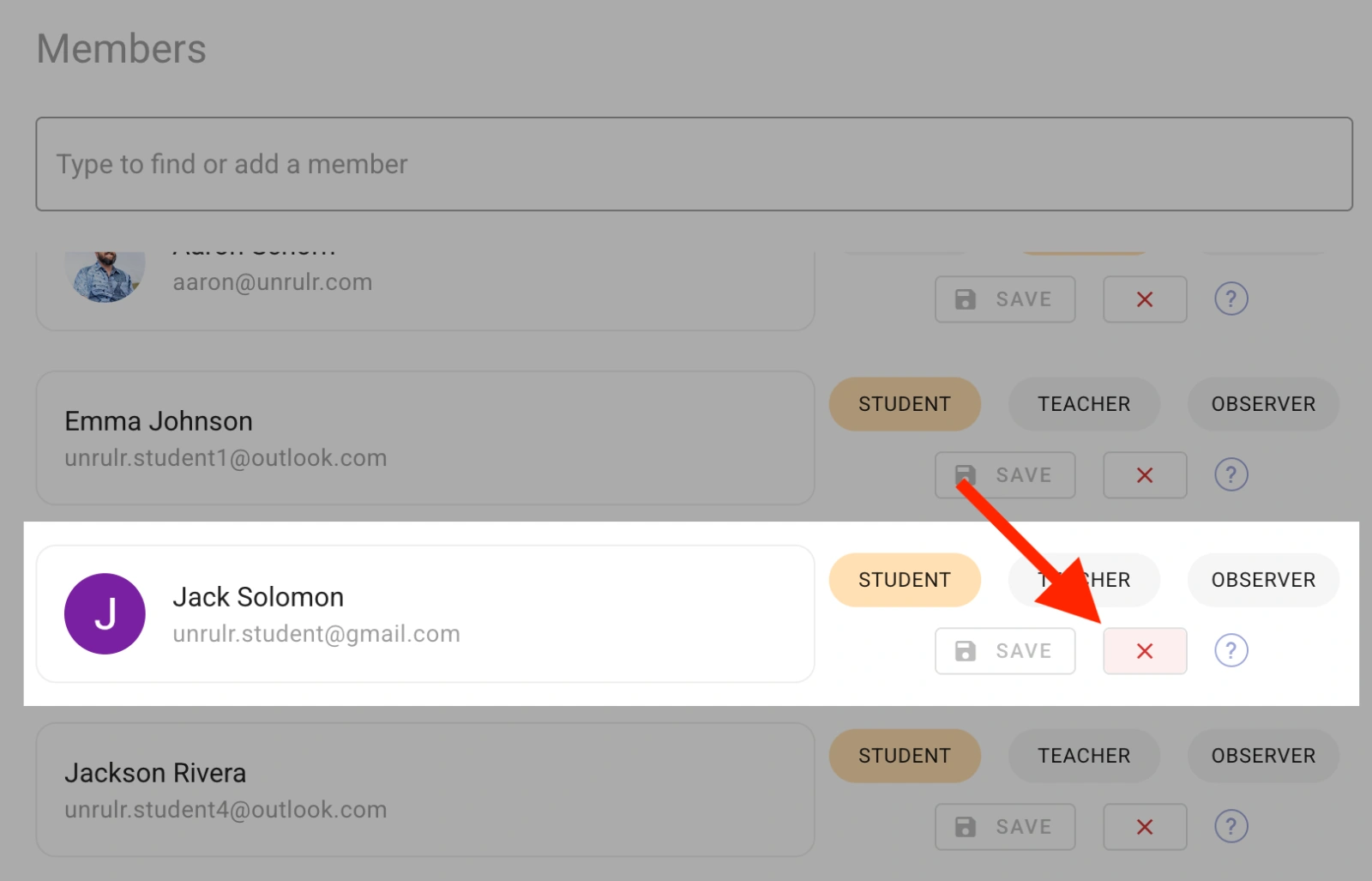
Find the member (Student, Teacher or Observer) you'd like to remove in the list of users in the "Members" section and click the red "X" button.