
In shared-device classrooms or situations where you need to document on behalf of a student, constantly logging in and out is a hurdle you don’t need.
Unrulr now allows you to sign in to multiple accounts on a single device and switch between them instantly. This feature is designed to help teachers facilitate student sharing and streamline the documentation process.
How to Add a New Account
Before you can switch, you need to "link" the accounts to your device. You only have to do this once per account.
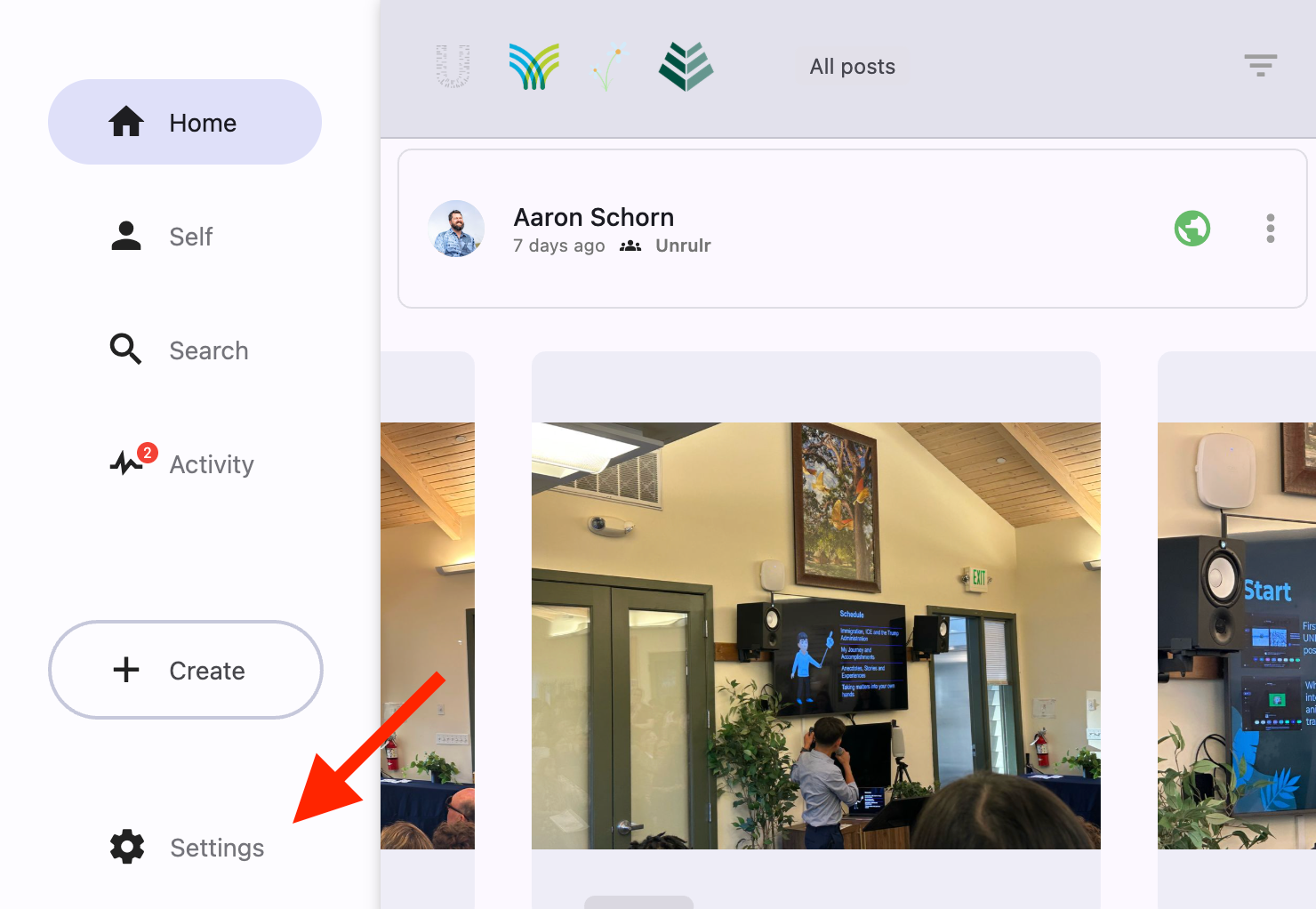
Open Settings:
On Web: Click the Settings button at the bottom of the left navigation bar OR, Navigate to the Self tab and click Settings in the top right header.
On Mobile: Tap the Self tab in the bottom toolbar, then tap the gear icon/settings menu.
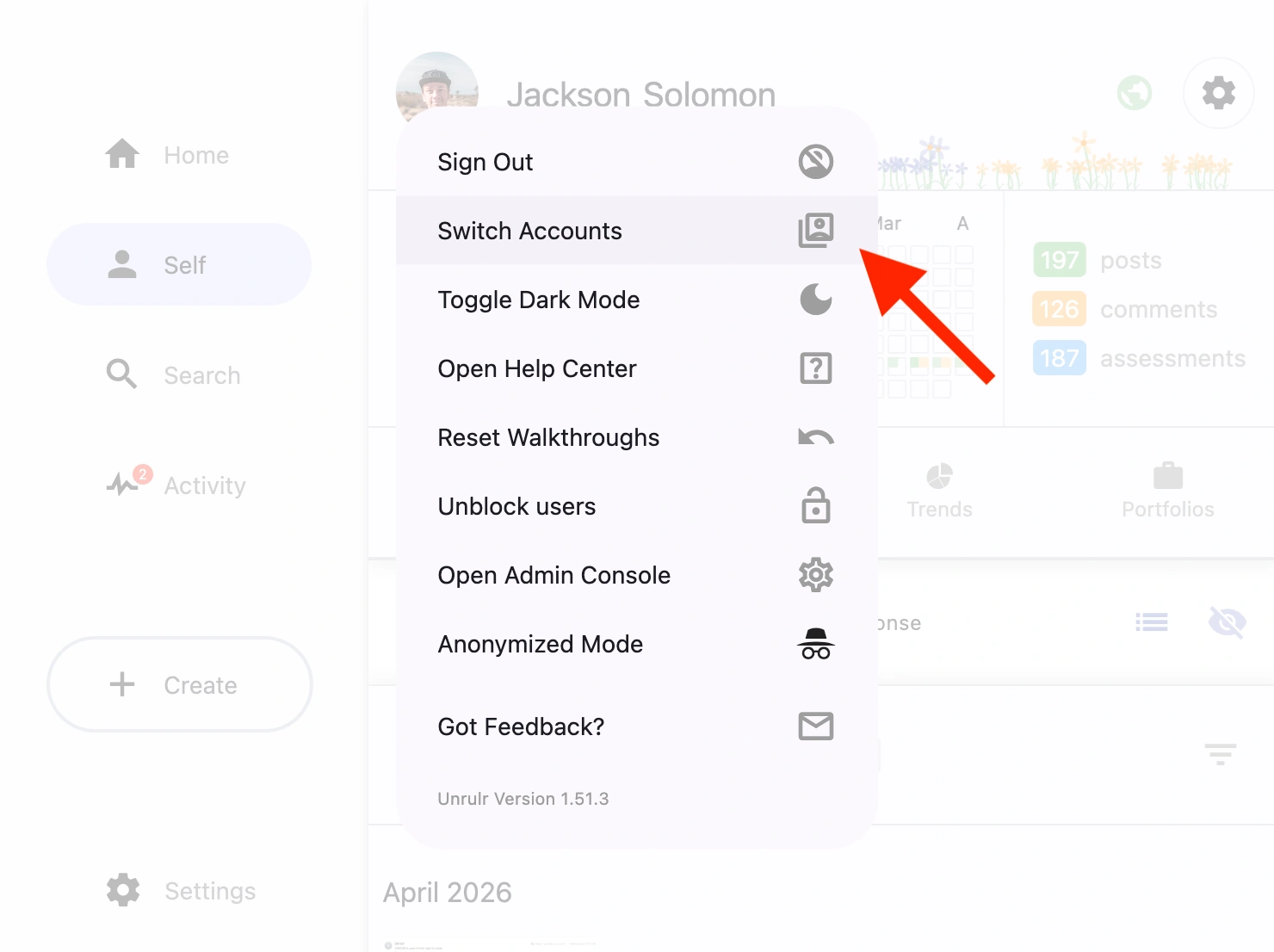
Select "Switch Accounts": Tap or click this option to open the account manager.
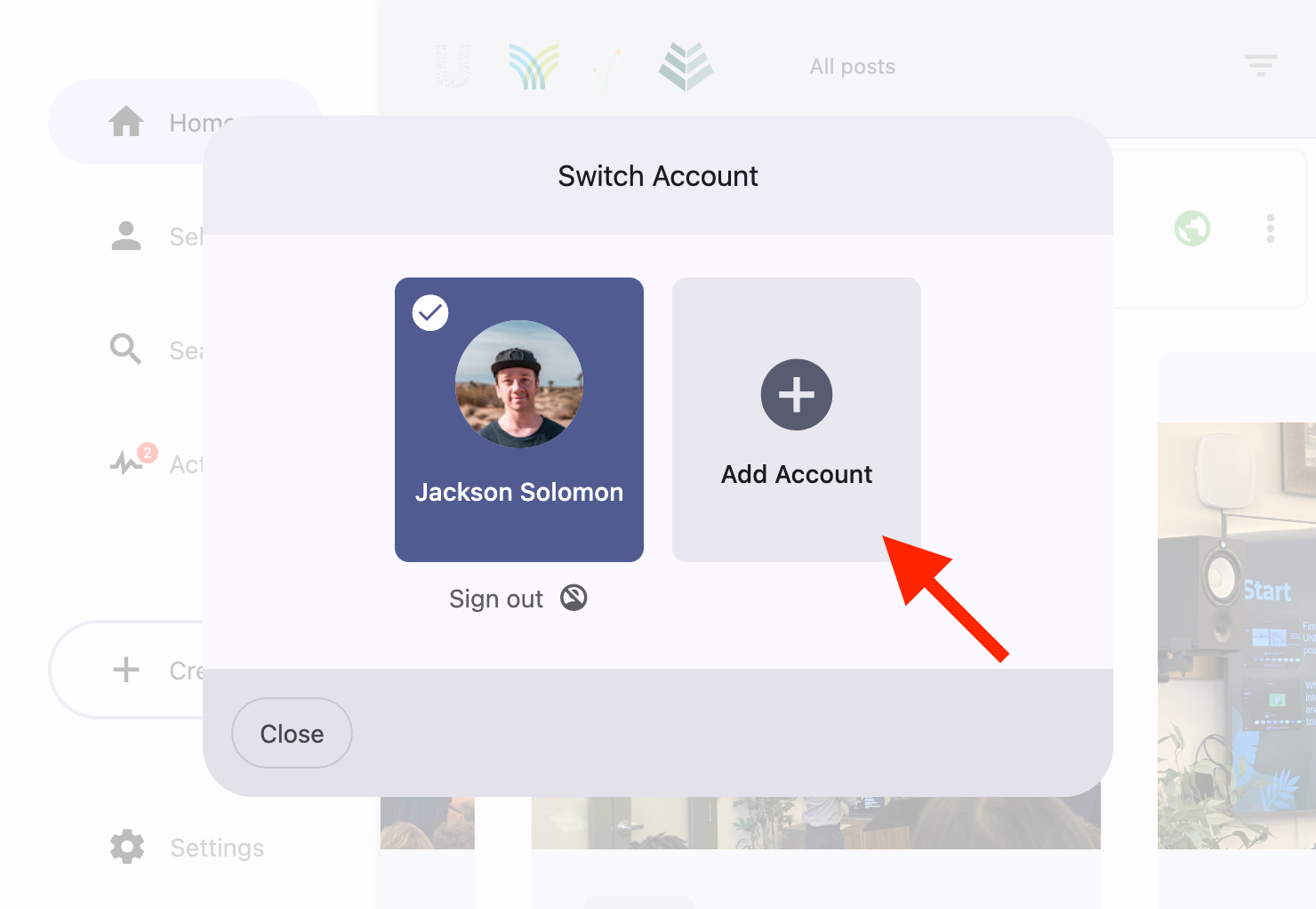
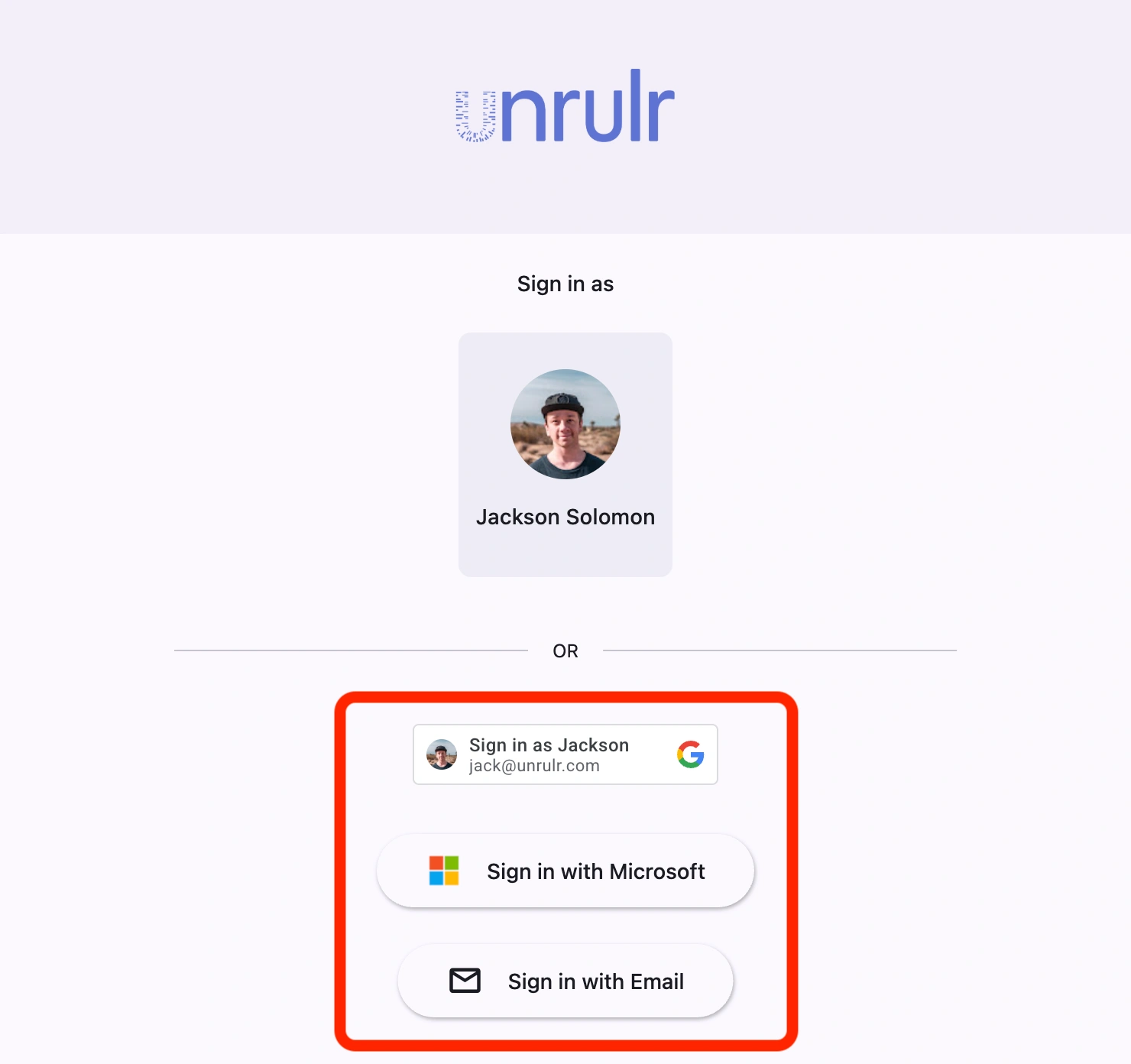
Add Account: Select "Add Account" and sign in using the student's credentials (Google, Microsoft, or Email). See How to Sign In to Unrulr.
Start Documenting: Once signed in, you’ll be taken directly to that account's home feed.
How to Switch Between Accounts
Once you have multiple accounts loaded, moving between them takes just a few seconds.
Navigate to Settings > Switch Accounts.
You will see a list of all currently active accounts.
Tap the name/card of the account you want to use.
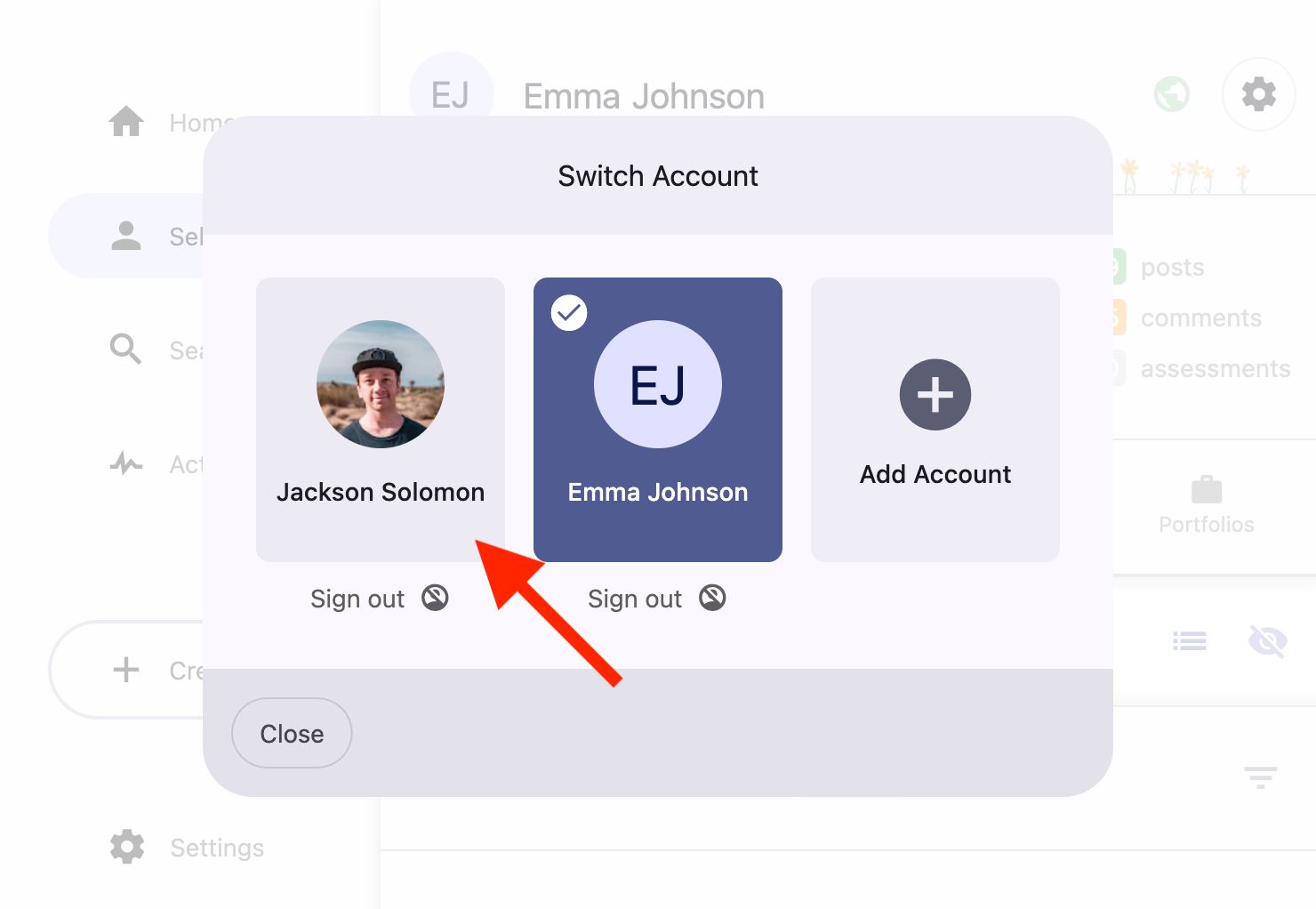
Unrulr will automatically refresh, signed in to the selected user's account.
How to Sign Out
There are two ways to manage logging out, depending on which account you want to remove.
To Sign Out of your Current Account:
Go to Settings > Sign Out.
You will be taken back to the main sign-in screen. From here, you can choose to jump back into one of your other saved accounts or add a brand-new one.
To Sign Out of a Different Account:
If you want to remove a student's account from your device but stay logged in to your own:
Go to Settings > Switch Accounts.
Find the user card for the account you want to remove.
Click the "Sign Out" button located directly under that user’s card.
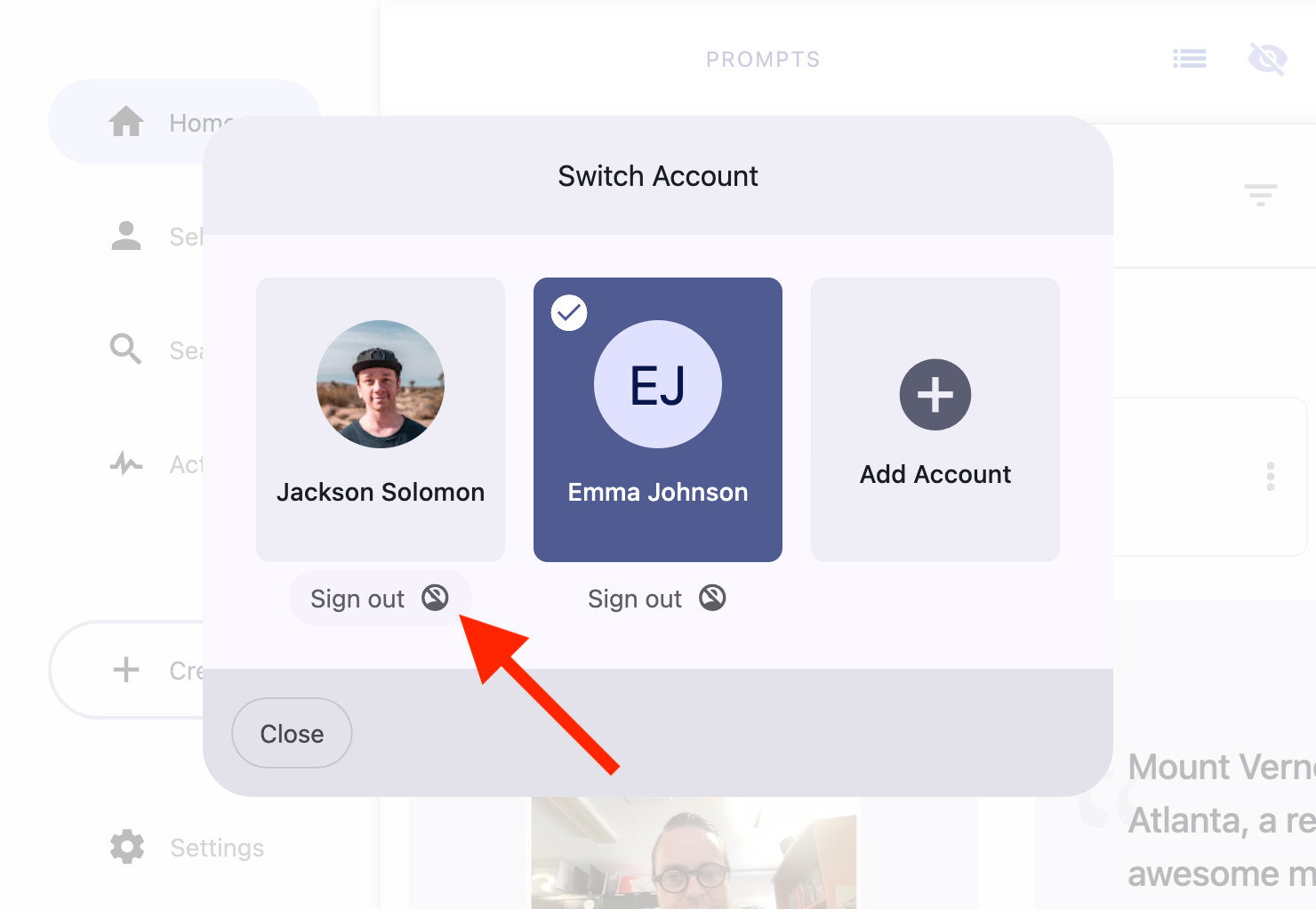
Result: That account is removed from the device, but you remain right where you were.