
These instructions are for teachers who already have an account in Unrulr. If you are setting up Unrulr for the first time, see How to Set Up a Brand New Community in Unrulr.
Step 1. Sign into the Teacher Dashboard
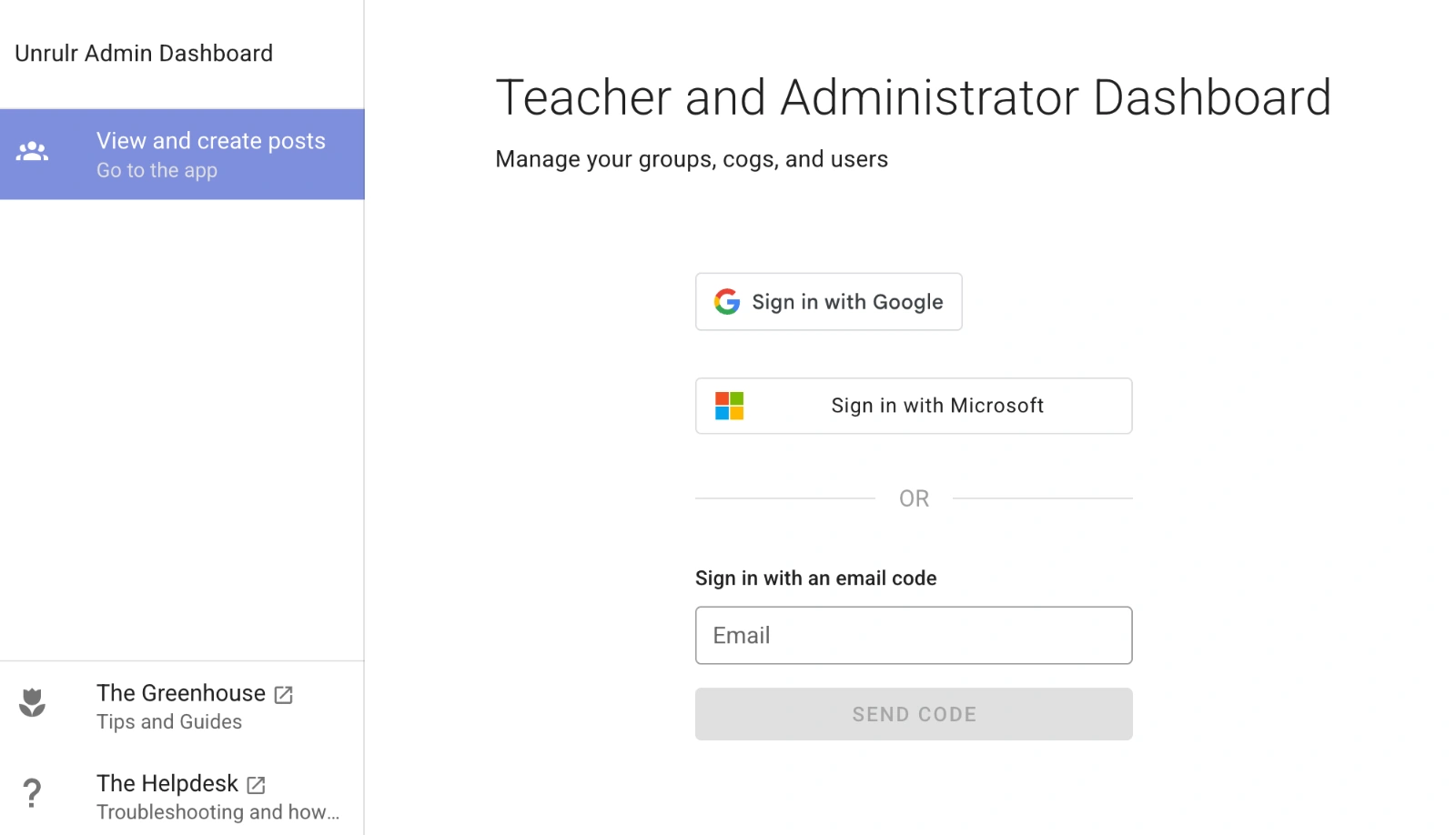
Using your browser, go to admin.unrulr.com.
Sign in with Google, Microsoft, or Email.
This is usually your school account.
Step 2. Create Your New Class (Group)
Create your group by either importing a class from Google Classroom or manually building it.
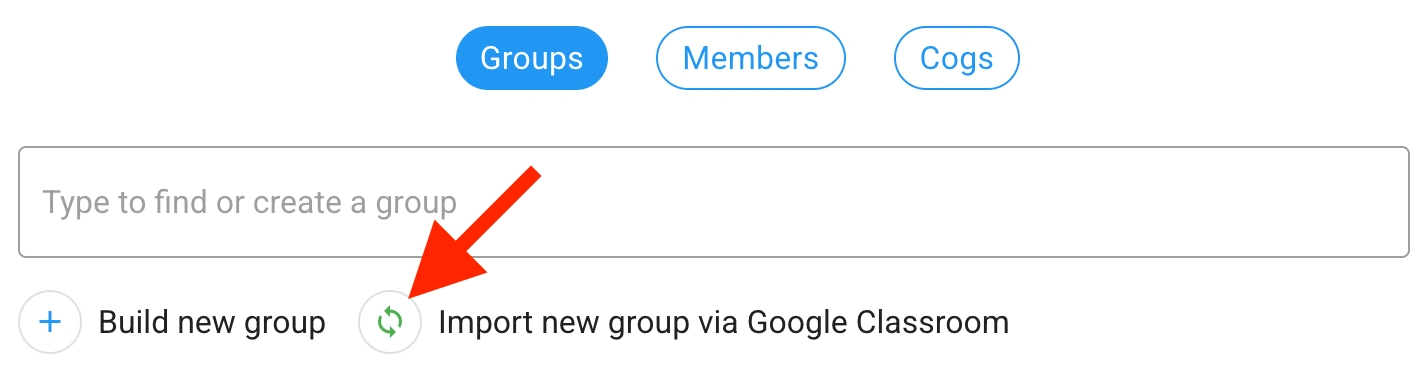
To create your Group via Google Classroom:
Click the green icon next to "Import new group via Google Classroom”.
Allow Unrulr to have access to your Google Classroom account.
Choose the class to sync.
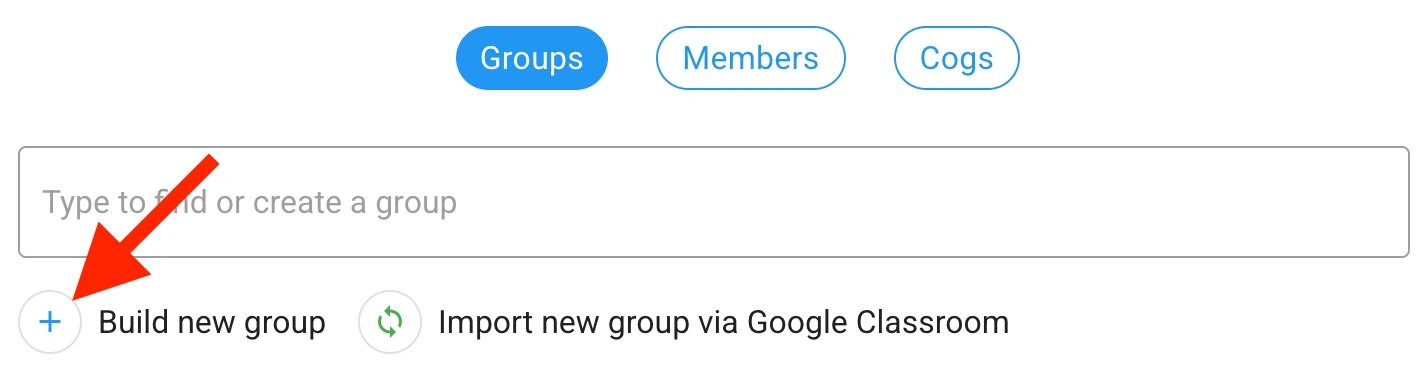
To create your Group manually:
Click the "Build" button in the "Manually Add Users" box.
Enter the name of your class/group.
Click ‘Create’ to create your new group.
Add a Name for your group.
(Optional) enter the section and description of your class/group.

Enter the emails of the members in the class/group.
For each email you enter, select student, teacher, or observer.
You may type or paste in more than one address at once. (If all of your addresses are in a column of a spreadsheet, you can copy the column and paste it into the box.)
When adding a list of emails, select the role for all users. Click ‘ADD ALL’.

Teachers have special abilities. They can:
be shared with separately from student peers
give evaluations that are tabulated separately from those of student peers
moderate posts
make administrative changes to the group
Observers can see all posts shared with the group, but can take no actions
If you are the teacher for the group, make sure you add yourself as a teacher to the group.
You can always add more members or change roles/permissions later.
The accounts you add will get no invitation from the system. The members are able to sign into Unrulr immediately upon completion of your setup.
Step 3. Add Cogs to Your Group
Every post in Unrulr is tagged with one or more COGS. By adding COGS to a group, these cogs become available for tagging by the students in that class. Students must have COGS in order to be able to post.
Look for the group you just created in the list and click it.
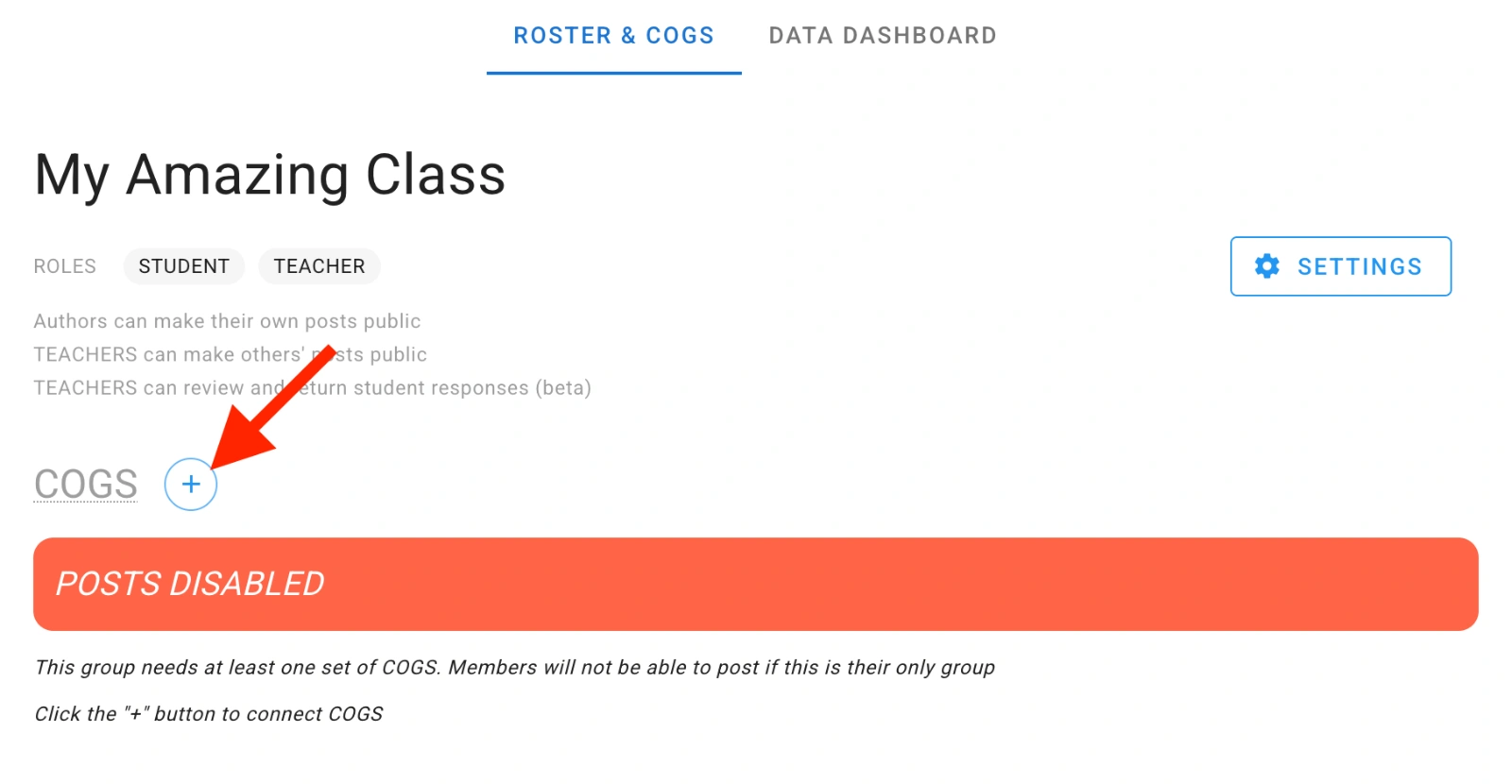
Click the ‘+’ button next to COGS.
Choose the COGS set you’d like to add to this class by clicking on the ‘+ ADD’ button to the right of the set.
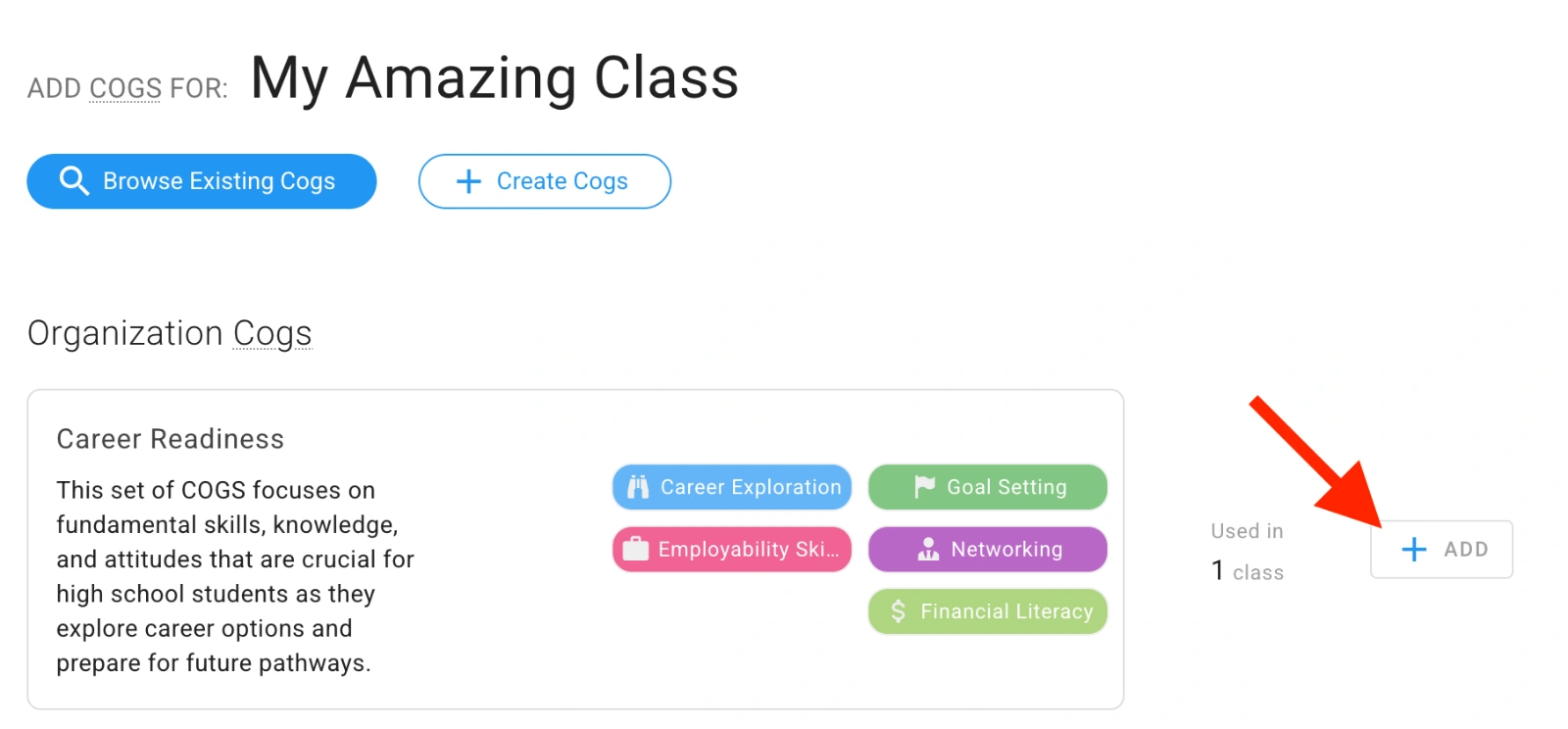
If you'd like to create your own cogs, click the ‘+ Create Cogs’ button at the top of the Add COGS page
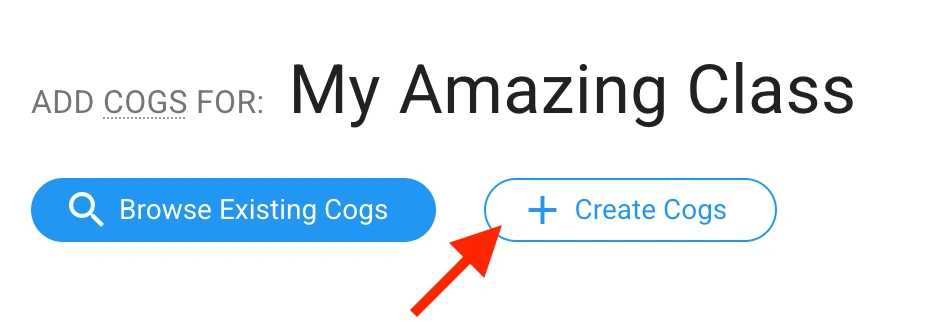
and follow these directions: How to Create Your Own COGS.
Step 4. Start Using your new Group with Students
For instructions see How do I kick off Unrulr with my students?