
Unrulr provides a simple model for assessment that revolves around COGS (See What are COGS?), called ‘Evaluations’.
Unrulr supports self, peer, and teacher/mentor evaluations.
Self-assessment
When learners create a post, they are required to tag it with at least one COG. This tag represents an assertion that the learner is engaging in, reflecting on, or making progress on, or showing competency in the COG.
If the learner is to assign themselves a particular level or indicator of performance, the COGS may be set up as as a multi-level rubric. (See What's the difference between single-level cogs and a multi-level rubric?)
Peer and teacher/mentor evaluations
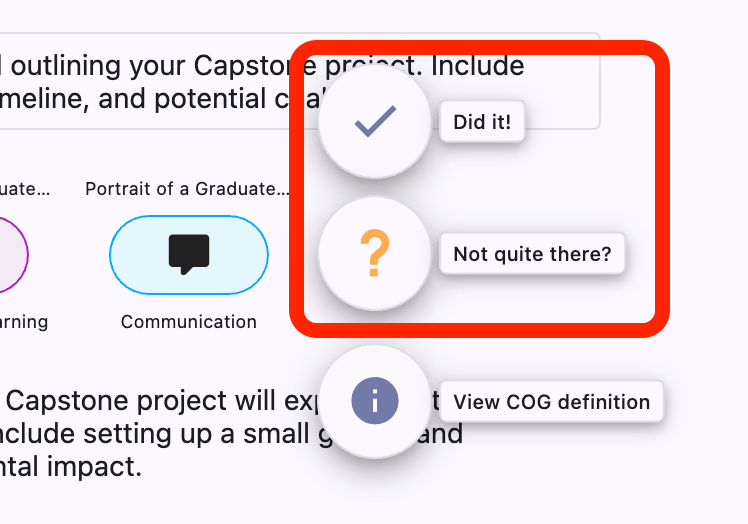
When a peer or teacher/mentor reviews a learner's post, they can evaluate each COG with a check mark (‘Did it’) or a question mark (‘Not Quite There’). To do so they:
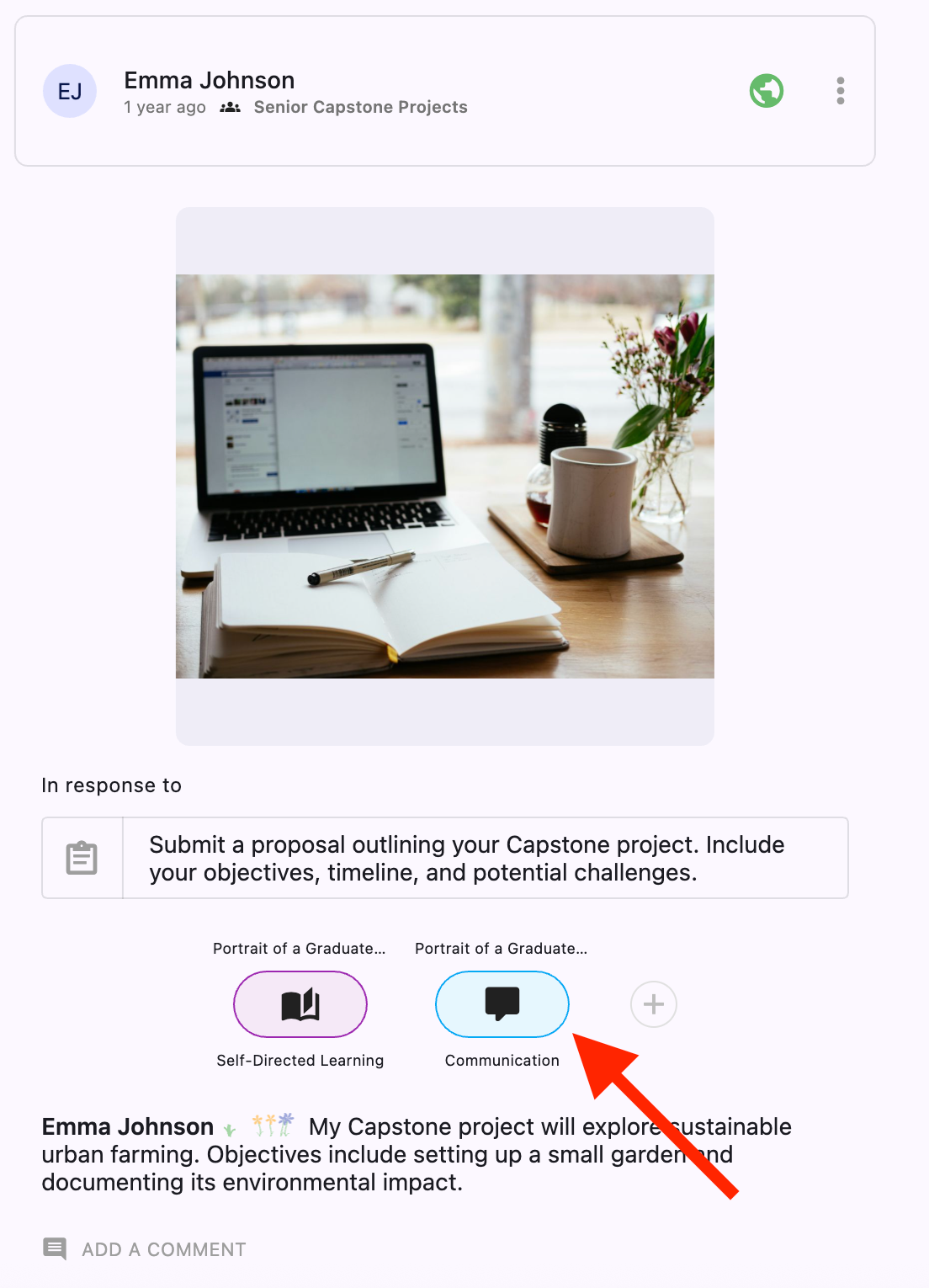
Tap/click the COG.
Tap/click the check mark or question mark.
After registering the evaluation:
The COG Tag will change.
A check-mark will be shown if the COG has been given a check by a teacher/mentor.

The color bar will fill in if the COG has been given a check by a peer.

If some of the evaluations received are question marks, the relative proportion of check marks is indicated by the proportion of the bar that is filled in on the COG.

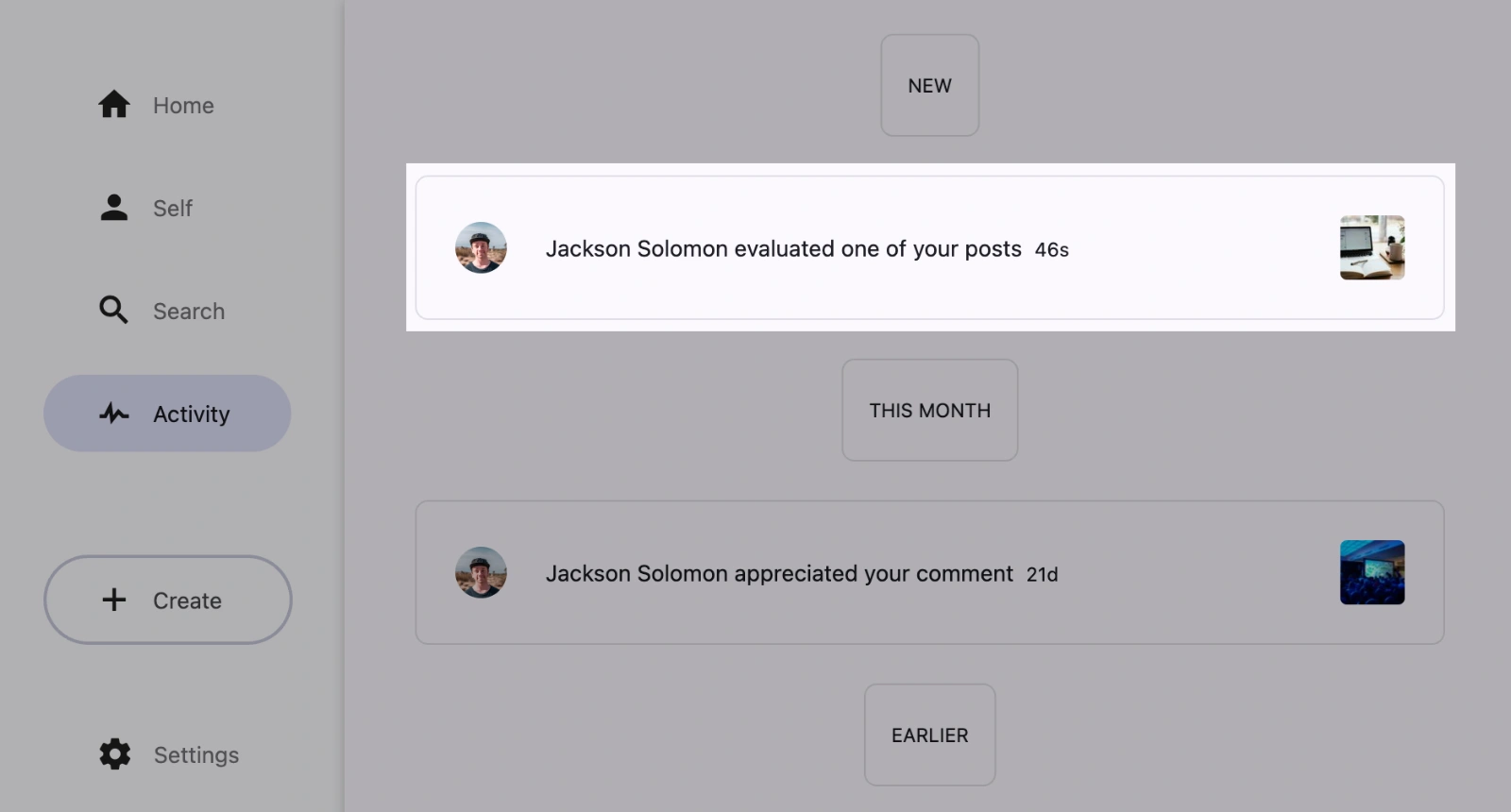
The poster will receive a notification that they have received an evaluation in their activity feed.
Suggesting cogs
Teacher/mentors can also suggest a COG that the learner has not tagged their post with. To do so they:
Tap/click on the ‘+’ button to the right of the COGS on a post.
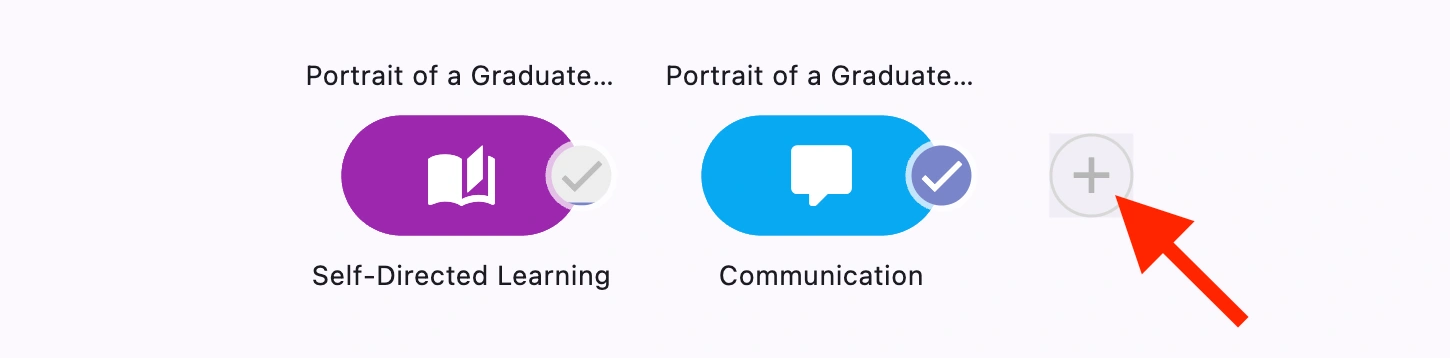
Choose the COG(s) they suggest.
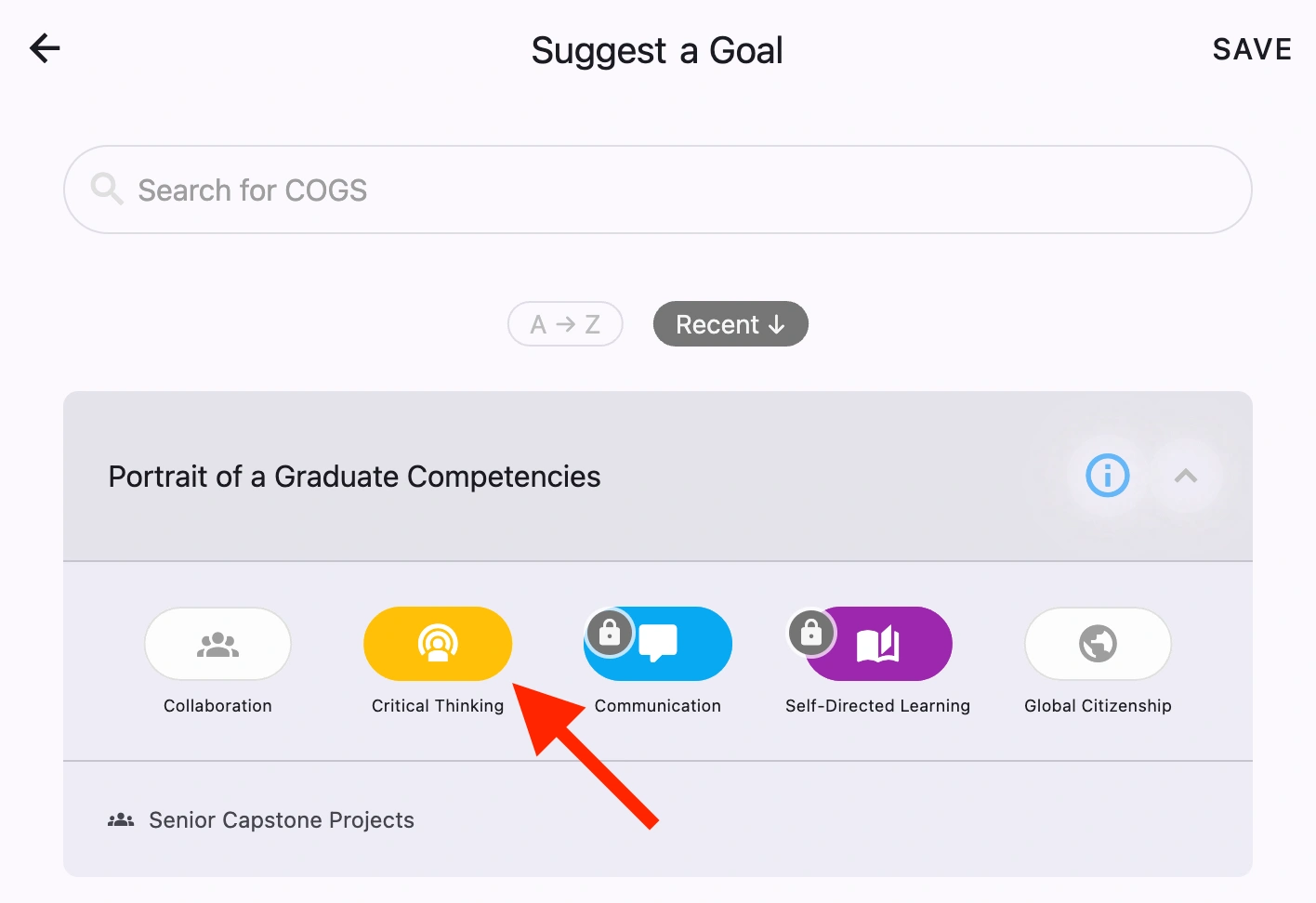
Tap/click ‘SAVE’
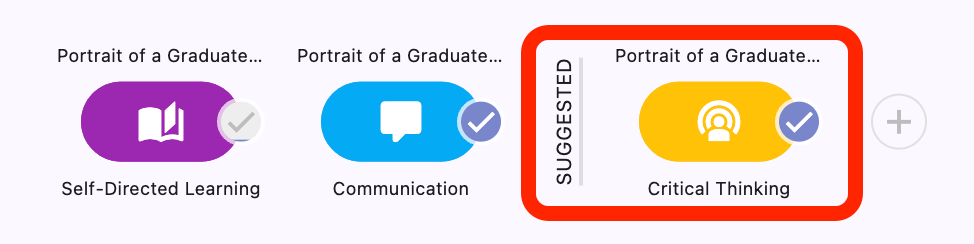
The suggested COG(s) will now be displayed next to a ‘SUGGESTED’ label. All suggested COGS from a teacher/mentor will automatically be evaluated as ‘Did it’.
Evaluation Summaries
Evaluations are summarized at three levels:
a particular COG on a post
an individual learner
a group or class
How to review a summary of evaluations for a particular COG on a post:
Find the post in the feed.
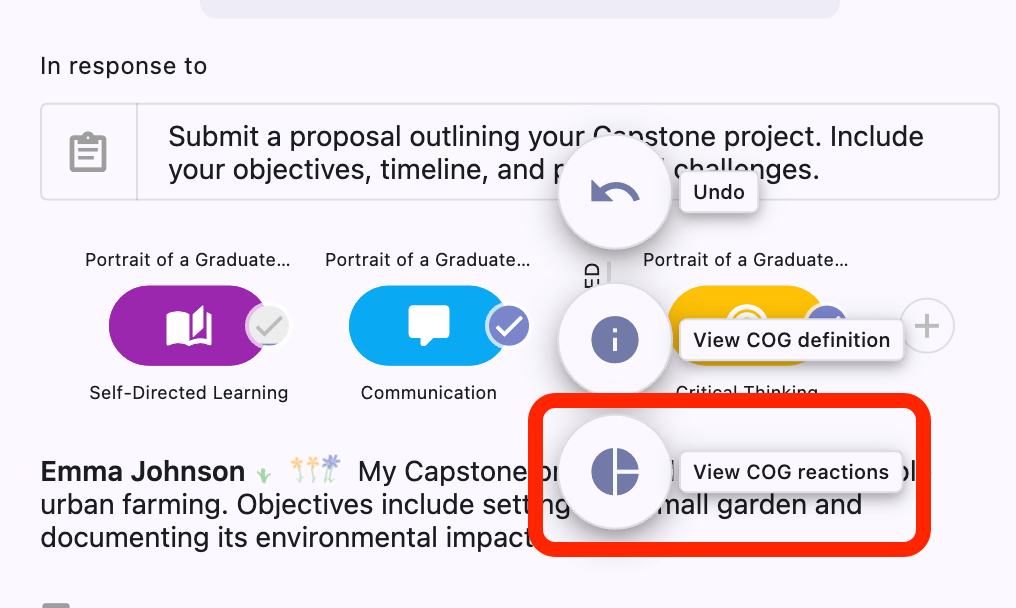
Tap/click the COG.

Tap/click the ‘View COG reactions’ button (pie chart icon).
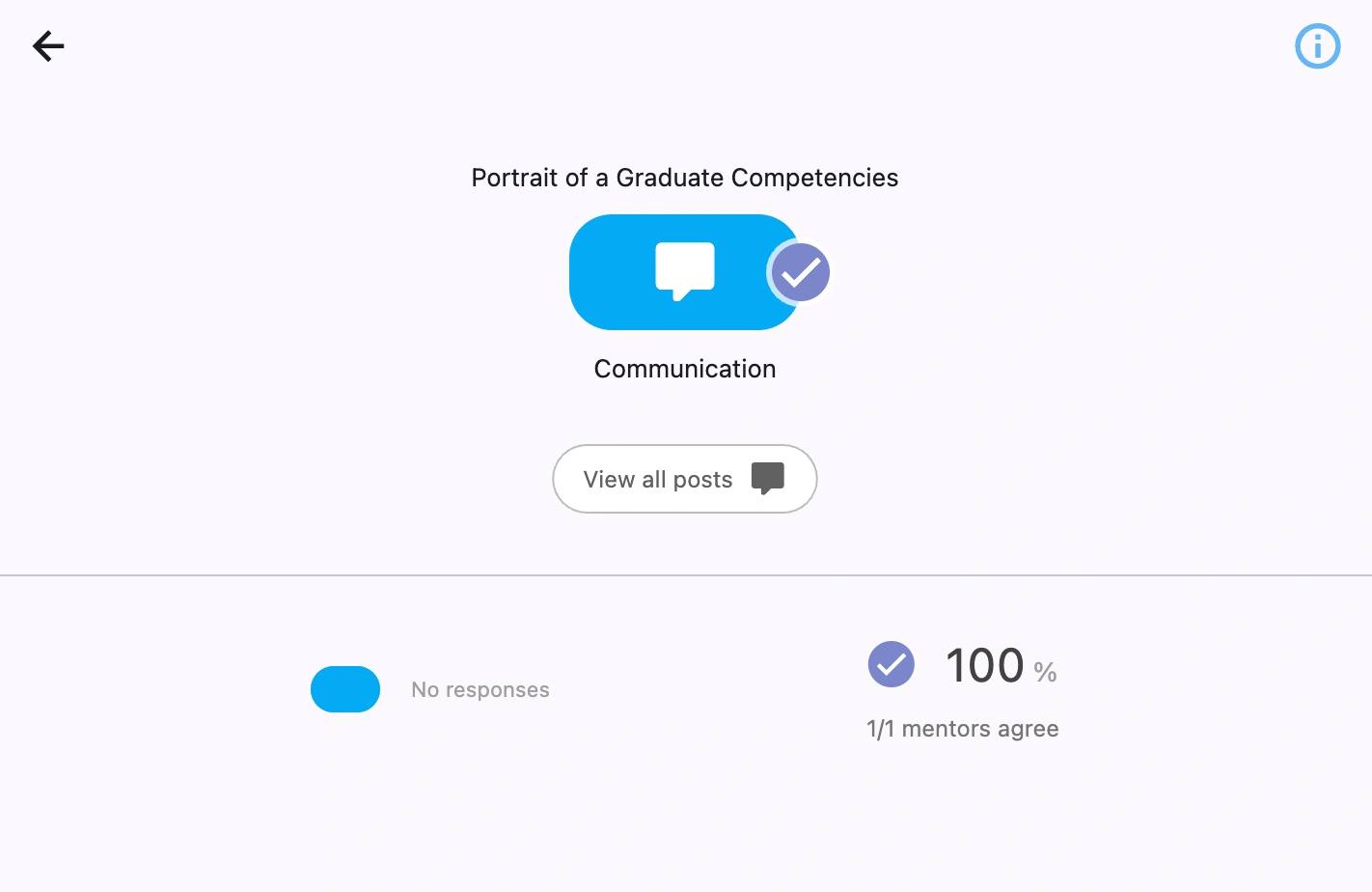
A summary of the responses from peers and mentors/teachers is presented.
How to review a summary of evaluations for a learner:
Navigate to the profile page of the learner. (See How do see information related to a particular student?)
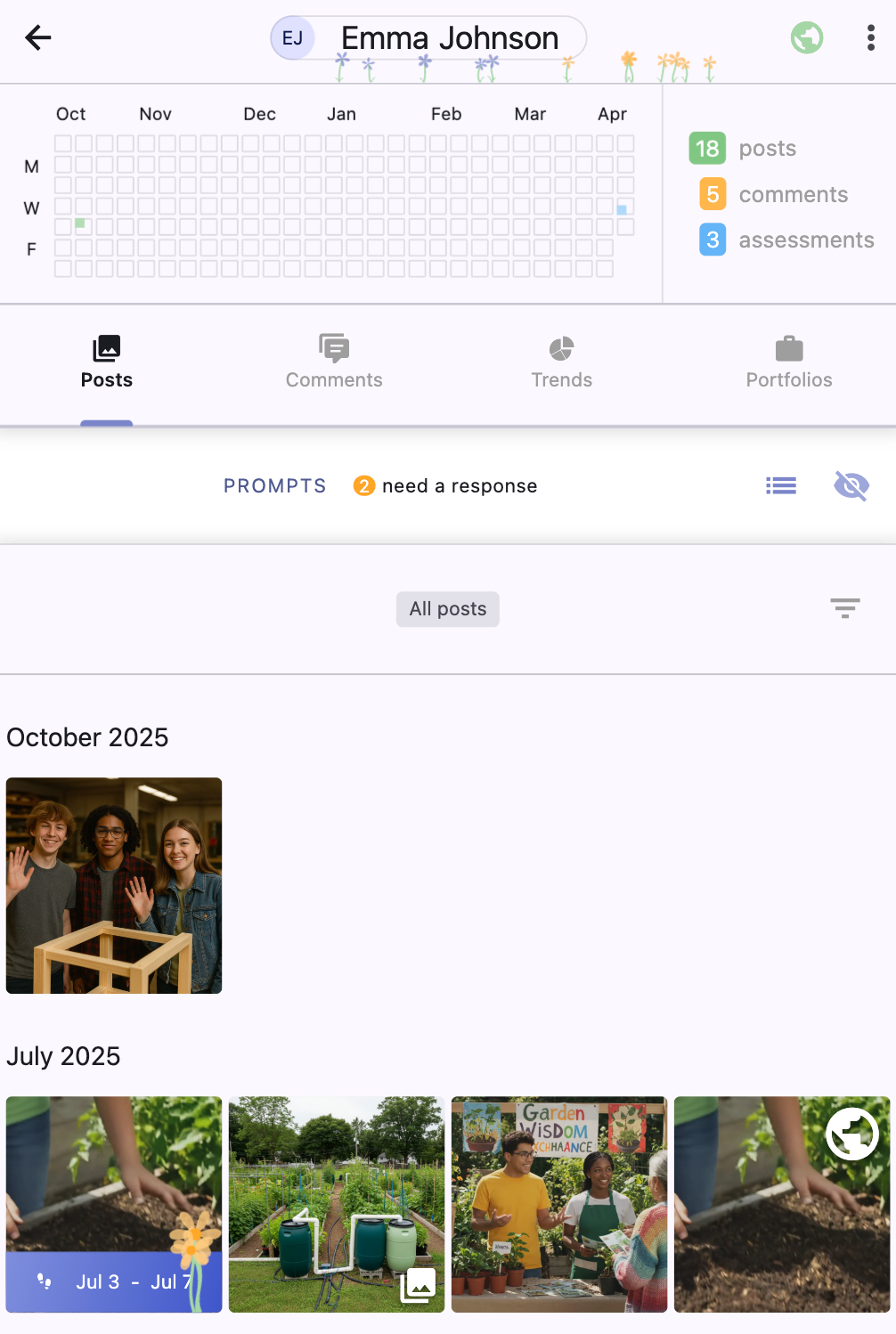
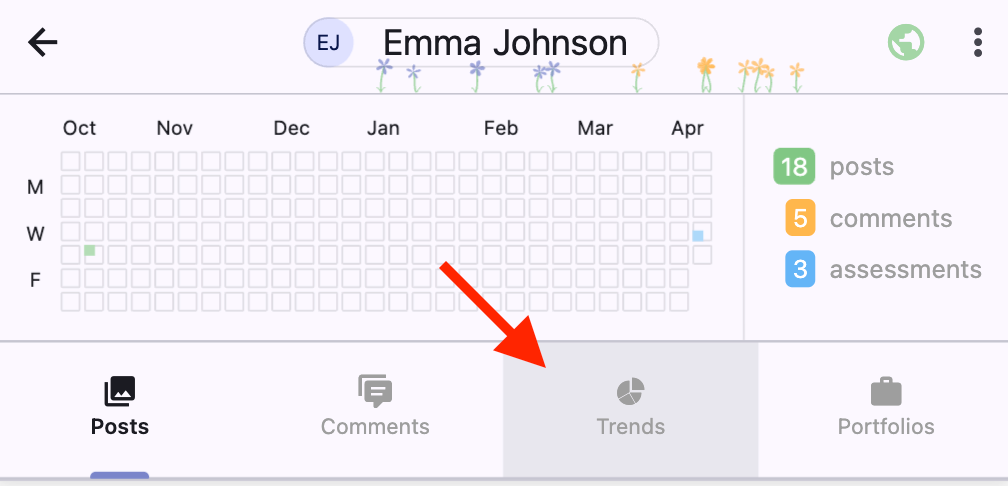
Choose the ‘Trends’ tab.
Choose the time frame over which you'd like to see the summary.
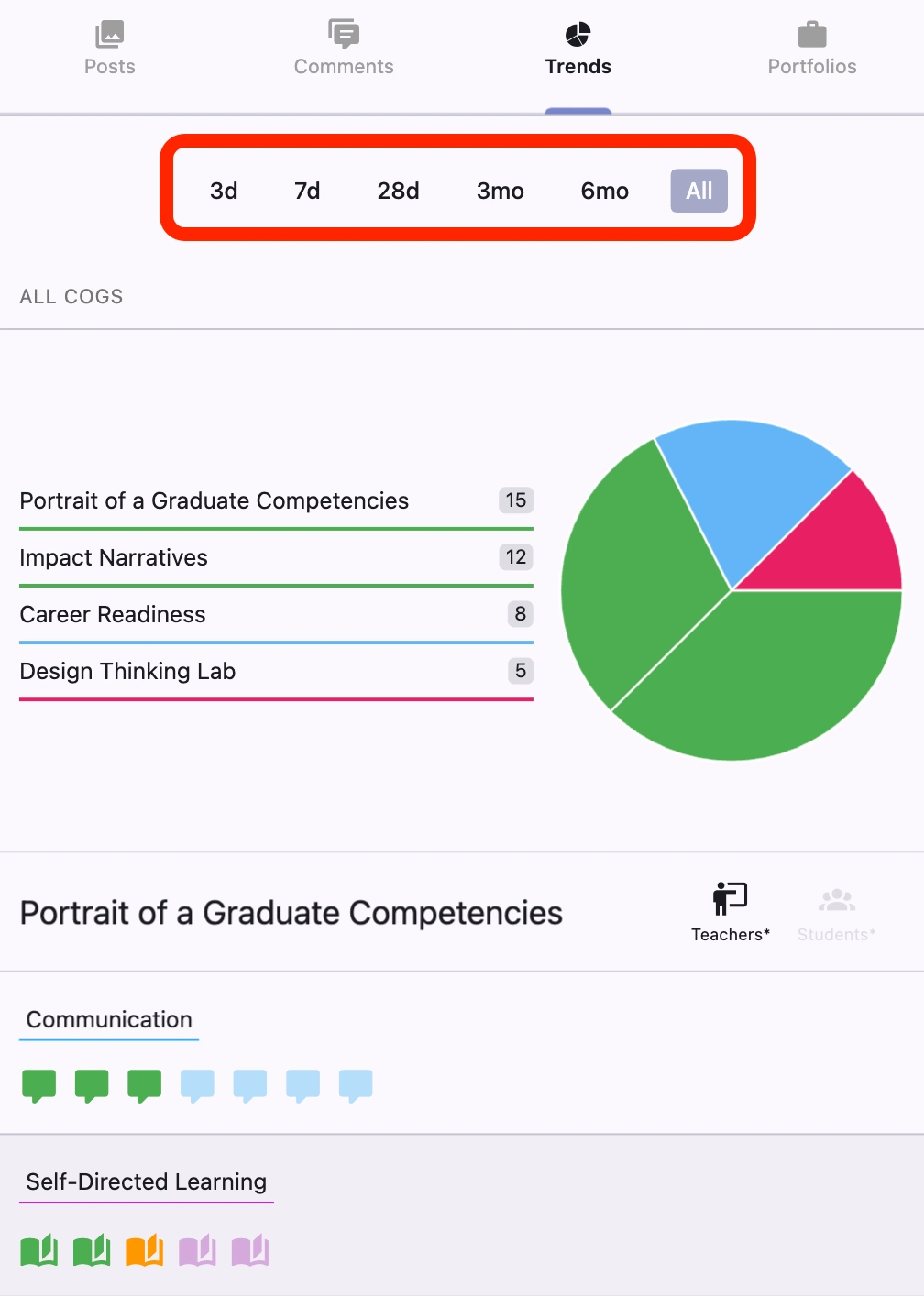
A summary of all COGS this learner has posted with over the period is displayed.
Each icon represents a COG used by the learner.
A light color means the COG was not evaluated by a peer or teacher/mentor.
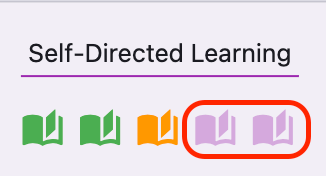
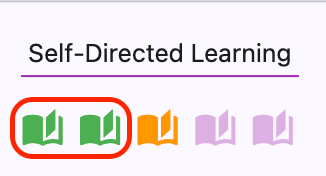
Green means the COG was evaluated with a check mark (‘Did it’).
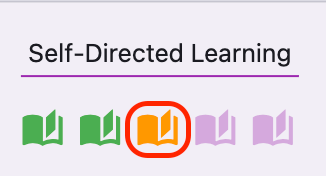
Orange means the COG was evaluated with a question mark (‘Not quite there’).
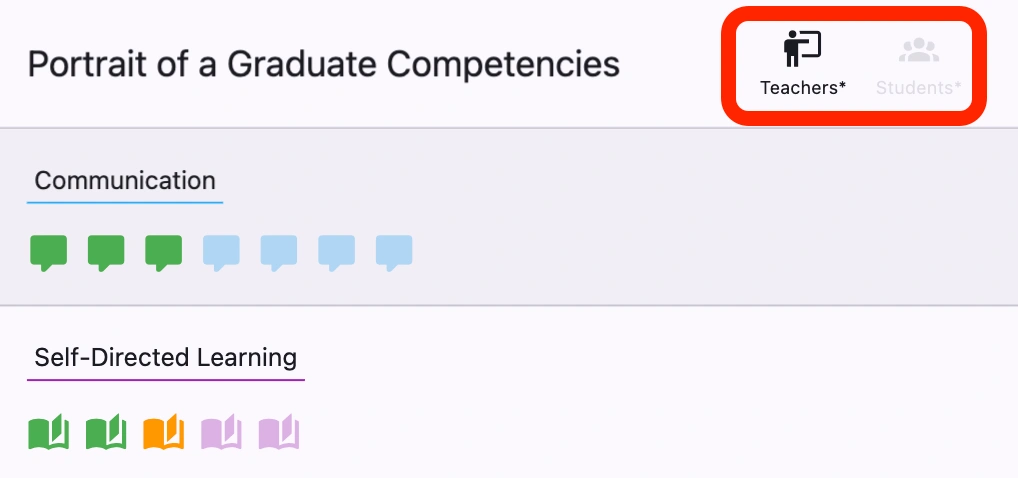
The evaluations displayed are those of either teachers/mentors or peers. This can be toggled using the Teachers and Students icons:
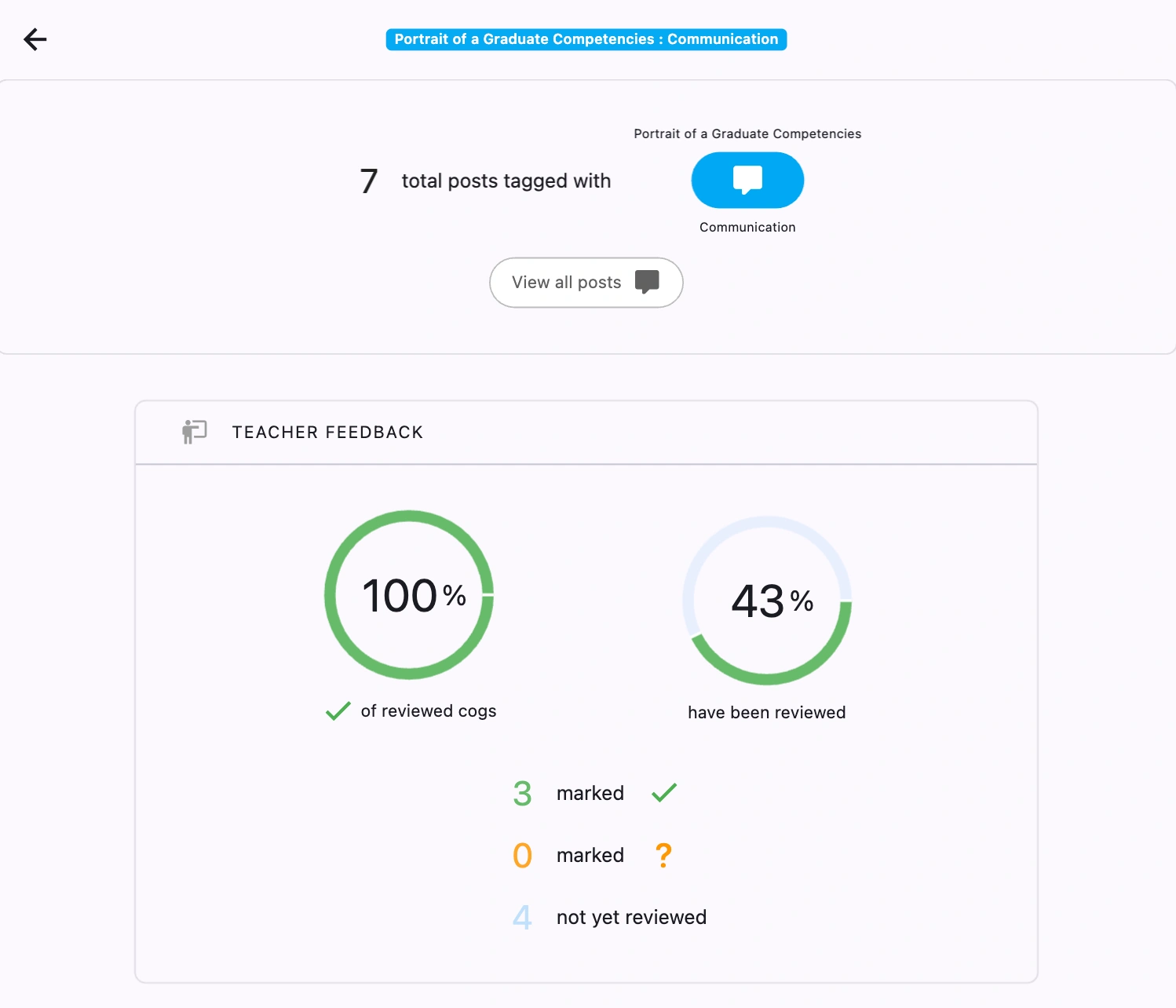
To get a quantitative summary of all evaluations for a given COG, tap/click one of the COGS in the section.
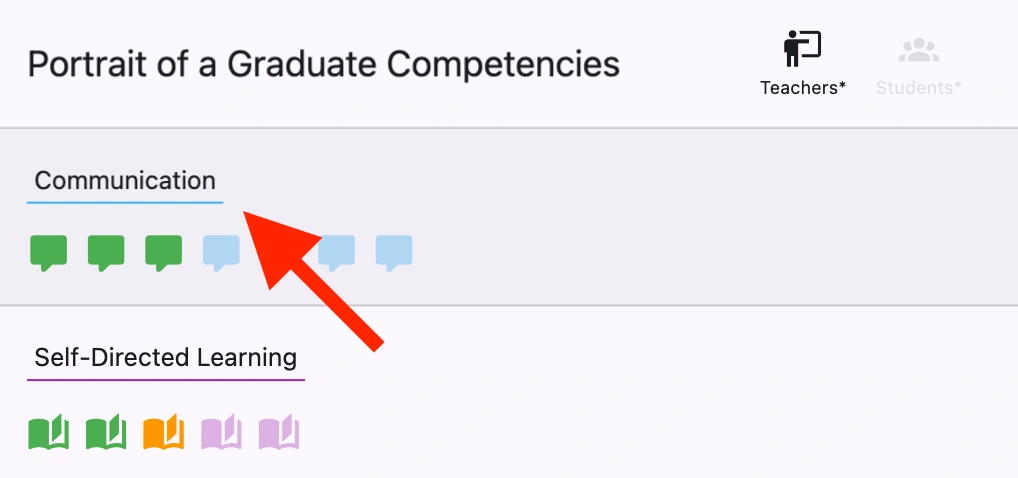
A complete summary of all evaluations for that COG is displayed.
How to review a summary of evaluations for a class or group:
All of the summaries available for learners are also available for a class or group. The summaries displayed for a class or group represent the sum total of all evaluations on all posts shared with the group.
To display assessment summaries for a group:
Navigate to the group page. (See How do I find posts by group and see other information about a group?)
Follow the steps starting at Step 2 (Choose the ‘Trends’ tab) above.