
Depending on your school or organization's settings, there are three easy ways to access your account.
1. Access the Unrulr Platform
First, ensure you are using the correct version of Unrulr for your device:
Mobile & Tablet: Open the Unrulr app. If you haven't installed it yet, search for "Unrulr" in the Apple App Store or Google Play Store.
Web Browser: Navigate to https://community.unrulr.com.
2. Choose Your Sign-In Method
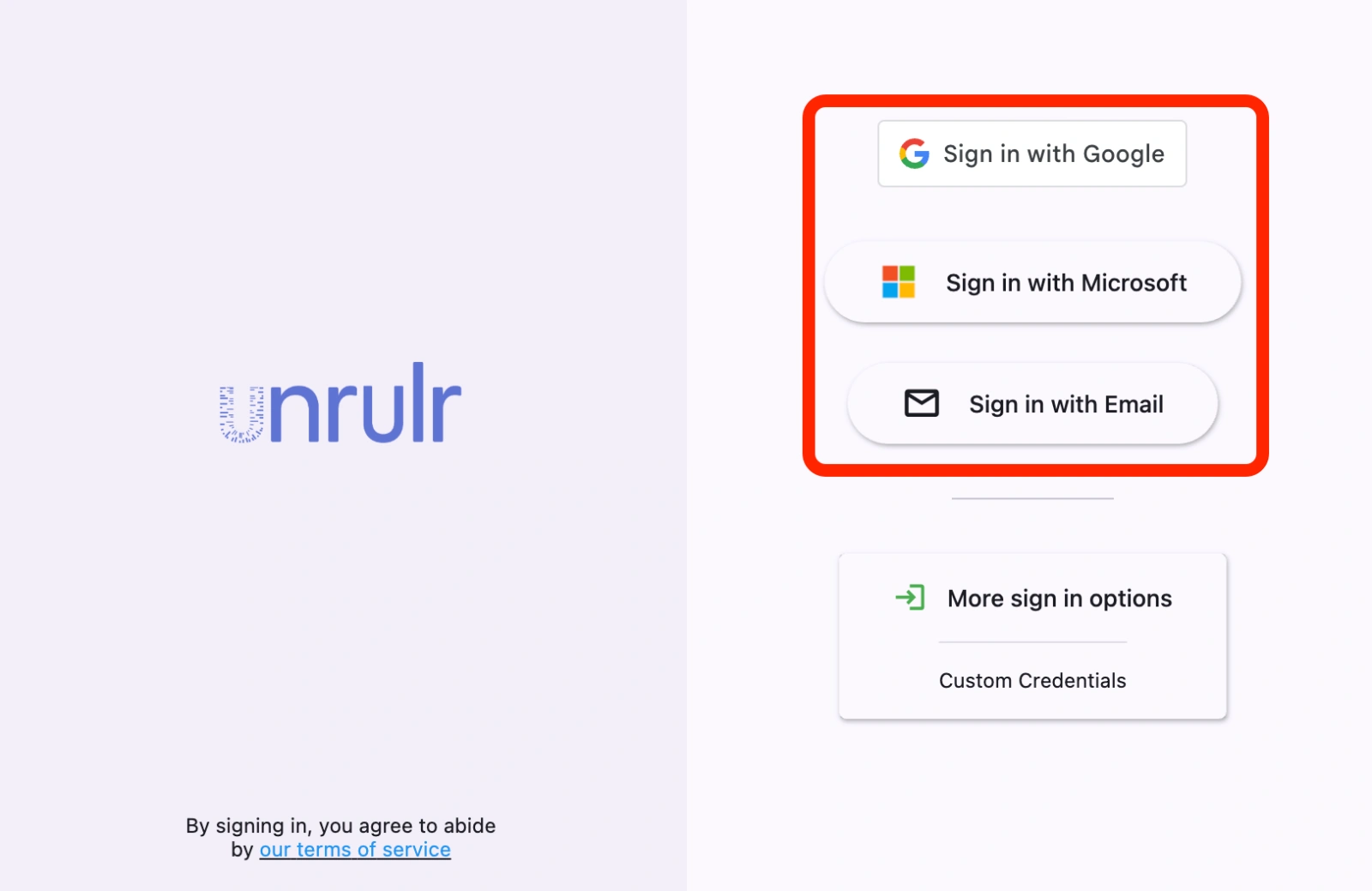
Your sign-in method depends on how your school has set up your account. Choose the option that matches your organization:
Sign in with Google: Schools using Google Workspace for Education.
Sign in with Microsoft: Schools using Office 365 or Microsoft accounts.
Sign in with Email: Users without Google/Microsoft, or those experiencing SSO issues.
3. Complete the Authentication
Follow the specific steps for your chosen method below:
Google or Microsoft (Single Sign-On)
Select the Sign in with Google or Sign in with Microsoft button.
If prompted, enter your school-issued email address and password.
Once authenticated, you will be redirected straight to your Unrulr home feed.
Sign in with Email (Magic Link/Code)
If you aren't using a Google or Microsoft account, or you're having trouble with those buttons:
Select Sign in with Email.
Enter the email address associated with your Unrulr account.
Tip for Students: If you aren't sure which email to use, check with your teacher.
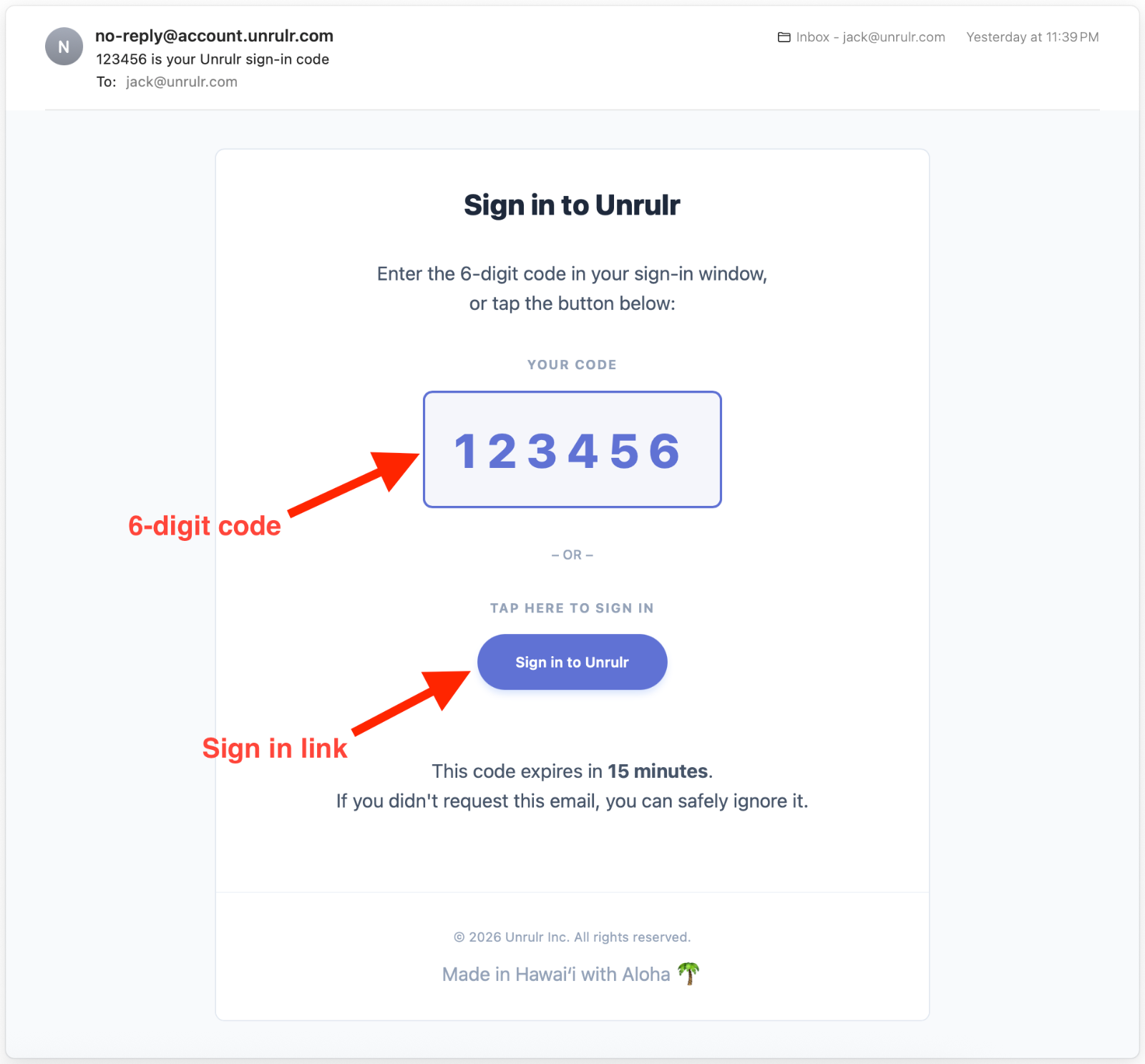
Check your inbox for an email from Unrulr.
To finish signing in, you can either:
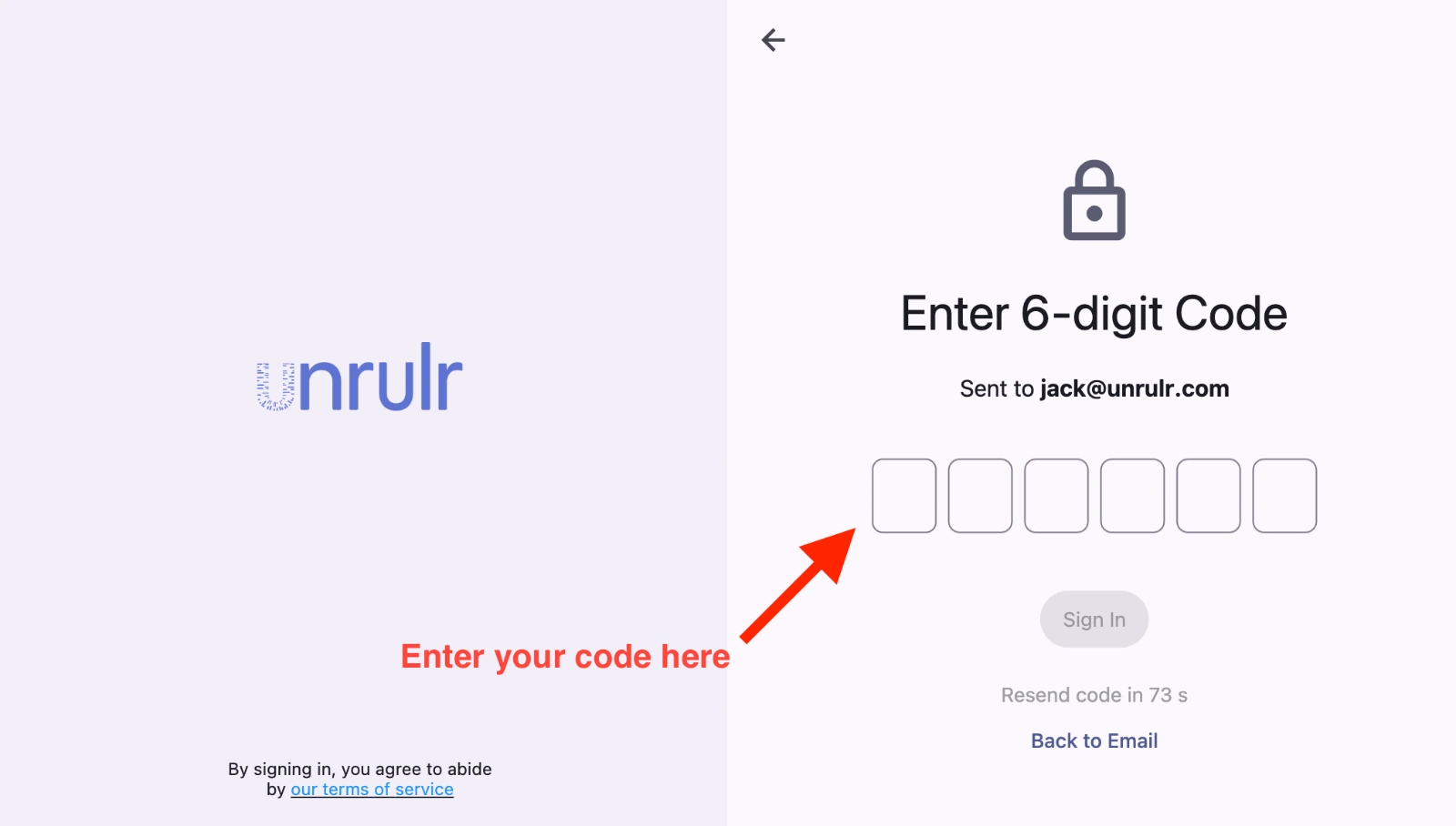
Enter the 6-digit code provided in the email into the Unrulr app.
Click the "Sign in to Unrulr" button directly within the email to be logged in automatically.
Troubleshooting Tips
Check your Spam: If you don't see the 6-digit code email, check your "Junk" or "Spam" folders.
School Filters: If you aren't receiving the email at all, your school's IT department may need to whitelist Unrulr.
Stay Updated: Ensure you are running the latest version of the app for the smoothest sign-in experience.