
So you've made an awesome post, you've shared it with a group, and now you want to share it with the world? Amazing!
We love public exhibitions of learning, and when learners are proud of their work.
In this section we'll talk about two things:
How to make a post public, and how to let other people, who may not have an Unrulr account, view that post.
Common questions around publishing a post.
How to make a post public and share with others
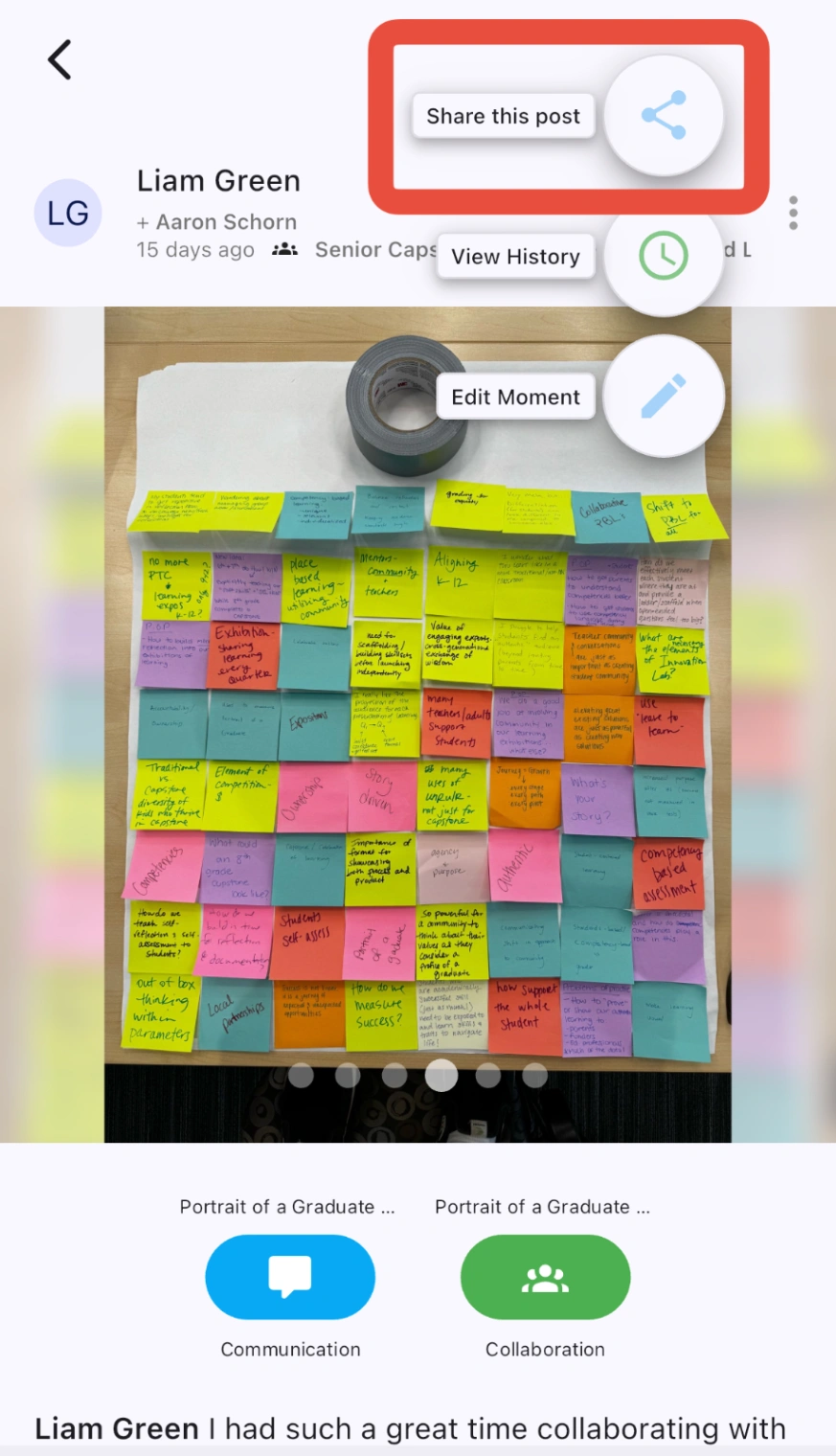
Tap on the 3-dot menu in a post header.
Tap the Share this Post button
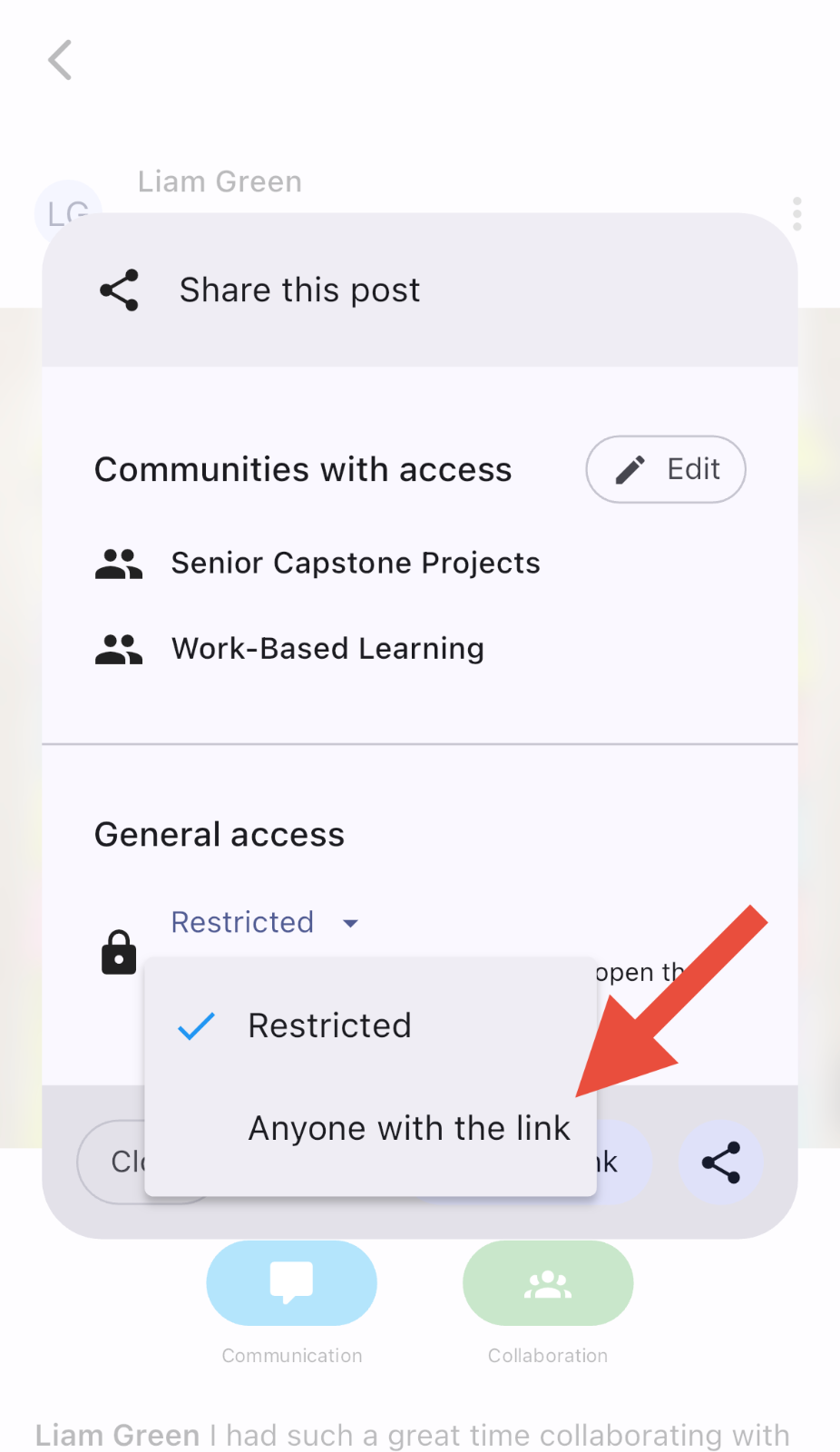
Change General Access from Restricted to Anyone with the Link.
Read the disclaimer, then tap Agree when ready.
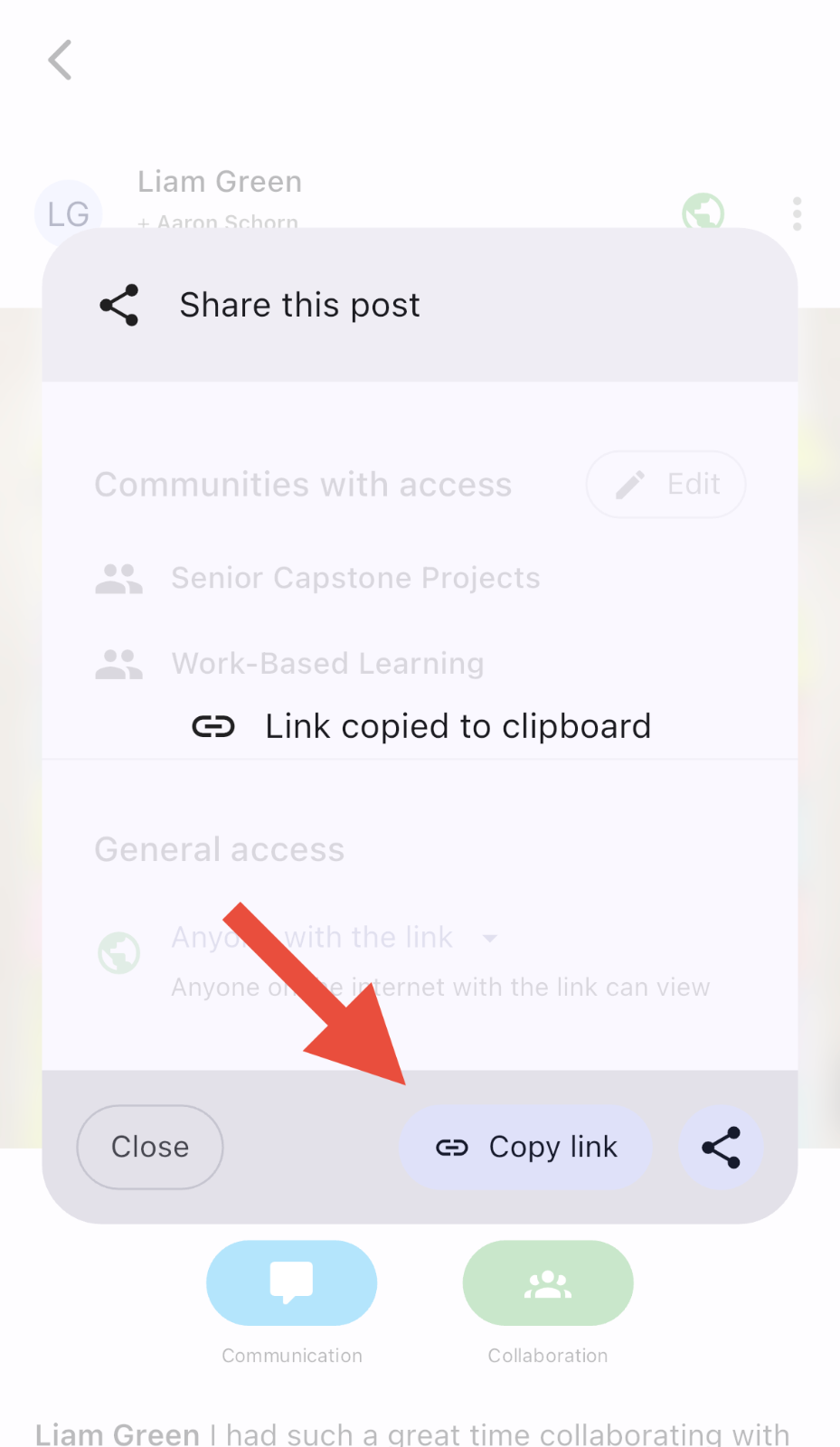
Use the Copy Link or Share buttons to share your public post outside of Unrulr.
Common questions about making a post public
Publishing things to the interwebs can be a little scary, especially when it involves students and learning. Our goal is to help you understand how publishing a post works in Unrulr, so that you can make a better informed decision around when to publish something.
Q: When I publish something, does that mean random people will see it?
Publishing in Unrulr works similarly to Google Docs. When you publish a post, we create a unique URL that is specific to that post. And we don't list that URL anywhere except where we share it with you, the author. That way, you control who can access the post, by deciding who to share it with.
That said, if you do put the link somewhere public, like on a blog or on social media, anyone who can see that link can also see your Unrulr post. And if someone you share it with re-shares it, then that audience will also be able to see your post.
So, once you have a link, remember to think about who you share it with and where you share it.
Q: Do you anonymize public posts?
Yes and no :)
When we publish a post, we change all the names of the commenters to justtheir initials. So Bob Bobberson becomes BB in the comment sections. But we do not:
Change the name of the author in the header (because that wouldn't make a lot of sense)
Change/blur any people in the images or videos (because this is hard to do!)
So, be careful that when you share, you have permission to share. Especially if any of the images or videos have peers or students in them.