The Short Version
The three basic levels of sharing are:
PRIVATE
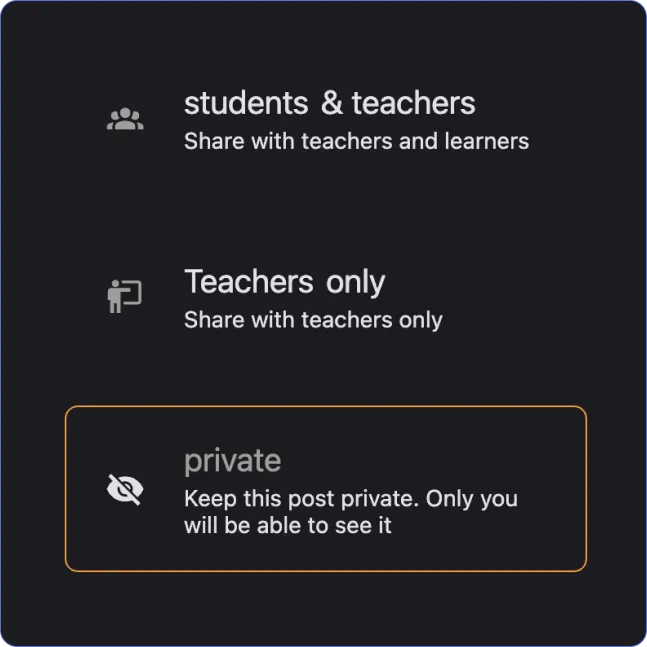
Only visible to you. Posts default to private (you have to actively make a selection to share with someone).
WITH A GROUP
Shared with a group you are a member of. The two options are:
Everyone in the group
Only the members who have a Teacher role
PUBLIC
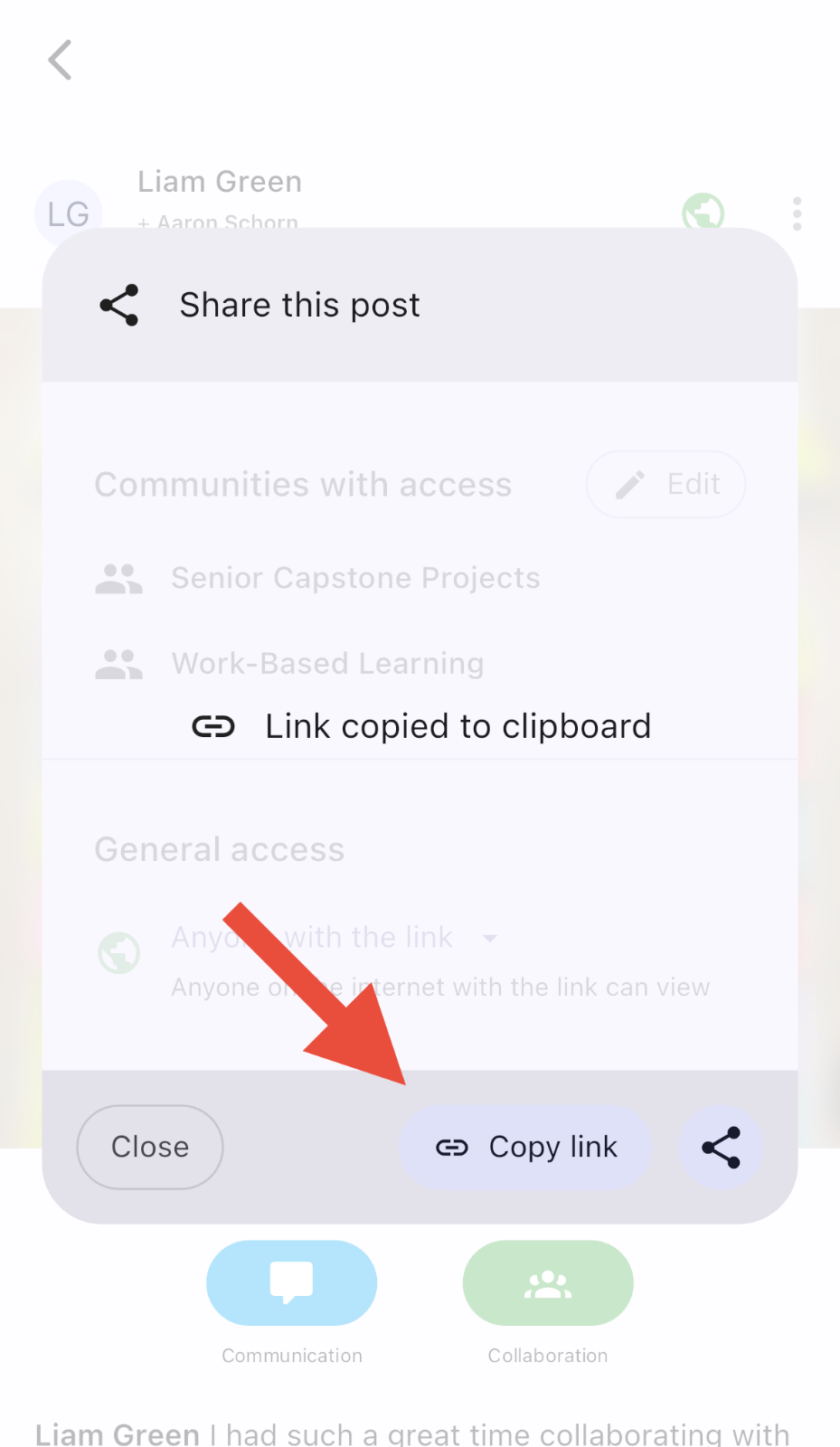
You can generate a URL for a post which you can send to anyone you want to share your work with (even if they don't have an Unrulr account).
The Long Version
So you've captured an amazing moment of learning. And now you want to post it. But you want to know:
Who, exactly, will see this amazing work?
How do I control where the post is visible?
Let's break down the three levels of sharing in Unrulr.
Sharing: Private
This is private private. As in, only you can see this. Nobody else in the app, or in the world, will be able to see this without peering over your shoulder at the screen.
If you're in Unrulr in a single group, you'll see a screen like this when you're posting something privately:
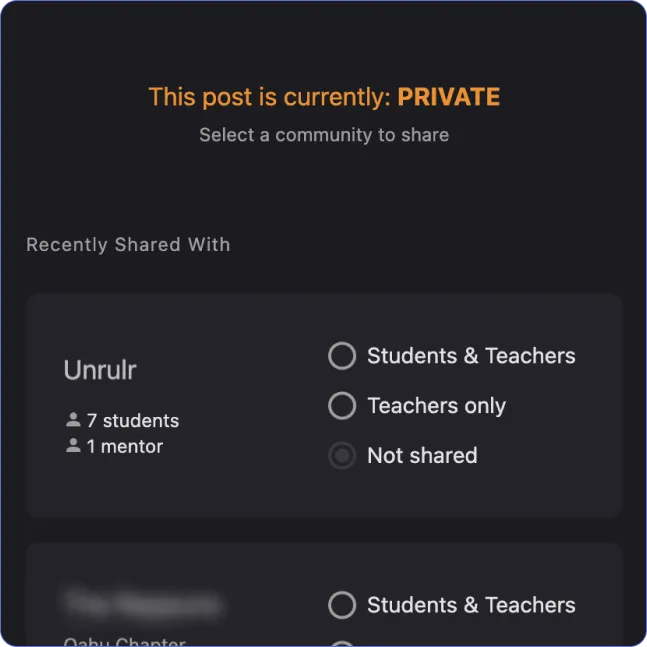
And if you're in more than one group, a post is private when it is "Not shared" with any group. We'll let you know if it is with a message at the top of the screen:
Sharing: With a Group
The second level of sharing in Unrulr allows you to choose which groups, and who within a group, can see that delightful post you're building.
There are two different ways to share within a group:
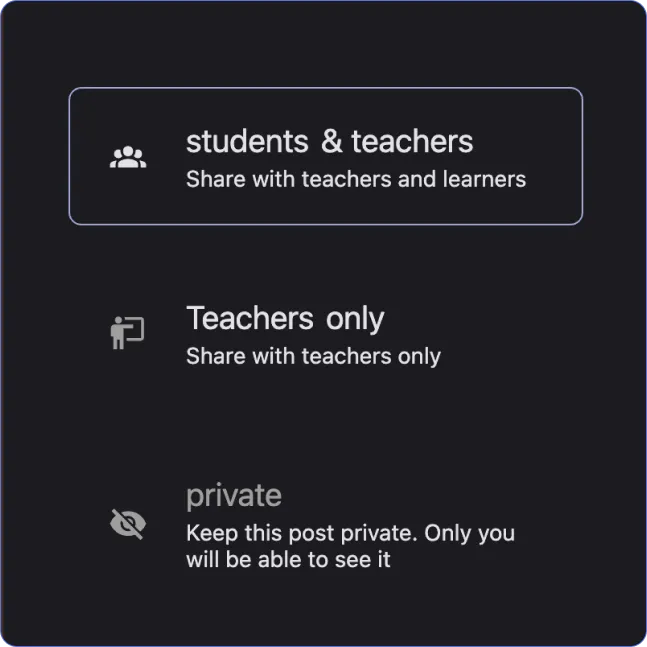
Teachers only - only users with the role of teacher (see note on role names below) can see your post. Other students will not be able to see the post.
Teachers & Students - both teachers and students (everyone in the group) will be able to see your post.
When you're in only one group, you'll see 3 options. Pick the one which fits:
When you're in multiple groups, you can choose:
Which group(s) you want to share with
Who you want to share with in each group
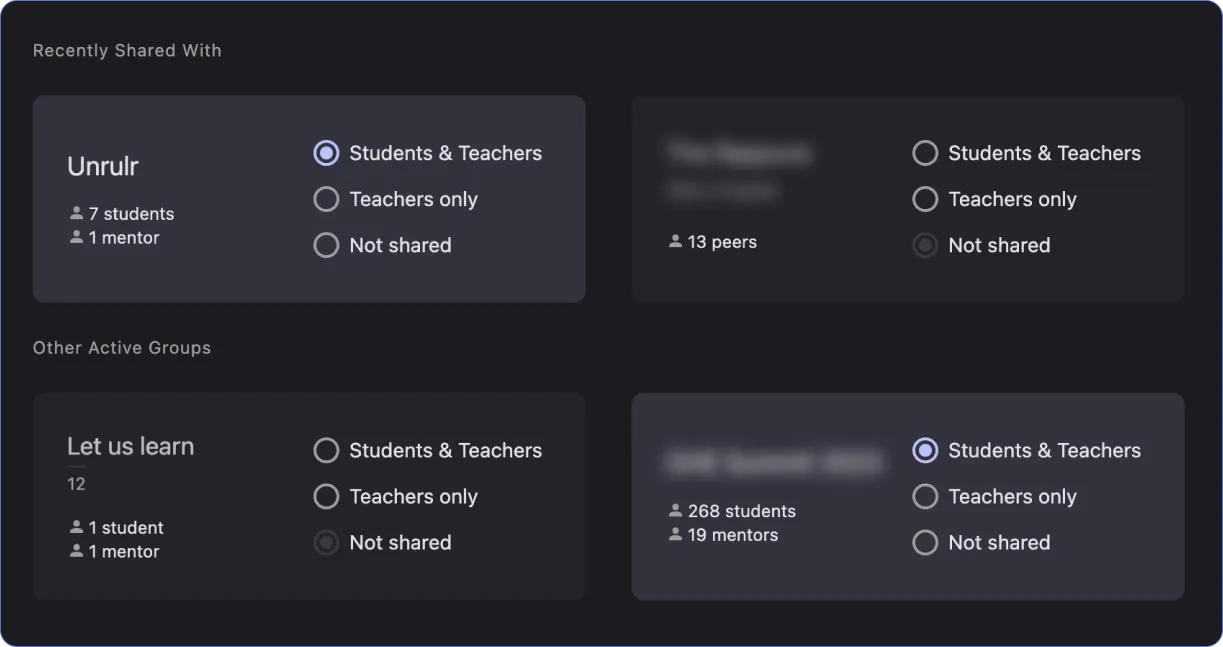
Group Sharing Recap
Choose the people you want to share with, within a group:
Teachers only
Teachers & Students
Sharing: Making a Post Public
So you've made an awesome post, you've shared it with a group, and now you want to share it with the world?
This is actually super easy. For a full breakdown, you can check our article on how to publish posts, but in brief you just:
Tap on the 3-dot menu in a post header.
Tap the Share this Post button
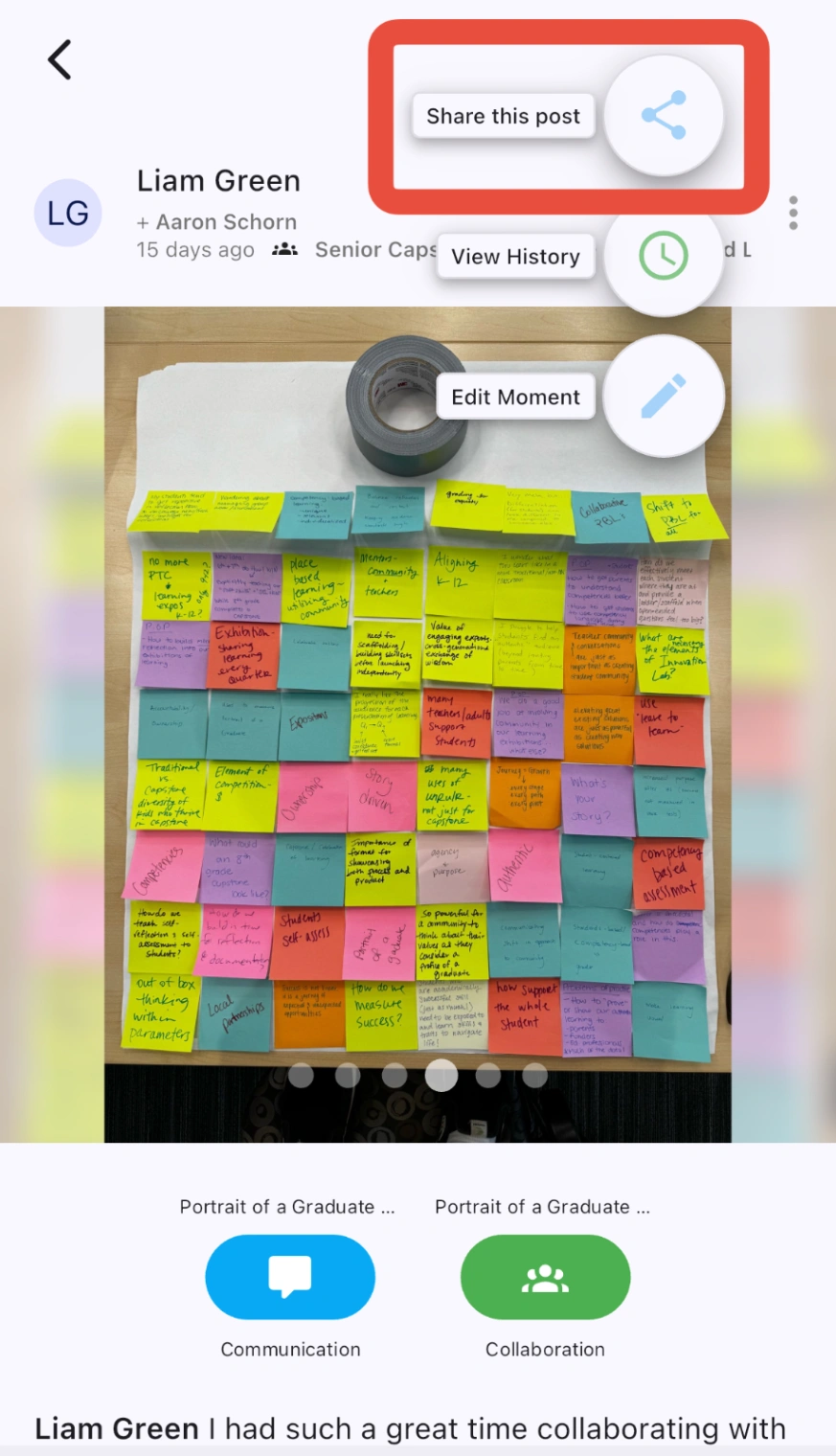
Change General Access from Restricted to Anyone with the Link.
Use the Copy or the Share buttons to share the link out.