
Edit/View Mode
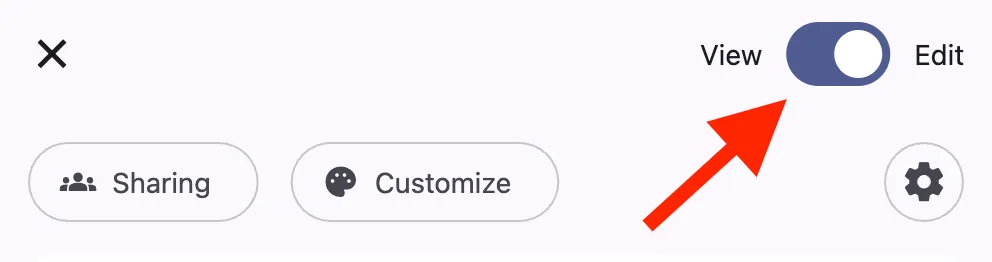
To make changes to a portfolio template, switch the toggle at the top bar from View to Edit.
Template Title
Press the Header button at the top of the screen to edit the template title. You can also choose to lock the title, which prevents students from renaming portfolios created from this template.
Sharing Permissions
Press the Sharing button at the top of the screen to set sharing permissions. You can choose which groups have access, and whether the template is shared with Students & Teachers or Teachers Only.
Anyone the template is shared with can create a portfolio from it.
Teachers it is shared with can also create their own copy of the template.
Pages (Add, Reorder, Rename, Delete)
Add a Page: Use the Add a Page button to create a new page. Name the page, and decide if the name should be locked. Each page comes with the same empty sections: Summary, Evidence, and Highlights.
Reorder Pages: Press Reorder to adjust the sequence of existing pages.
Rename Pages: Use the Rename button next to a page title.
Lock Page Titles: In the rename settings, Lock Page Title to prevent students from renaming pages.
Delete Pages: Use the Trash button. Deleted pages can’t be recovered. If a page is deleted after students have created portfolios, their work remains—but it’s no longer linked to the template.
Instructions
One of the most powerful parts of templates is adding instructions for learners. You can add instructions to each section of a page—Summary, Evidence, and Highlights—and also to the Cover Page Overview.
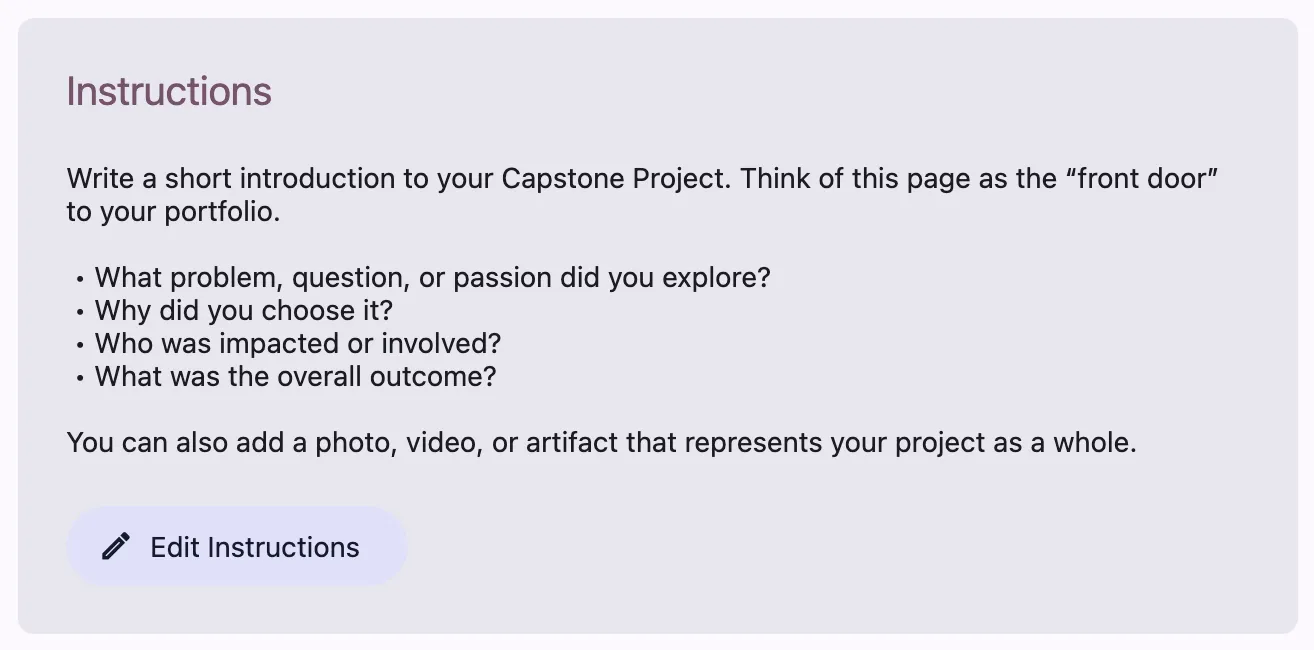
By default, templates come with placeholder instructions.
Press Edit Instructions in any section to customize them.
Instructions are visible to learners while editing their portfolio, but are hidden from viewers of the finished portfolio (in Unrulr or when published).
Any changes you make will apply to portfolios created from that template.
Cover Page
Every template includes a Cover Page by default. This page lets learners introduce their portfolio in the Overview section. They can add a featured media item (photo, video, audio, PDF) and a written explanation. Use instructions here to guide what they include.
You can also add Visualizations to the Cover Page. These display high-level data from the portfolio and can only be added by template creators (not students).
Visualizations
Currently, there are three visualization types (with more coming):
Bar Chart: shows the number of each COG tagged, visualized as bars.
Headline Count: shows a numeric count of COG tags as a large headline + icon pair.
Area Chart: shows how COGs have been tagged over time.
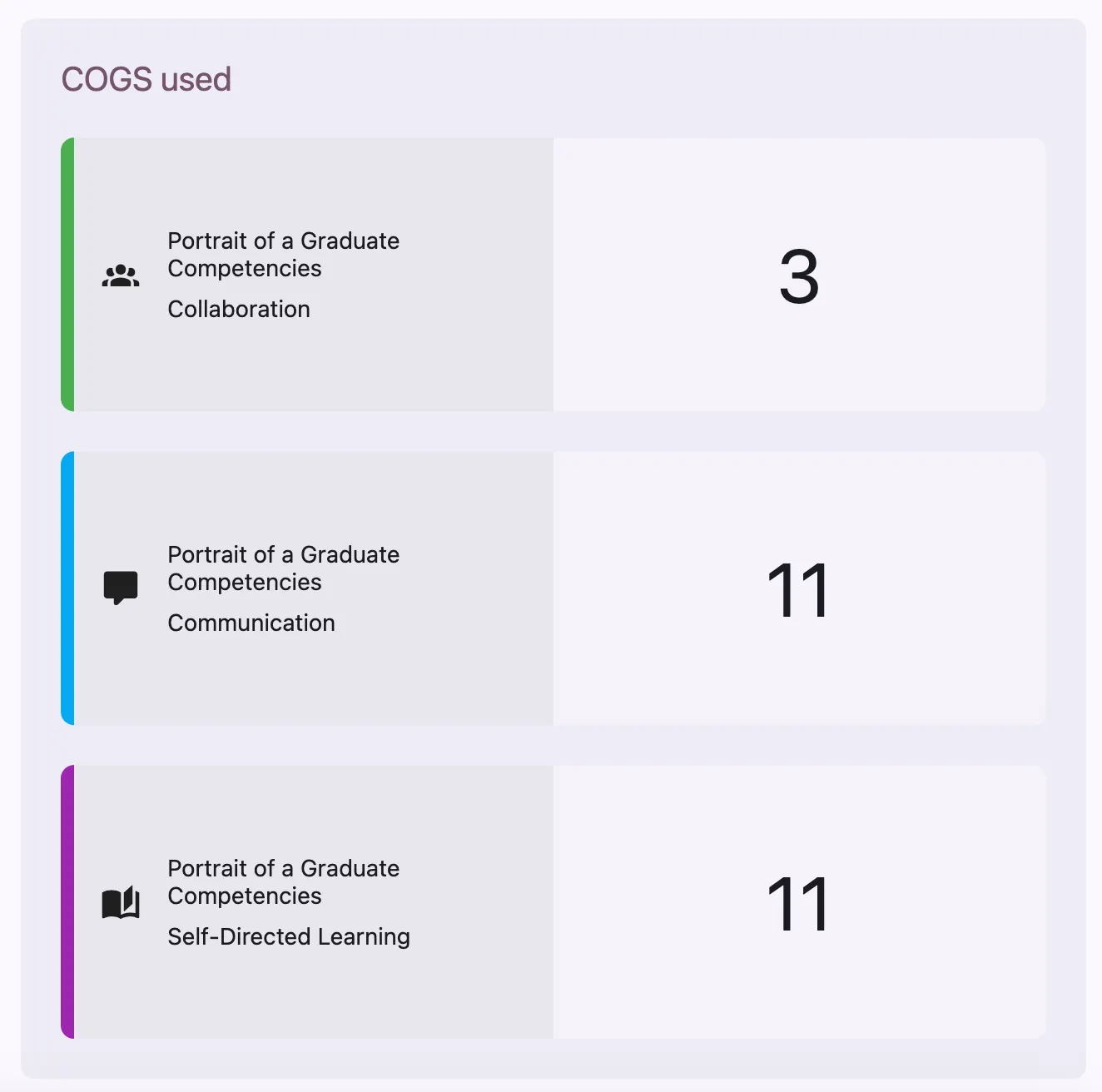
Example of a Headline Count Visualization
To manage visualizations:
Press + Add to create a new visualization.
Use Edit on an existing visualization to rename it, filter data, or delete it.
Filtering lets you focus on specific competencies (e.g. Portrait of a Graduate outcomes).
Pages & Sections Recap
Every page in a template includes three sections learners will fill in:
Summary: Featured media + written summary.
Evidence: Posts and journeys pulled from Unrulr.
Highlights: Selected media items paired with narrative.
You can use instructions in each section to set expectations (e.g. “Include at least three pieces of evidence” or “Create two highlights that show different perspectives”).