
Trends show which COGS are being tagged on posts, and how often, over a time range you choose. Use them to see at a glance how a student (or a whole class) is documenting, and growing in, the skills that matter most in your class.
Trends work the same way for students and groups:
A student’s Trends show the COGS on that student’s posts
A group’s Trends show the COGS across everyone in the class, combined
New to COGS? Start with What are COGS?
Open Trends
Tap the Search tab (magnifying glass icon) and enter a student’s or group’s name.
Select the student or group. You can also tap a student’s name or a group’s name in the header of any post.
Tap the Trends tab.
Choose a time range at the top: 3d, 7d, 28d, 3mo, 6mo, or All.
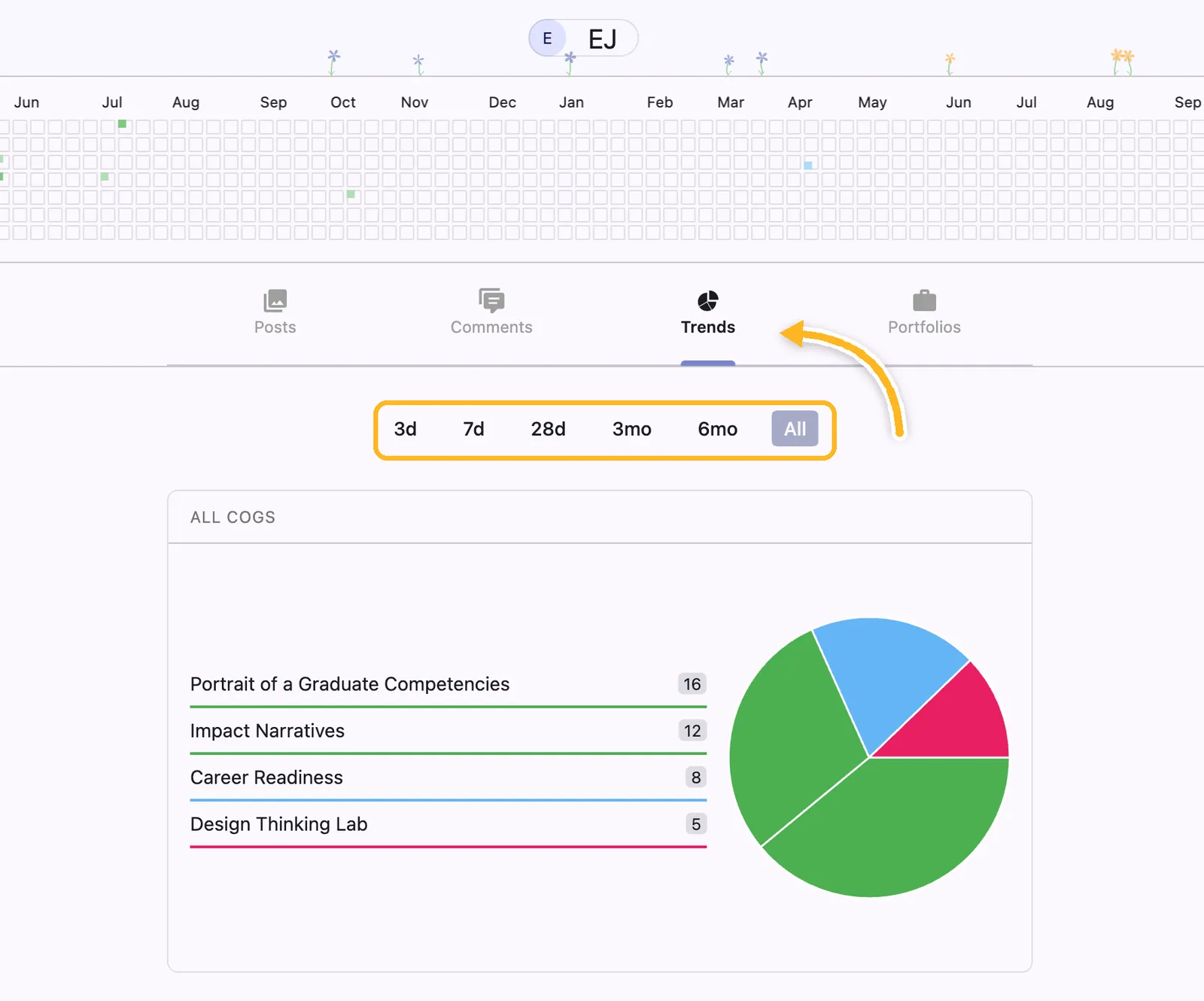
View COG counts
Counts show how often COGS have been tagged during the time range you picked. For a student, they reflect that student’s posts. For a group, they add up posts from the whole class.
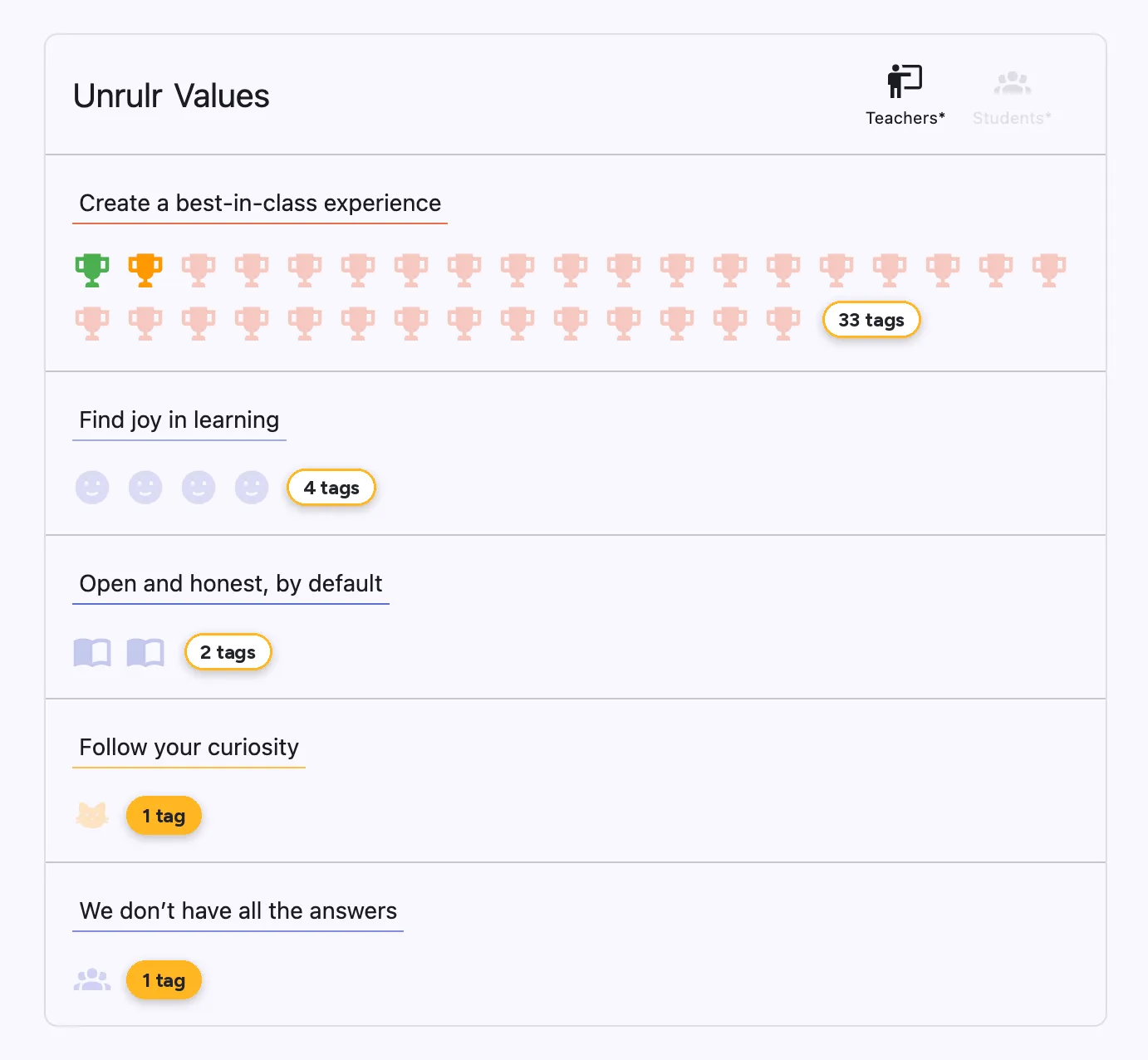
The All COGS chart lists each COGS set with its count. Scroll down below the chart to see each COGS set on its own, with a row for every COG inside it. Each icon is one tag, so a longer row means that COG has been tagged more often.
See every post tagged with a specific COG
Select the COG you want to explore (for example, Communication). You’ll see the total number of posts tagged with it.
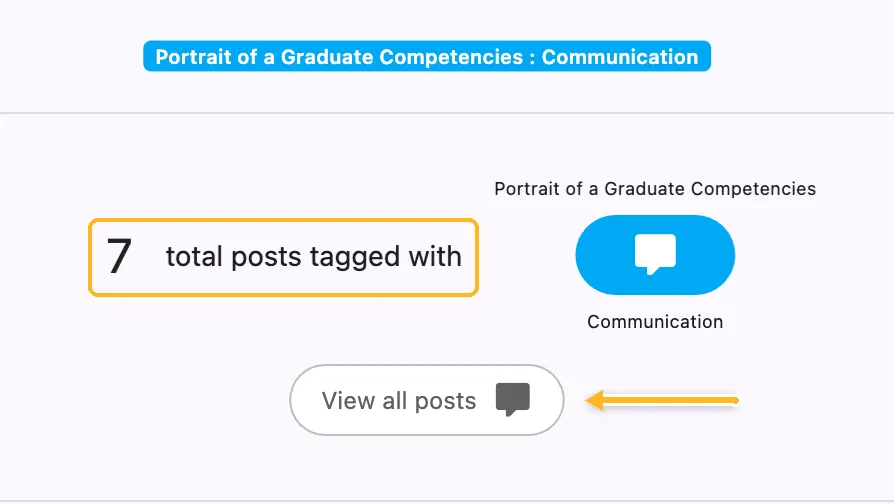
Tap View all posts.
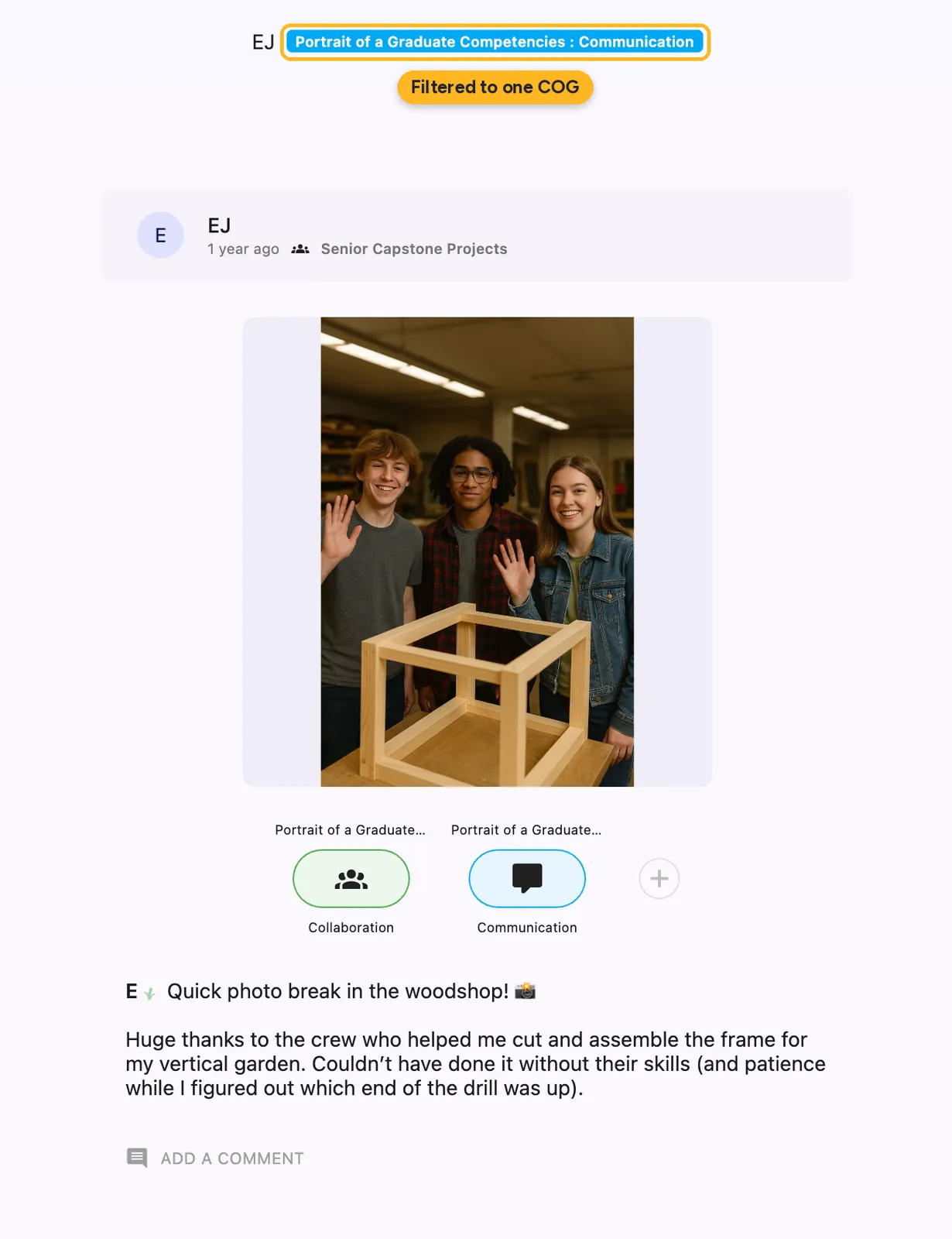
You’ll see every post tagged with that COG, in one place. It’s a quick way to see evidence of growth in that skill over time.
Spot COGS that need more attention
Trends also make it easy to see which COGS are under-indexed, either across a class or for one student. In the example above, “Create a best-in-class experience” has been tagged 33 times, while “Follow your curiosity” and “We don’t have all the answers” have each been tagged once.
When a COG has few tags, try one of these:
Create a Prompt that targets it. Give students a specific reason to practice and document that skill. See How to Create a Prompt.
Talk about it with your class. Students may be practicing the skill but not recognizing it. A quick example of what it looks like can help.
Compare group and student Trends. Check whether a gap is class-wide or limited to a few students, then follow up where it makes sense.
Good to know
Counts can add up to more than a student’s total posts. A single post can be tagged with more than one COG, so each tag is counted.
Trends reflect the COGS your group uses. To change which COGS students can tag, a teacher or group organizer can create COGS and add them to the group from the Admin Dashboard.